Example app - Employee management
How to build an employee management app in FileEazy - employee records, leave requests, training and signed contracts - with the lists, fields, relationships, permissions and reports to set up.
An employee management app keeps everything about the people in your organisation in one place: their details, their leave, their training and their signed documents. It saves HR from juggling spreadsheets and shared folders, and gives managers a clear view of their team.
This guide shows one way to design it. Change the lists and fields to match how your organisation works.
What the app does
- Keeps one record for each employee, with their contract and other documents attached.
- Lets employees request leave, and managers or HR approve it.
- Tracks training and certifications, and flags the ones that are about to expire.
- Gives HR reports on headcount, contract end dates and leave.
The lists
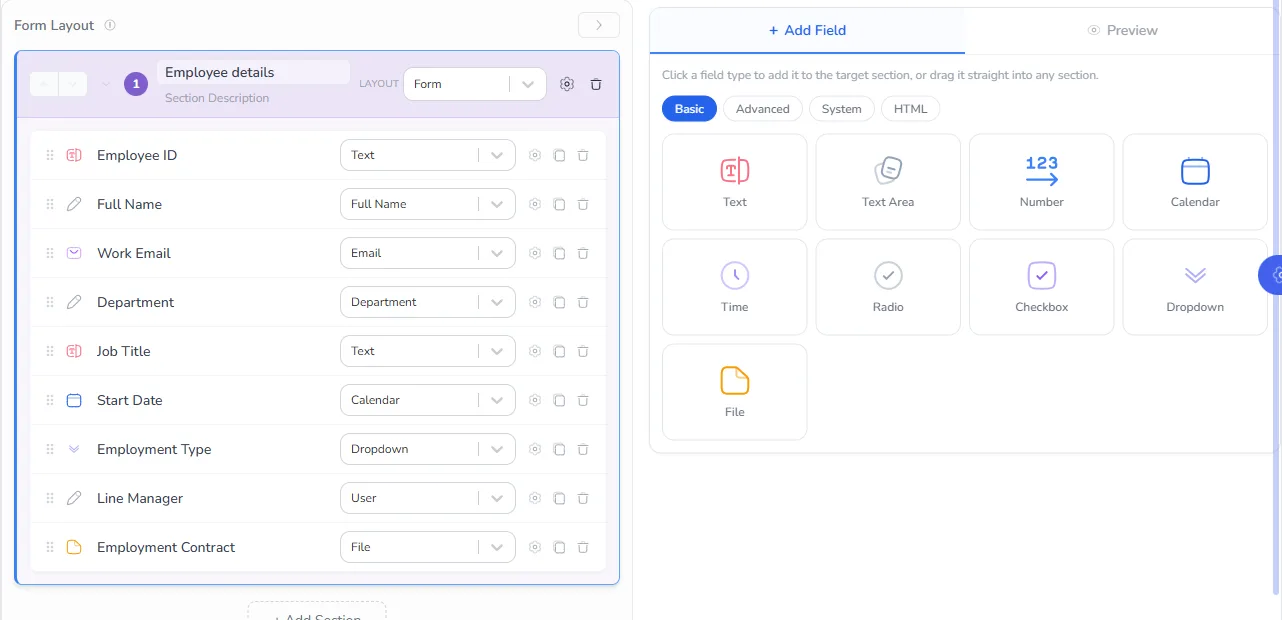
Create these lists first (see Create a list), then add them to an app. Employees is the primary list and the others are secondary lists.
Employees (primary)
One record per person.
| Field | Type | Notes |
|---|---|---|
| Employee ID | Text | Mark as Master Field and Unique. |
| Full Name | Full Name | Also mark as a Master Field. |
| Work Email | Unique. | |
| Department | Department | A system field, so people pick from your real departments. |
| Job Title | Text | |
| Start Date | Calendar | |
| Contract End Date | Calendar | Lets HR search for contracts that are ending soon. |
| Employment Type | Dropdown | For example Full-time, Part-time, Contract, Intern. |
| Line Manager | User | A system field, so managers are real FileEazy users. |
| Status | Dropdown | For example Active, On leave, Left. |
| Salary | Currency | Restrict with Data Permission so only HR can see it. |
| Employment Contract | File | The signed contract, stored in the File Manager. |
Leave Requests (secondary)
| Field | Type | Notes |
|---|---|---|
| Employee | Record | Links the request to an employee. |
| Leave Type | Dropdown | Annual, Sick, Unpaid and so on. |
| From, To | Calendar | |
| Days | Number | |
| Reason | Text Area | |
| Status | Dropdown | Requested, Approved, Rejected. |
| Approver | User |
Training and Certifications (secondary)
| Field | Type | Notes |
|---|---|---|
| Employee | Record | |
| Course | Text | |
| Completed On | Calendar | |
| Expires On | Calendar | Drives reminders. |
| Certificate | File | The scanned certificate. |
What the data looks like
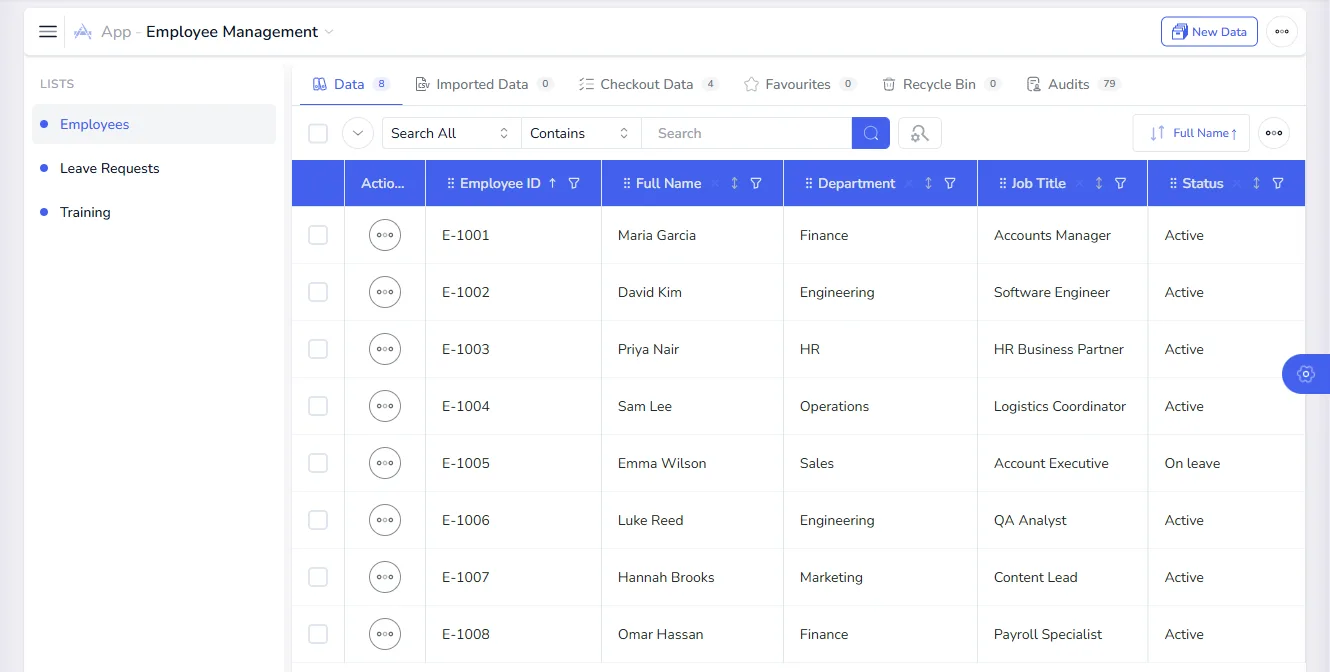
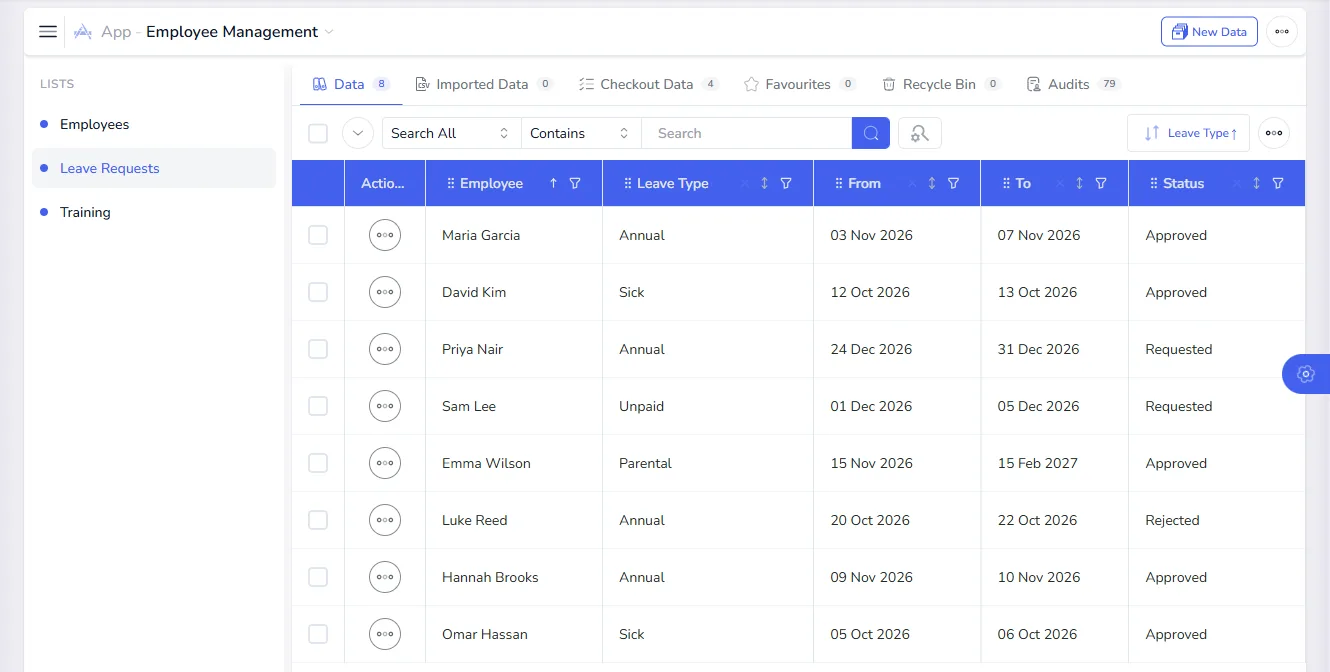
Once the app is in use, each list shows its records in a table that you can search, sort and filter. The sample records below are fictional.
You might also add Performance Reviews (employee, period, rating, notes, reviewer) or Equipment Issued (employee, item, date, returned).
Build the app
- Open Apps and select New App. Name it "Employee Management" and choose the departments it serves.
- On the Lists step, add the lists above. Make Employees primary and the others secondary.
- On the Relationships step, add One To Many relationships from Employees to Leave Requests and from Employees to Training and Certifications.
- On the Permissions step, decide who can view and change the app itself.
See Build a custom app for each step in detail.
Who can do what
| Role | Employees | Leave Requests | Training |
|---|---|---|---|
| HR administrator | Create, read, update, delete | Create, read, update, delete | Create, read, update, delete |
| Line manager | Read (own department) | Read, update (to approve) | Read |
| Employee | Read, limited by record scope | Create | Read |
| Executive | Read | Read | Read |
Create these as roles in User Roles (see Roles and permissions) and use the Record Scope setting on each list's Data Permission, such as My Branch & Department, so managers only see the people they should. For the Salary field, open its settings, go to Data Permission and allow View only for the HR role.
Documents and signatures
The Employment Contract file field stores the contract in the File Manager. To collect signatures, open the contract in the File Manager and choose Request for Sign, then add the employee and an HR signer. See Send a document for signature.
Reports and reminders
- Contracts ending soon. Filter the Employees list by Contract End Date and save the search so HR can open it with one click. See Saved searches.
- Leave by team. Filter Leave Requests by department or status.
- See an employee's full picture. Use Data Explorer to open an employee alongside their leave and training records. See Data Explorer.
- Headcount and status. The workspace dashboard shows records by list and status.
- Reminders. Build automation rules that send a notification when a certificate's expiry date approaches, or when a leave request changes status. The same works for a Contract End Date. See Build a workflow and Notifications.
- Approvals. Route leave requests to the line manager with Approvals and routing.
Getting your existing data in
If your employee details live in a spreadsheet, import them as CSV instead of typing them again. See Bulk upload.
Tips
- Start with Employees. Get that list right before adding the others.
- Use system fields. Department, User and Branch fields keep spelling and structure consistent.
- Keep sensitive data in restricted fields. Salary and personal identification numbers should have field-level permissions.
- Review access regularly. The Audits view shows who changed what.