Workspaces, apps, lists and the File Manager
Understand the difference between a list, an app and the File Manager in FileEazy, how they connect, and the quickest ways to find any document.
FileEazy has four building blocks that people often mix up: the workspace, lists, apps and the File Manager. This page explains what each one is, how they connect, and which one to use for a given job. Read it once and the rest of the documentation will make sense.
The short version
| Building block | Think of it as | You use it to |
|---|---|---|
| Workspace | Your company's FileEazy environment | Hold everything your team works with, in one place |
| List | A table of records (like a spreadsheet with rules) | Store structured information: customers, contracts, assets, vendors |
| App | A named bundle of lists | Group related lists so a team opens one place for one job |
| File Manager | Folders and files | Store, share and find the documents themselves |
A simple way to remember it: lists hold the data, apps organise the lists, the File Manager holds the documents. All of it lives inside your workspace.
Workspace
The workspace is the top-level container. It is created when you sign up, and everything else described below - lists, apps, documents, users, roles and workflows - belongs to it. You do not open the workspace as a screen of its own; you work inside it through the menu on the left.
See Create your workspace for how to set one up.
Lists
A list is a table of records. Each record is one row (one customer, one contract, one purchase order) and each column is a field such as a name, a date, a dropdown choice or an attached file.
Open Lists in the menu to see every list in your workspace. Each list shows as a card with a switch to turn it on or off, how many records it holds, and when it last changed. The left panel also gives you Favourites, the Recycle Bin and Audits for lists, plus an Automation group with Rules, a Rules recycle bin and Execution Logs.
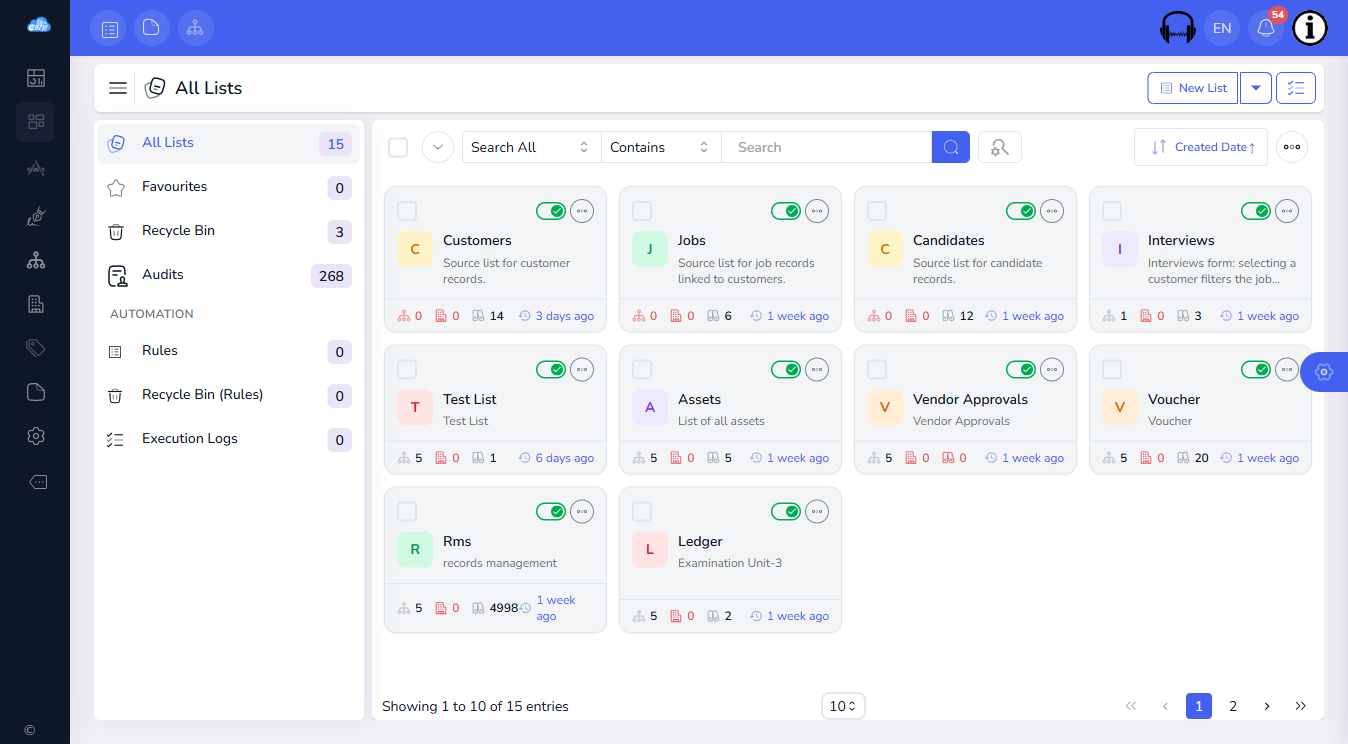
When you create a list you work through three steps:
- Overview - the list name and description (in English and Japanese), an optional parent list, published and expiry dates, whether it allows sub-lists or sub-records, and tags.
- Sections & Fields - lay out the form in sections and add fields from the Basic, Advanced, System and HTML groups.
- Permission - decide who can view, update, delete, restore, export and manage permissions for the list.
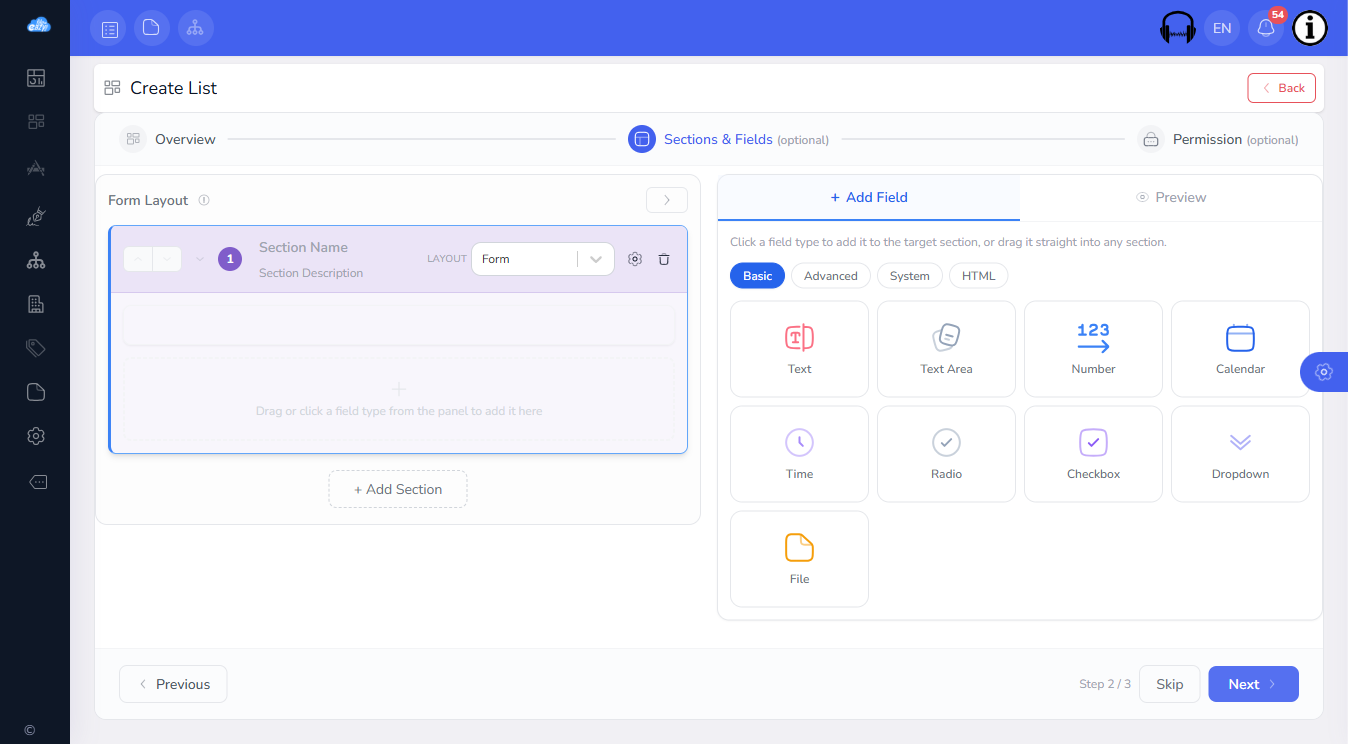
Use a list when you have many items that all share the same kind of information and you want to search, filter and report on them - for example every customer, contract or asset.
Apps
An app is a named group of lists. It does not store anything of its own; it gives a team one place to open when they do one kind of work.
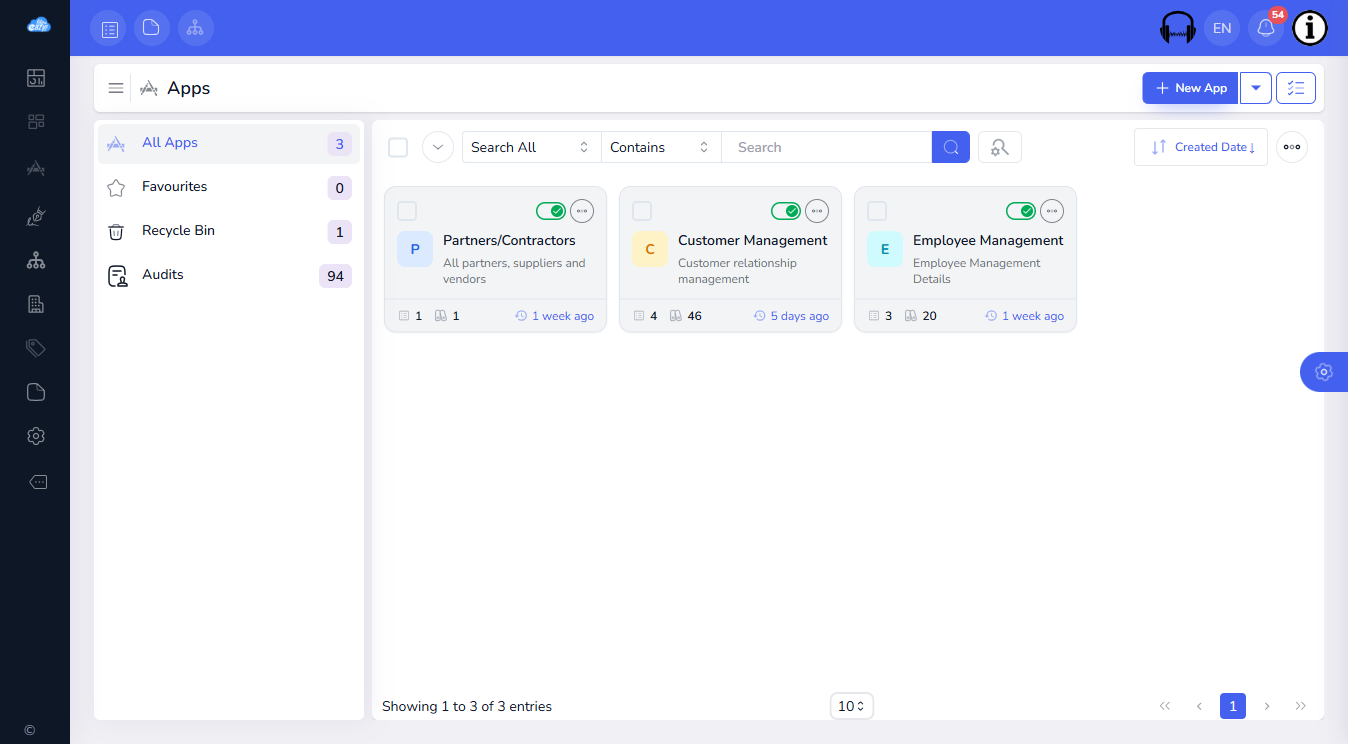
Open Apps in the menu to see your apps. Each card shows how many lists the app contains and how many records they hold altogether.
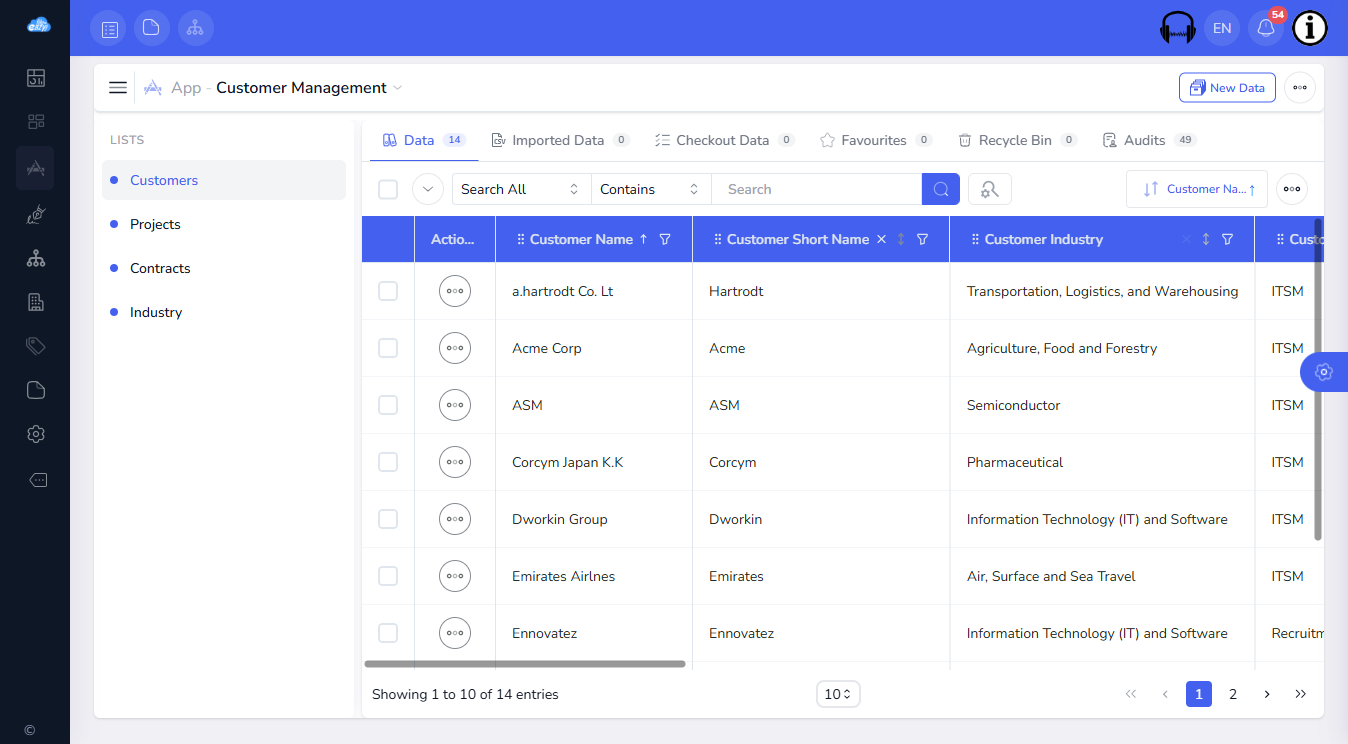
Open an app and its lists appear down the left side. Click a list to work with its records on the right. In the Customer Management app below, the lists are Customers, Projects, Contracts and Industry, and each list's data is in the main table. Along the top are tabs for Data, Imported Data, Checkout Data, Favourites, Recycle Bin and Audits, and a New Data button adds a record.
Inside an app, each list has a role:
- Entry list - the main list people start from.
- Sub-list - supporting data connected to it.
Your apps also appear under Apps in the menu on the left, so a team member can jump straight into the app they use every day.
Use an app when several lists belong together for one team or process, such as Customers, Projects and Contracts for account management.
Lists and apps: the difference
A list exists on its own and can be used in more than one app. An app only groups lists; the records themselves belong to the list.
The File Manager
The File Manager is where documents live. Open File Manager in the menu to browse folders and files, upload new files and share them.
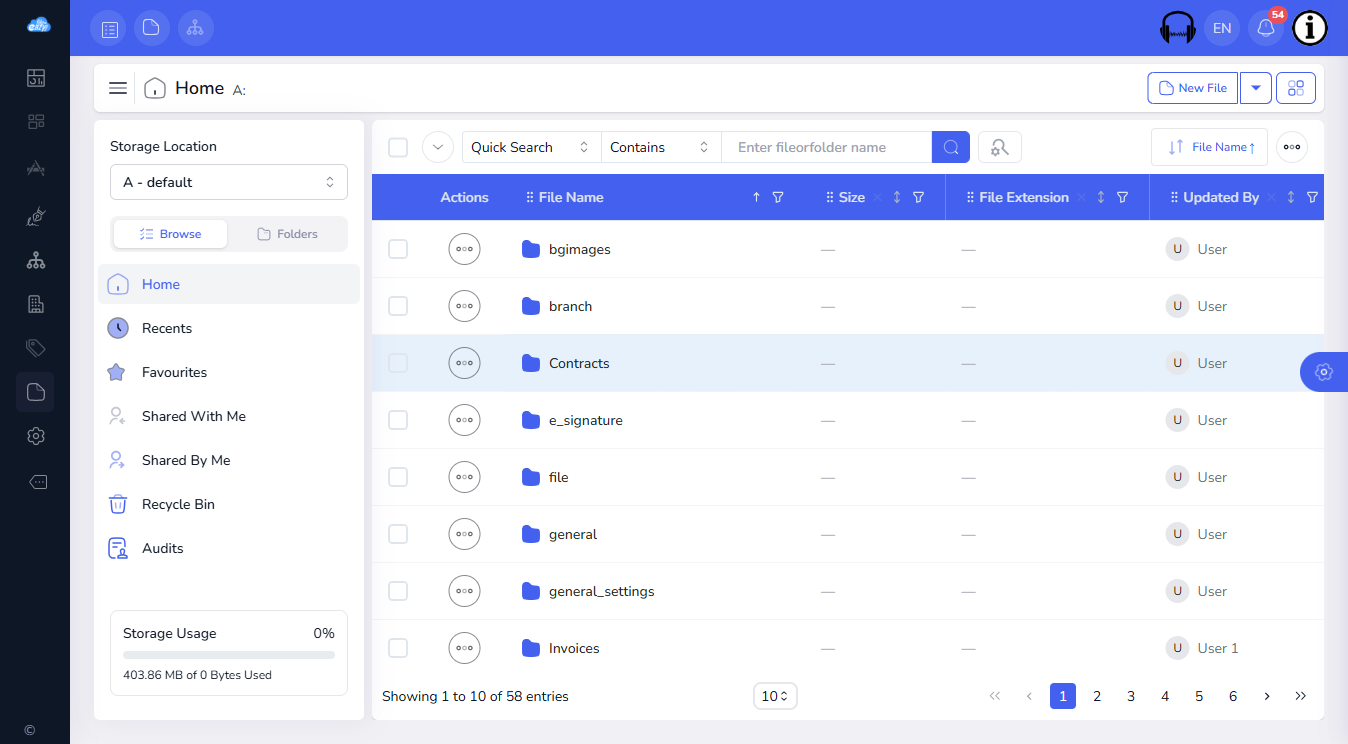
The left panel gives you these views:
| View | What it shows |
|---|---|
| Home | The top level of your folders |
| Recents | Files and folders you have used recently |
| Favourites | Items you starred |
| Shared With Me | Documents other people shared with you |
| Shared By Me | Documents you shared with others |
| Recycle Bin | Items you deleted |
| Audits | A history of who did what |
Use the Browse / Folders switch to move between the list of views and the full folder tree, and the Storage Location menu to choose where files are stored. The bar at the bottom shows how much storage you have used. To search, type in the search bar above the file table.
Use the File Manager when you are dealing with documents: contracts, scans, invoices, PDFs and images. It is also where you send a document for signature.
How they connect
Lists hold the information about your business; the File Manager holds the documents that go with it. A list can include a File field (you will find it under Basic fields when you design the list), so a record such as a contract can carry its document. The document itself is stored as a normal file in the File Manager, and FileEazy keeps track of which list record uses it.
That means you can reach the same document two ways:
- From the business record - open the app, open the list (for example Contracts), then open the record.
- From the document side - open the File Manager and browse, or search for the file name.
Quick guide: where do I find a document?
- You know the file name or a word inside it - use the search bar in the File Manager, or see Full-text search.
- You opened it recently - go to Recents in the File Manager.
- You use it often - star it, then open it from Favourites.
- Someone sent it to you - open Shared With Me.
- It belongs to a customer, contract or other record - open the app, then the list, then the record.
- You deleted it by mistake - open the Recycle Bin, where deleted items are listed.
Which one should I create first?
- Start with the File Manager: upload your existing documents into folders. See Upload your first documents and Set up folders.
- Add a list for each kind of record you need to track.
- Group lists that belong together into an app.
- Invite your team and give each person a role. See Invite your team.
Frequently asked questions
Do I need an app to use a list?
No. You can create and use a list on its own from the Lists page. An app is optional and only helps you organise related lists.
Can one list appear in more than one app?
Yes. Lists exist independently, and an app only groups the lists you choose.
Are documents stored in a list or in the File Manager?
In the File Manager. A list record can point to a document through a File field, but the file itself is stored in the File Manager.
Who can see my lists, apps and files?
Access is controlled by roles and permissions. Each list has its own Permission step, and users only see what their role allows.