Example app - Hospital and clinic patient administration
How to build a patient administration app in FileEazy for a hospital or clinic - patients, appointments, visits and consent forms - with record-level permissions, protected fields and signed consents.
A hospital or clinic handles a steady stream of patients, appointments and paperwork. A patient administration app keeps the administrative side in one place: who the patient is, when they are coming in, what happened at each visit and which forms they have signed.
This guide covers administration and record keeping. It is not a clinical system, and it does not replace the tools your clinicians use for diagnosis and treatment. Check your own legal and regulatory requirements before storing patient information in any system.
What the app does
- Keeps one record for each patient, with their consent forms and referral letters attached.
- Books appointments and shows each doctor's schedule.
- Records every visit or admission, with the department and the outcome.
- Limits who can see each record, so staff only see the patients they work with.
- Keeps a trail of who opened or changed a record.
The lists
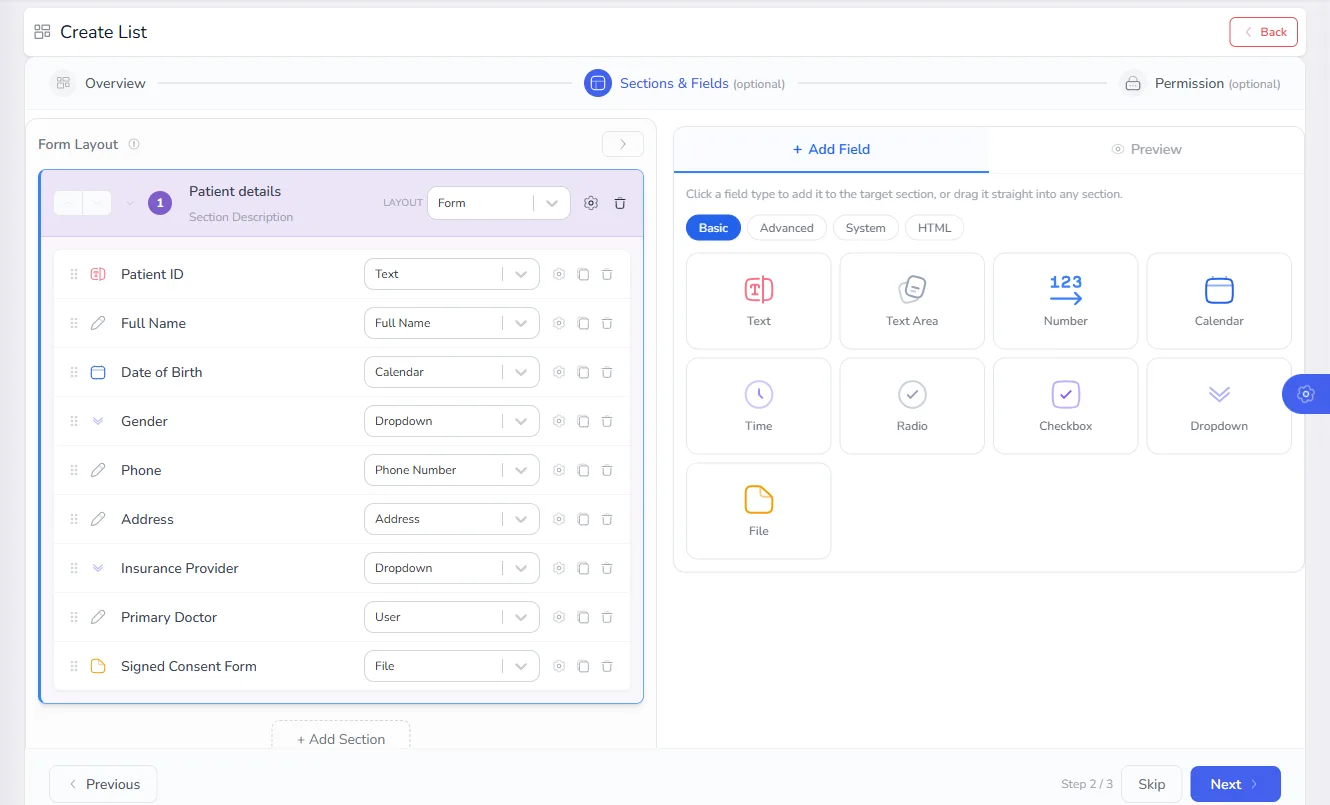
Patients is the primary list. Appointments and visits are secondary lists, each linked to a patient.
Patients (primary)
| Field | Type | Notes |
|---|---|---|
| Patient ID | Text | Master Field and Unique. |
| Full Name | Full Name | Also a Master Field. |
| Date of Birth | Calendar | |
| Gender | Dropdown | |
| Phone | Phone Number | |
| Address | Address | |
| Insurance Provider | Dropdown | |
| Primary Doctor | User | A system field, so doctors are real FileEazy users. |
| Signed Consent Form | File | Stored in the File Manager. |
Appointments (secondary)
| Field | Type | Notes |
|---|---|---|
| Patient | Record | Links the appointment to a patient. |
| Doctor | User | |
| Department | Department | |
| Date, Time | Calendar, Time | |
| Reason | Text Area | |
| Status | Dropdown | Booked, Checked in, Completed, Cancelled. |
Visits (secondary)
| Field | Type | Notes |
|---|---|---|
| Patient | Record | |
| Visit Type | Dropdown | Outpatient, Inpatient, Emergency. |
| Admitted On, Discharged On | Calendar | |
| Department | Department | |
| Summary | Text Area | Administrative notes only. |
| Referral Letter | File |
What the data looks like
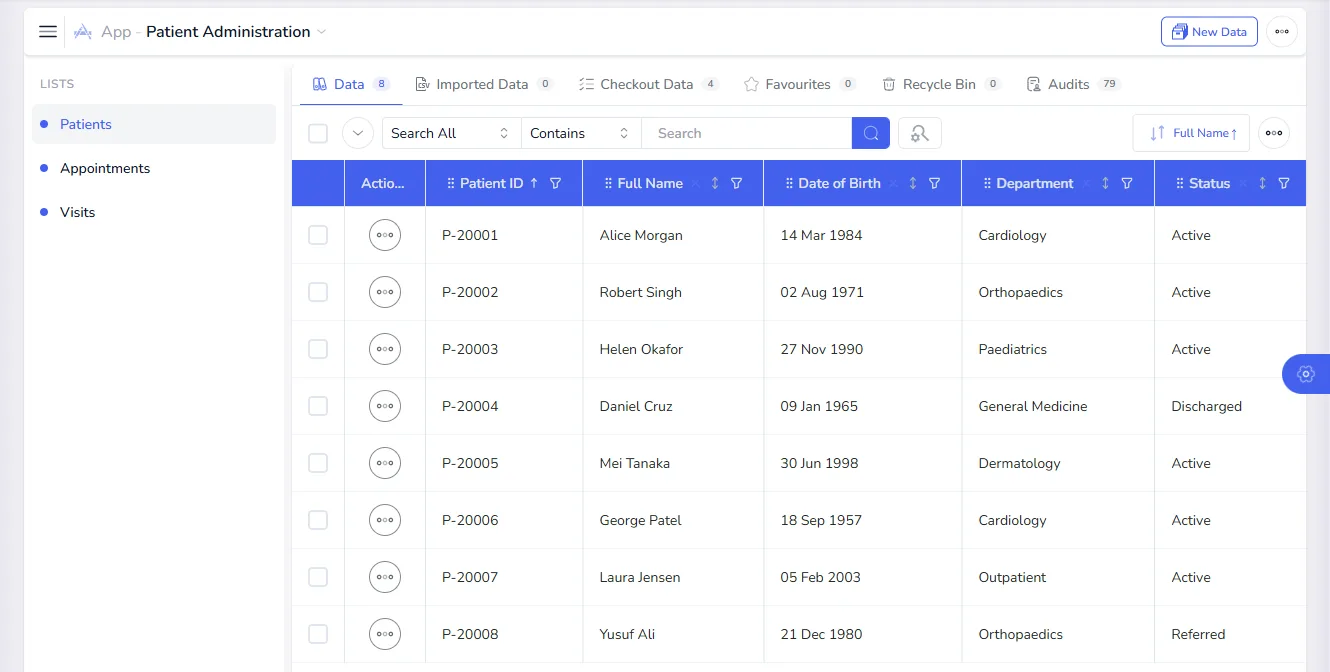
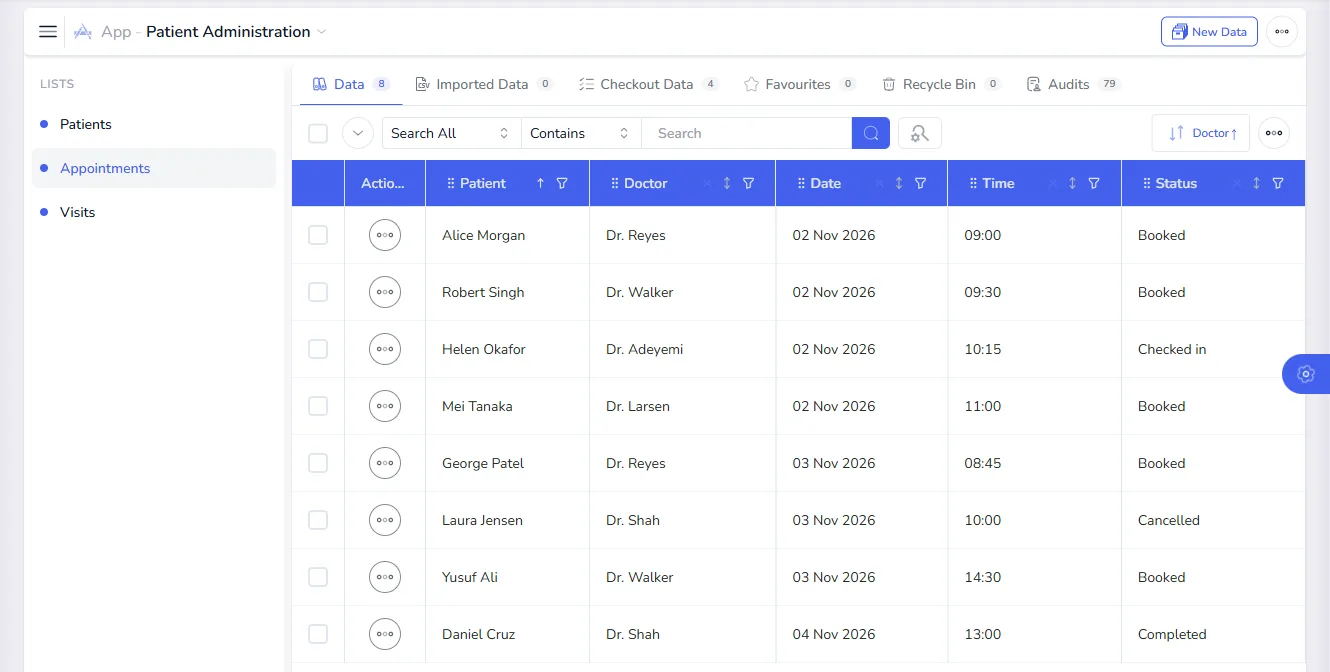
Each list shows its records in a table that you can search, sort and filter. The sample records below are fictional.
Build the app
- Open Apps and select New App. Name it "Patient Administration".
- On the Lists step, add the three lists. Make Patients primary.
- On the Relationships step, add One To Many relationships from Patients to Appointments and from Patients to Visits.
- On the Permissions step, decide who can view and change the app.
See Build a custom app for each step in detail.
Who can do what
| Role | Patients | Appointments | Visits |
|---|---|---|---|
| Front desk | Create, read, update | Create, read, update | Read |
| Doctor or nurse | Read (own department) | Read, update | Create, read, update |
| Records officer | Full access | Full access | Full access |
| Management | Read | Read | Read |
Create these in User Roles (see Roles and permissions). Two settings matter most here:
- Record Scope. Set each list's Data Permission to a scope such as My Branch & Department, so staff only see the patients in their own department or site.
- Field permissions. Open sensitive fields, such as the insurance provider or the consent form, and use Data Permission to allow View only for the roles that need them.
Consent forms and documents
- Store the blank consent form in the File Manager.
- Open it and choose Request for Sign, then add the patient as the signer. A one-time code can confirm who is signing.
- When the form is signed, attach the signed copy to the patient's Signed Consent Form field.
See Send a document for signature and Track signature status. Referral letters and other documents live in file fields in the same way.
Reports and reminders
- Today's appointments. Filter Appointments by Date and save the search for each doctor or department. See Saved searches.
- Patients to follow up. Filter Visits by Discharged On to find recent discharges.
- A patient at a glance. Use Data Explorer to open a patient beside their appointments and visits. See Data Explorer.
- Reminders. Send a notification when an appointment is created or its status changes. See Build a workflow and Notifications.
- Who looked at what. The Audits view shows who opened or changed a record.
Getting your existing data in
If your patient list lives in a spreadsheet, import it as CSV instead of retyping it. See Bulk upload.
Tips
- Start with Patients and Appointments. Add visits once the front desk is comfortable.
- Keep it administrative. Store only what your administration team needs.
- Restrict by default. Give each role the least access that lets them do their job, and review access regularly.