Set up single sign-on (SAML)
How to let your team sign in to FileEazy with your organisation's identity provider using SAML 2.0 - add a provider, connect it, choose the role for new users and test the sign-in.
Single sign-on (SSO) lets your team sign in to FileEazy with the account they already use at work, such as Microsoft, Okta or Google, instead of a separate FileEazy password. FileEazy uses the SAML 2.0 standard, so it works with Microsoft Entra ID (Microsoft 365), Okta, Google Workspace, AD FS and any other SAML 2.0 provider.
The setup is the same for every provider: you give the provider FileEazy's details, then give FileEazy the provider's details. Nothing changes for users until you enable the provider.
Before you start: you need permission to change Sign-In Settings in FileEazy, and an administrator account at your identity provider. Decide which FileEazy role new people should receive, and make sure at least one administrator keeps a normal FileEazy password (see Keep a local admin account).
Step 1: Open the Single sign-on settings
- Go to Settings and open Sign-In Settings.
- Select the Single sign-on tab. The other tab, Sign-in screen, controls how the sign-in page looks.
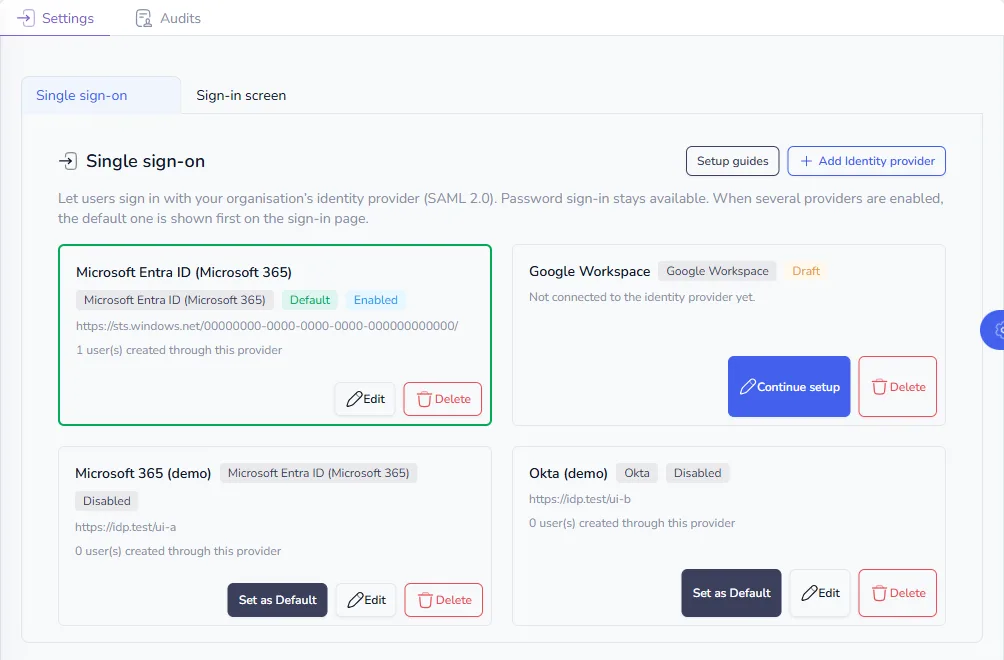
Providers you have already added appear here as cards. Each card shows the name, the provider type, its status and how many users were created through it. The status is Enabled, Disabled or Draft (not yet connected), and the provider shown first on the sign-in page is marked Default. Each card has buttons to Edit or Delete it, Continue setup if it is a draft, and Set as Default to make it the default.
Step 2: Add an identity provider
- Select Add Identity provider.
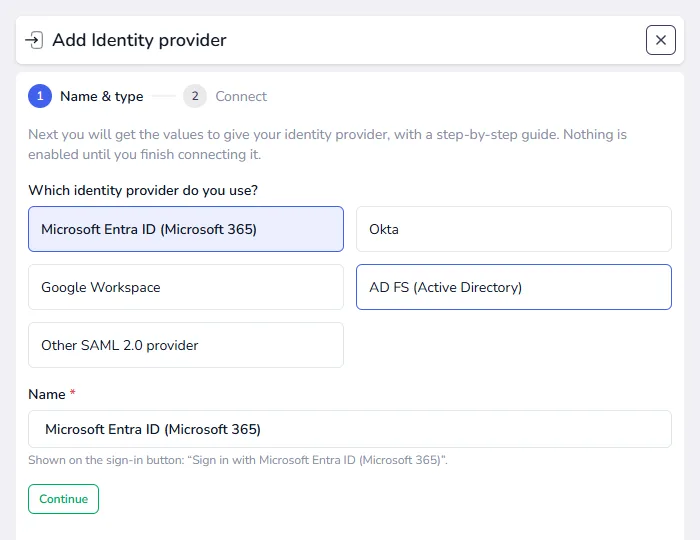
- Choose which provider you use: Microsoft Entra ID (Microsoft 365), Okta, Google Workspace, AD FS (Active Directory) or Other SAML 2.0 provider.
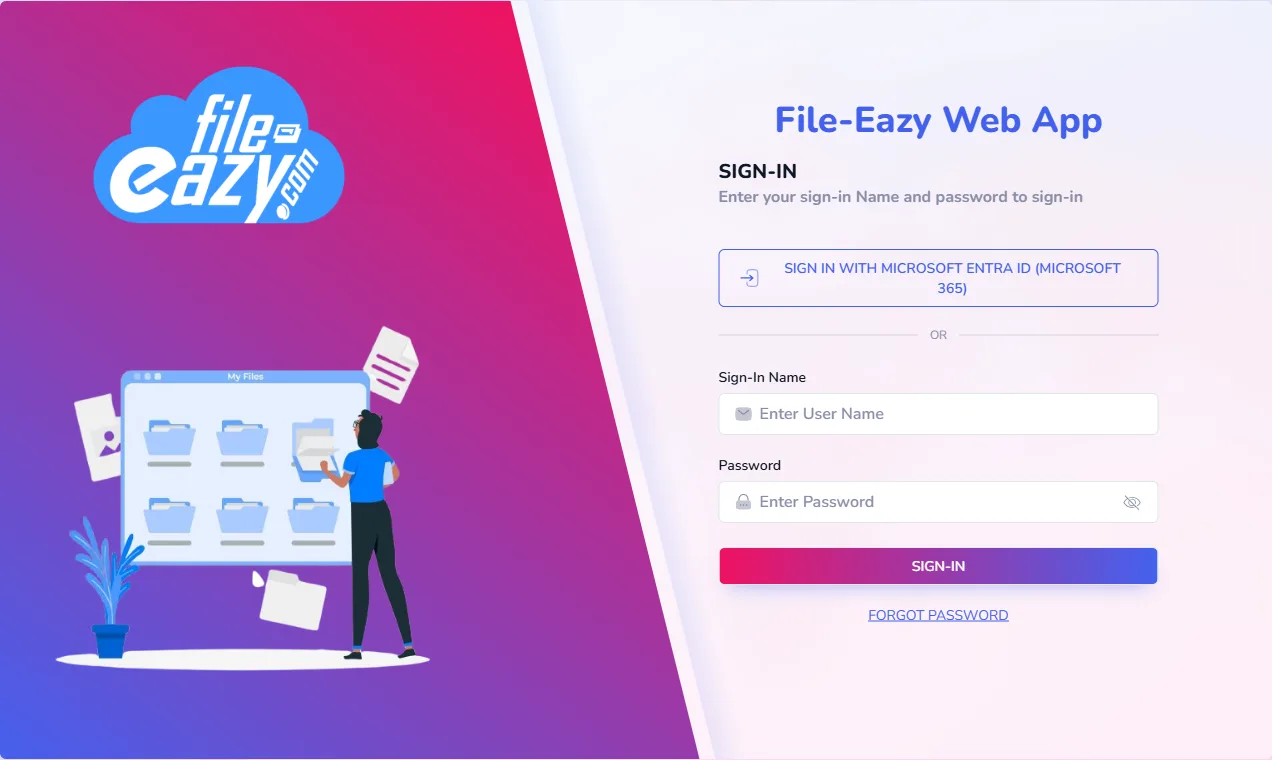
- Enter a Name. It appears on the sign-in button, for example "Sign in with Microsoft Entra ID (Microsoft 365)". Use a name your team recognises, such as "Company account".
- Select Continue.
This saves the provider as a draft. Nothing is enabled until you finish connecting it, so you can safely stop and come back later with Continue setup.
Step 3: Give FileEazy's values to your identity provider
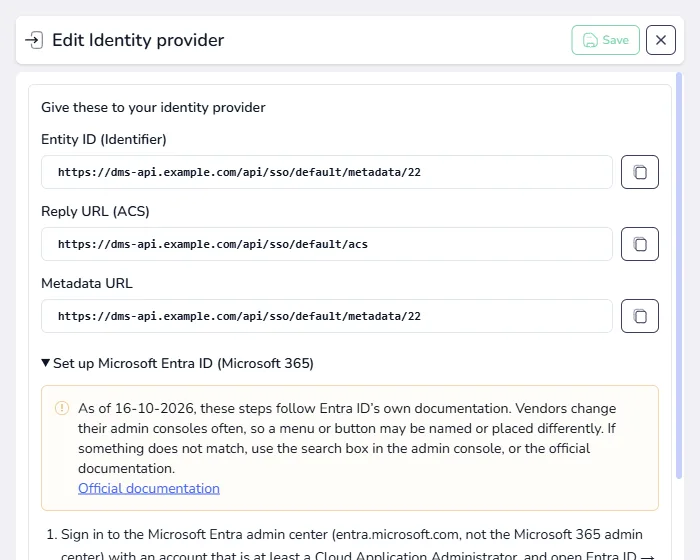
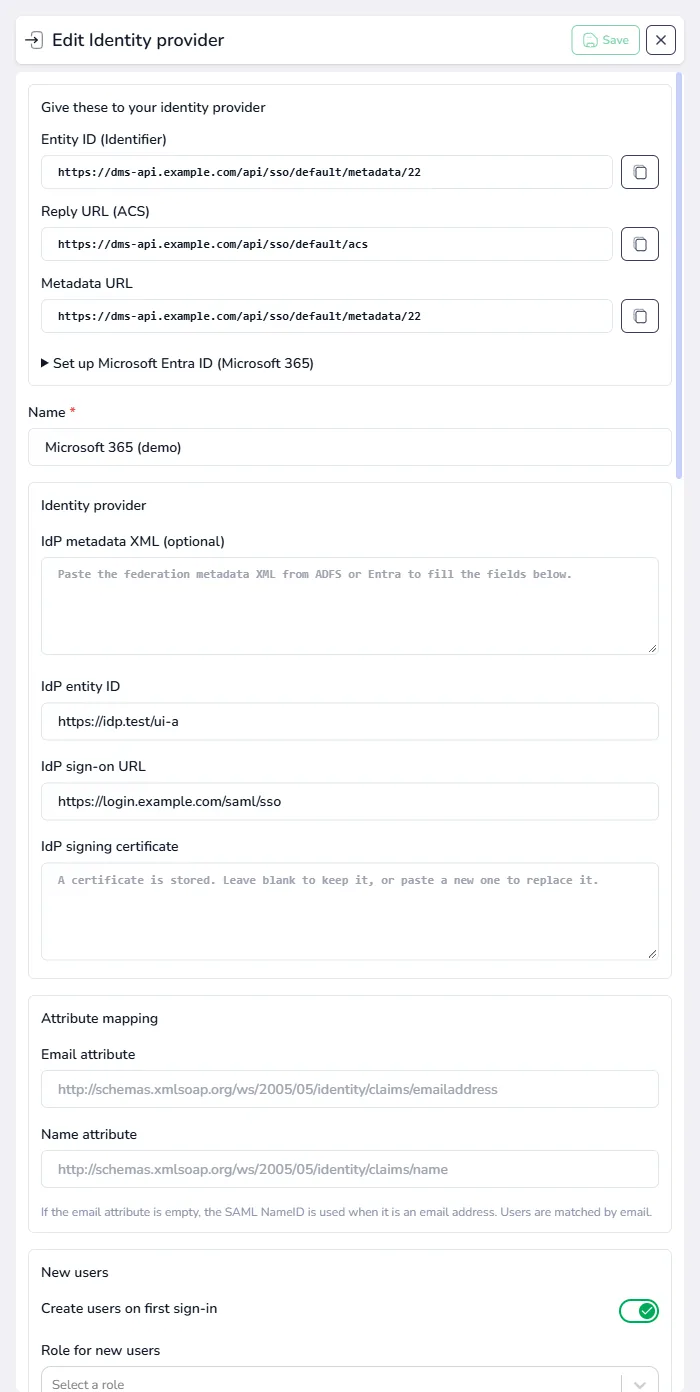
The next screen shows three values under Give these to your identity provider, each with a copy button:
| Value | Where it goes at your identity provider |
|---|---|
| Entity ID (Identifier) | The identifier (sometimes called audience or entity ID) of the SAML application. |
| Reply URL (ACS) | The assertion consumer service URL, where the provider sends the signed-in user back to FileEazy. |
| Metadata URL | Optional. Some providers can read FileEazy's details from this address instead. |
Create a SAML application for FileEazy at your identity provider and paste these values in. Each provider names its menus differently, and they change from time to time, so FileEazy includes step-by-step guides for each one:
- Open the Set up section on this screen (it is named after your provider type) for the guide that matches, or
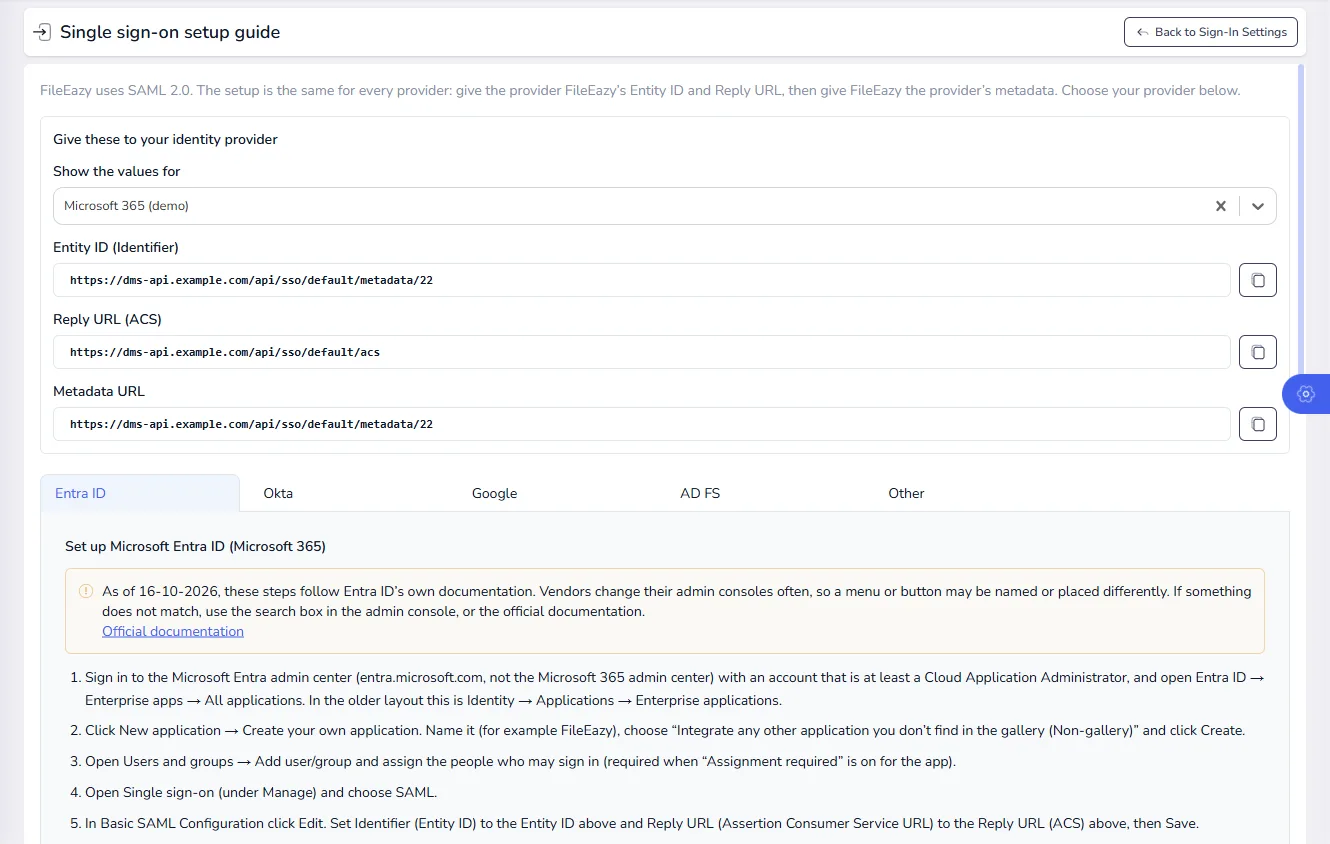
- Select Setup guides on the Single sign-on tab to see all of them, with your provider's values filled in.
On the Setup guides page, choose one of your providers under Show the values for and its Entity ID, Reply URL and Metadata URL fill in, ready to copy. Each tab below them, for Entra ID, Okta, Google, AD FS and other providers, has its own guide.
Two things apply to every provider:
- FileEazy requires the SAML assertion to be signed. Keep your provider's default signing setting.
- Users are matched by their email address, so the provider must send each person's email.
Step 4: Give FileEazy your identity provider's details
When your identity provider's application is ready, it gives you its own details. Return to the provider in FileEazy (select Edit, or Continue setup) and provide them in one of two ways:
- Paste the metadata XML. Paste the federation metadata XML from your provider into IdP metadata XML. The fields below fill in automatically.
- Enter them yourself. Fill in IdP entity ID, IdP sign-on URL and IdP signing certificate.
The Attribute mapping section tells FileEazy which fields in the provider's response hold the person's email and name. For the common provider types these are filled in for you. If the email attribute is left empty, FileEazy uses the SAML NameID when it is an email address.
The certificate is stored securely and is never shown again. If you open a saved provider, leave the certificate box empty to keep it, or paste a new one to replace it.
Step 5: Choose how new users are handled
In the New users section:
- Create users on first sign-in - when on, someone who signs in for the first time and does not yet have a FileEazy user gets one automatically. When off, only people who already have a FileEazy user can sign in.
- Role for new users - choose the exact role everyone gets on their first sign-in. A role is required when automatic creation is on. Several roles can share a level, so pick the role itself and not just a level.
Tip: choose a role with limited access. You can always give a person more access later in FileEazy. See Roles and permissions.
Step 6: Enable the provider and save
- Turn on Enabled.
- Turn on Default if this should be the provider shown first on the sign-in page. If you enable several providers, each gets its own button and the default is shown first.
- Select Save.
Step 7: Test the sign-in
- Sign out of FileEazy, or open the sign-in page in a private window.
- Select the new button, for example Sign in with Company account, above the usual sign-in name and password fields.
- Sign in at your identity provider. You are brought back to FileEazy, signed in.
Always start from the FileEazy sign-in page. Signing in by starting from the identity provider's own app list is not supported.
What happens to people and passwords
| Situation | What happens |
|---|---|
| A new person signs in for the first time | A user is created with the role you chose, if Create users on first sign-in is on. They cannot use a FileEazy password. |
| An existing user, created in FileEazy, signs in through SSO | The account is matched by email and becomes a single sign-on account. From then on its password no longer works. |
| A person with a single sign-on account tries the password form or "Forgot password" | They are sent to the identity provider to sign in instead. |
| There is no role set, or your workspace's user limit would be exceeded | The first sign-in is refused with a message, and no user is created. |
Keep a local admin account
Because accounts that sign in through SSO stop using passwords, keep at least one administrator who never signs in through SSO. If your identity provider is unavailable or misconfigured, that account can still sign in with a password and fix the settings.
Keeping an eye on it
SSO events are written to the audit log: sign-ins, users created, accounts switched to SSO, refused sign-ins and changes to a provider. Administrators are also notified in FileEazy and by email when these events happen. See Audit trails.
Frequently asked questions
Does single sign-on replace passwords?
Not for everyone. Password sign-in stays available for users who have not signed in through SSO. People who have signed in through SSO use their identity provider from then on.
Which identity providers does FileEazy support?
Any provider that supports SAML 2.0. Microsoft Entra ID (Microsoft 365), Okta, Google Workspace and AD FS have ready-made guides and pre-filled settings, and Other SAML 2.0 provider covers the rest.
Can I connect more than one provider?
Yes. Add each as its own provider. Every enabled provider gets its own sign-in button, and the one marked Default is shown first.
What happens when someone leaves the company?
Removing or disabling them at your identity provider stops them signing in through SSO. Their FileEazy user stays active until an administrator deactivates it, so deactivate it too.
What happens if I delete a provider?
People who signed in through that provider cannot sign in until a provider is added again, because they have no password. Add the provider back to restore their access.
Sign-in fails with a signature error. What should I check?
FileEazy requires the assertion itself to be signed, not only the response. Check your provider's signing setting and keep its default.