Example app - Project management and reporting
How to build a project management app in FileEazy - projects, tasks, time and risks - with the permissions, automation and status reports that keep managers and clients informed.
A project management app gives a team one place to plan projects, assign tasks, record time and spot risks early, and gives managers and clients clear status reports without chasing people for updates.
This guide shows a practical design. Adapt the fields to the way your team works.
What the app does
- Keeps every project, with its client, budget, dates and brief, in one list.
- Breaks each project into tasks assigned to people, with due dates and priorities.
- Records time against tasks so you can compare effort with budget.
- Tracks risks and issues until they are closed.
- Produces status reports for the team, management and clients.
The lists
Projects is the primary list. Tasks, time and risks are secondary lists, each linked to a project.
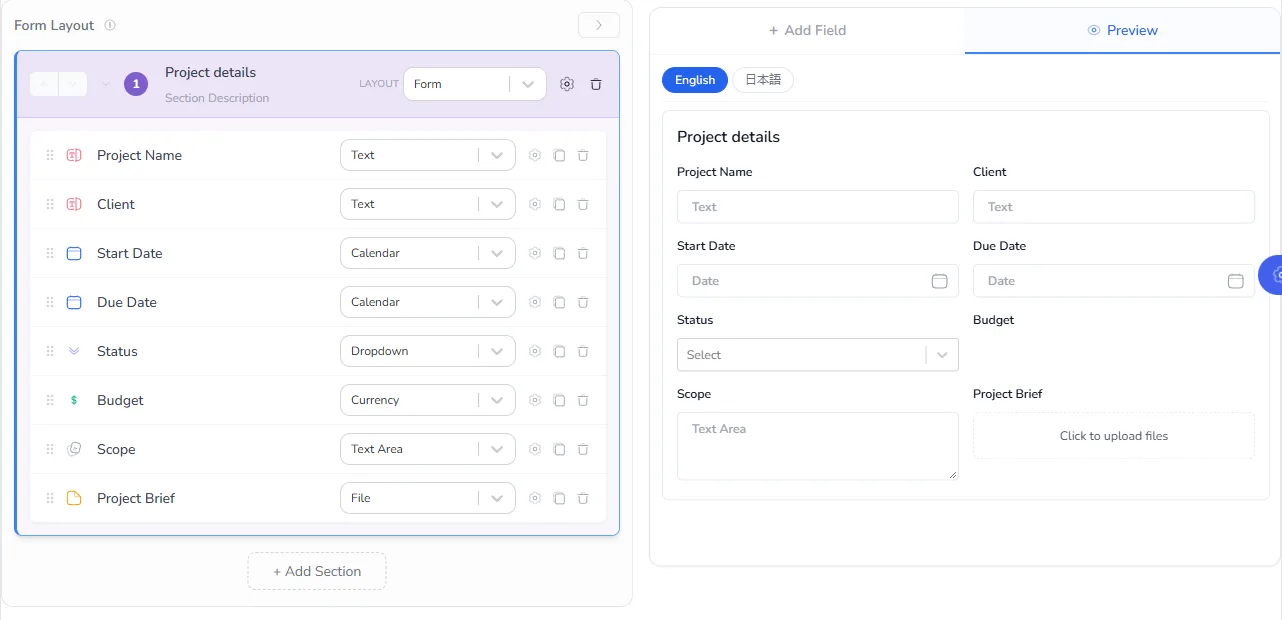
Projects (primary)
| Field | Type | Notes |
|---|---|---|
| Project Name | Text | Master Field and Unique. |
| Client | Text, or a link to a Clients list | Use a Record field if you keep a list of clients. |
| Project Manager | User | |
| Start Date, Due Date | Calendar | |
| Status | Dropdown | Planned, Active, On hold, Done. |
| Budget | Currency | |
| Scope | Text Area | |
| Project Brief | File | The brief or contract. |
Tasks (secondary)
| Field | Type | Notes |
|---|---|---|
| Task Name | Text | |
| Project | Record | Links the task to a project. |
| Assignee | User | |
| Due Date | Calendar | |
| Priority | Dropdown | Low, Medium, High. |
| Status | Dropdown | To do, In progress, Blocked, Done. |
| Estimated Hours | Number |
Time Entries (secondary)
| Field | Type | Notes |
|---|---|---|
| Task | Record | |
| Person | User | |
| Date | Calendar | |
| Hours | Number | |
| Notes | Text Area |
Risks and Issues (secondary)
| Field | Type | Notes |
|---|---|---|
| Project | Record | |
| Description | Text Area | |
| Severity | Dropdown | Low, Medium, High. |
| Owner | User | |
| Status | Dropdown | Open, Mitigated, Closed. |
What the data looks like
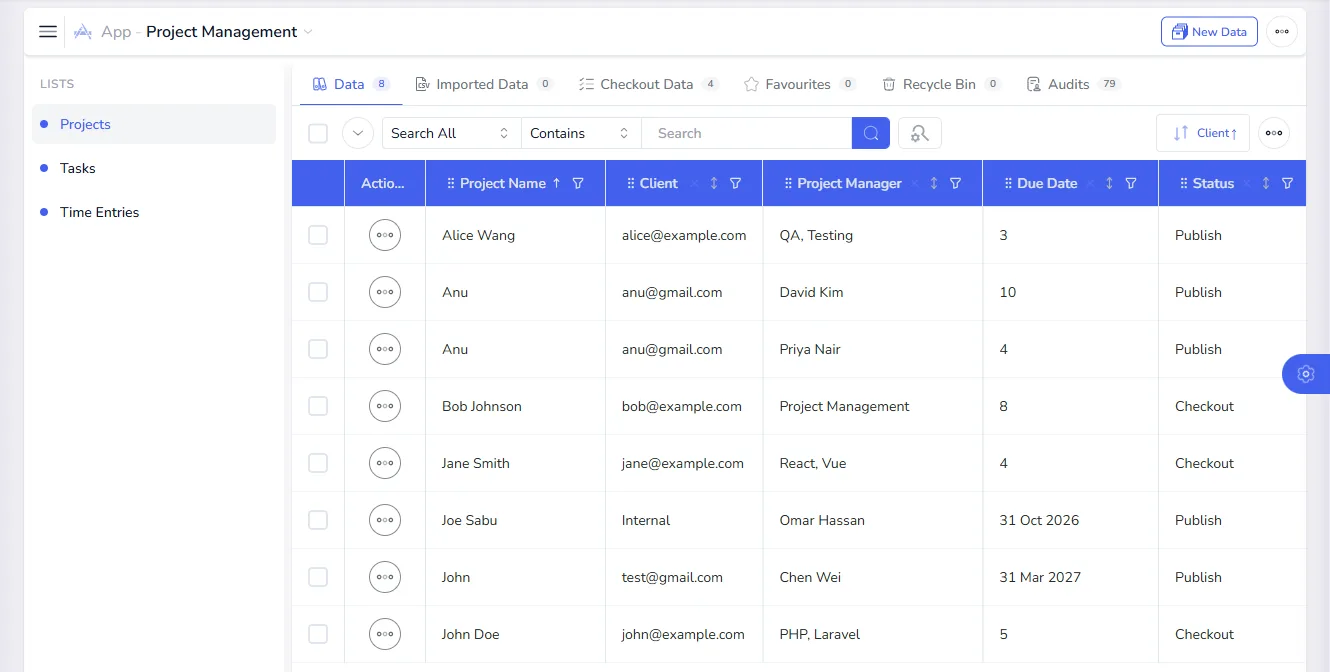
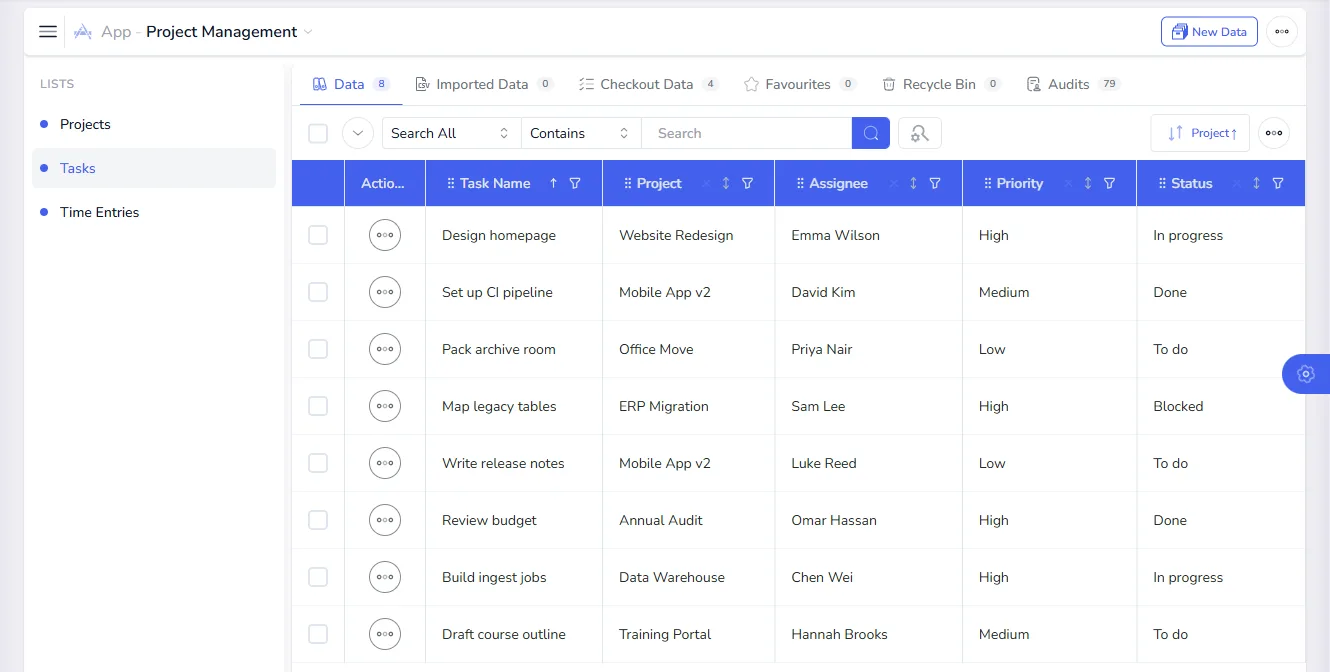
Each list shows its records in a table that you can search, sort and filter. The sample records below are fictional.
Build the app
- Open Apps and select New App, and name it "Project Management".
- On the Lists step, add the four lists. Make Projects primary.
- On the Relationships step, add One To Many relationships from Projects to Tasks, from Tasks to Time Entries, and from Projects to Risks and Issues.
- On the Permissions step, choose who can view and change the app.
See Build a custom app for each step in detail, and Link related lists for relationships.
Who can do what
| Role | Projects | Tasks | Time Entries | Risks |
|---|---|---|---|---|
| PMO or admin | Full access | Full access | Full access | Full access |
| Project manager | Create, read, update | Create, read, update, delete | Read | Create, read, update |
| Team member | Read | Read, update (own tasks) | Create, read | Create, read |
| Executive | Read, export | Read | Read | Read |
Set these up in User Roles (see Roles and permissions). Use Data Permission on a field if some information should be private, such as the Budget, so only project managers and executives can see it.
Reports
This is where the app pays for itself. Reports in FileEazy come from the lists themselves, so they are always current.
- Status board. Filter Projects by Status to see what is active, on hold or done. Save the search so it is one click away. See Saved searches.
- Overdue tasks. Filter Tasks by Due Date and Status, and save the search for each project manager.
- My tasks. Filter Tasks by Assignee so each person has their own to-do view.
- A project at a glance. Use Data Explorer to open a project beside its tasks, time entries and risks, without leaving the app. See Data Explorer.
- Workspace overview. The dashboard shows records by list and by status, which suits a quick health check.
- Reports for people outside FileEazy. Export the filtered list to share with clients or leadership. Only people with the Export permission can do this.
A simple weekly rhythm works well. Project managers update statuses on Monday, and the saved searches then give you a ready-made report for the Tuesday review.
Automation and approvals
- Notify on assignment. When a task is created or reassigned, send a notification to the assignee.
- Warn before a due date. Notify the assignee, and the project manager, when a task's Due Date is close.
- Flag a status change. Notify the project manager when a task is marked Blocked.
- Approve changes. Route budget or scope changes to an approver with Approvals and routing.
See Build a workflow and Notifications.
Documents
Attach the brief, statements of work and signed contracts to the project with the Project Brief file field. To get a signature on a statement of work, open it in the File Manager and use Request for Sign. See Send a document for signature.
Tips
- Keep statuses short and shared. The same few statuses across every list make filters and reports easy.
- Link time to tasks. It lets you compare estimated and actual hours later.
- Start small. Projects and Tasks are enough for the first month. Add time and risks when the team is ready.