Work with the data in an app
How to find, filter, open, edit and organise records in a FileEazy app - search, filters, saved searches, the record view with related data, checkout, favourites and notes.
Once an app is built, most of the day-to-day work happens in its data tables. This guide shows how to find the records you need and what you can do with each one.
Open the data
Select Apps in the main menu and open your app. The left panel lists the app's lists. Select one to see its records in a table.
Above the table are tabs that show different views of the same list:
| Tab | What it shows |
|---|---|
| Data | The current records. |
| Imported Data | Records brought in from a file import. |
| Checkout Data | Records that someone has checked out to work on. |
| Favourites | Records you have starred. |
| Recycle Bin | Deleted records, which can be restored. |
| Audits | A record of who created or changed data. |
The number beside each tab shows how many records it holds.
Find records
Quick search
Above the table, choose a field (or Search All) and a match type such as Contains, type your text, and select the search button. Select a column heading to sort by it.
Filters
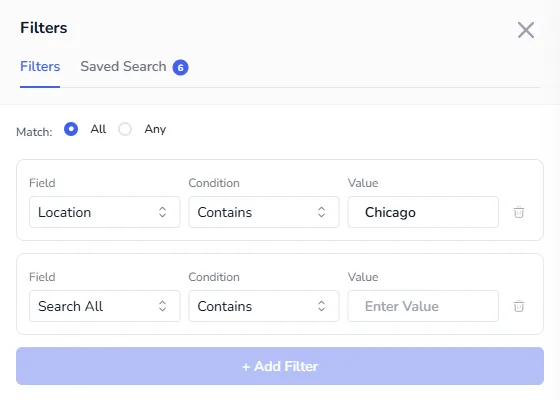
For more precise searches, select the filter button beside the search box. A Filters panel opens.
- Choose how conditions combine with Match: All means every condition must be true, and Any means one is enough.
- In the first row, pick a Field, a Condition such as Contains, and a Value.
- Select + Add Filter to add another row.
- Select Apply Filters. The table shows only the matching records.
- Select Clear All to start again.
Saved searches
If you run the same search often, save it. Build your filters, then open the Saved Search tab of the panel to save them under a name. Each saved search shows how many conditions it has and whether it is Private (only you) or Public (everyone who can use the list). Select the eye to preview a saved search, then apply it.
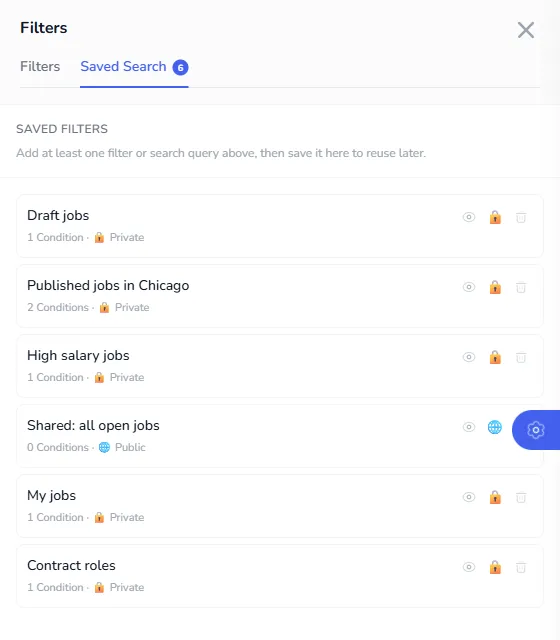
Good saved searches mirror how your team works, such as "My jobs", "Open this week" or "Contracts ending soon".
Open a record
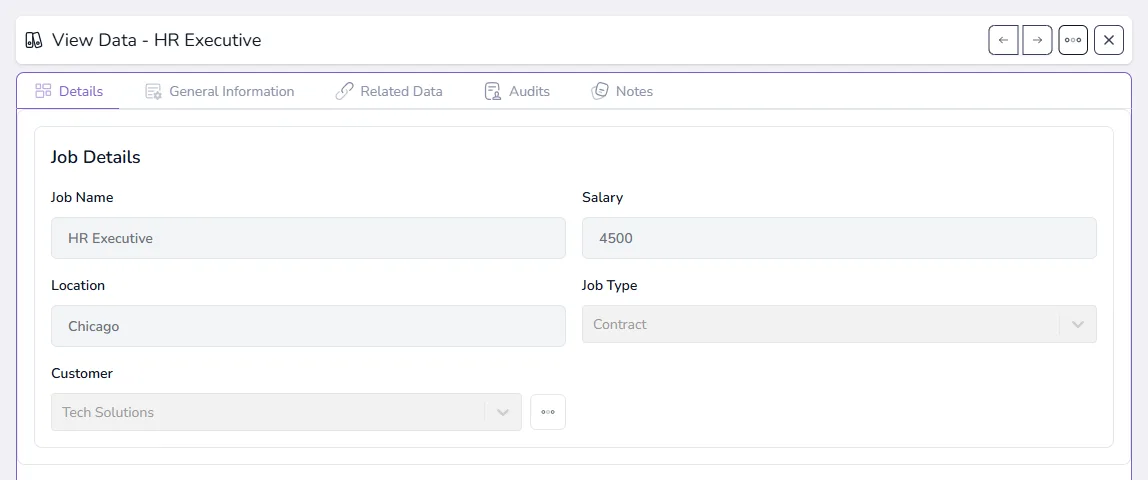
Select the actions button at the start of a row, then View. A panel opens with the record.
| Tab | What it shows |
|---|---|
| Details | The fields of the record, laid out as in your form. |
| General Information | General details about the record. |
| Related Data | Records in other lists that are linked to this one through a relationship. For example, the candidates for a job. |
| Audits | The history of changes to this record. |
| Notes | Comments people have added to the record. |
Use the arrows at the top to move to the previous or next record without closing the panel. View Related Data in the row menu opens the same panel on the Related Data tab.
What you can do with a record
The row's actions menu offers these, depending on your permissions:
| Action | What it does |
|---|---|
| View | Open the record. |
| View Related Data | See the linked records from other lists. |
| Edit | Change the record. |
| Duplicate | Make a copy to start from. |
| Add Note | Leave a comment for others. |
| Add To Favourites | Star it so it appears under Favourites. |
| Checkout | Take the record to work on it, so others know it is in use. Check it back in when you are done. |
| Delete | Move it to the Recycle Bin. |
To work on many records at once, tick their checkboxes. The menu next to the select-all box then offers Check In, Checkout and Delete for the whole selection.
Add new data
Select New Data at the top right to add a record to the current list. Fill in the form, and select Save. If a field links to another list, such as Customer, you pick the related record from a drop-down.
Tips
- Start from a saved search. Make one per question your team asks, rather than rebuilding filters each time.
- Use Related Data to see the whole story. It saves jumping between lists.
- Use Checkout for records that several people edit. It avoids two people changing the same record at once.
- Notes keep context with the record. Use them instead of email threads.
- Permissions decide what you see. If a tab, action or field is missing, ask an administrator to check your role. See Roles and permissions.