Example app - Applicant tracking system for a recruitment agency
How to build an applicant tracking system (ATS) in FileEazy for a recruitment agency - clients, jobs, candidates, applications and interviews - with permissions, pipeline reports and offer letters.
A recruitment agency lives on its pipeline: which jobs are open, which candidates are being considered for them, and what happens next. An applicant tracking system (ATS) keeps all of that in one place, so no candidate is forgotten and every client gets a clear answer.
This guide shows how to build one in FileEazy. The screens below come from a Recruitment ATS app built with the same approach.
What the app does
- Keeps a list of client companies and the jobs they ask you to fill.
- Stores every candidate, with their CV attached.
- Tracks each candidate's application to a job as it moves through the stages.
- Records interviews, who conducts them and the feedback.
- Shows each recruiter their own work, and gives managers the pipeline at a glance.
The lists
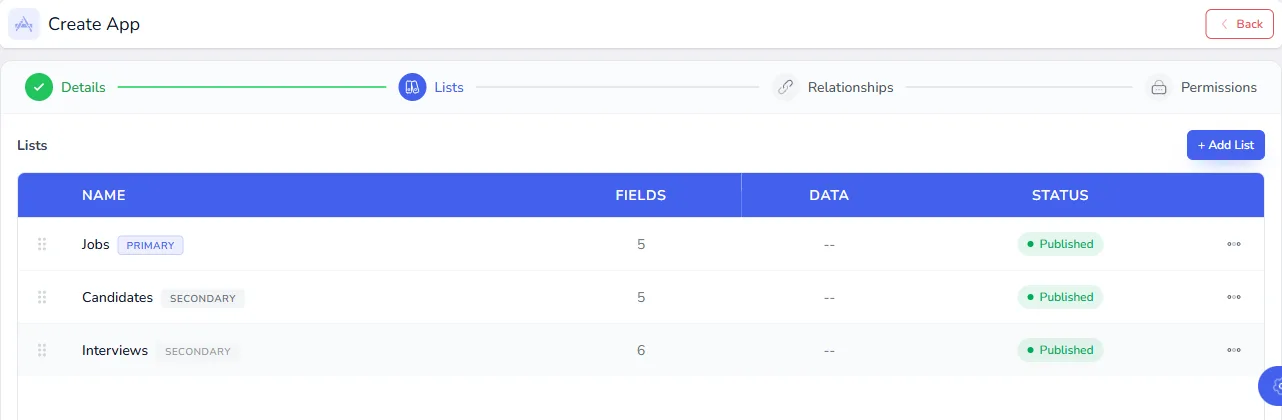
Jobs is the primary list, because recruiters usually start from an open job. The other lists are secondary.
Clients
| Field | Type | Notes |
|---|---|---|
| Company Name | Text | Master Field and Unique. |
| Industry | Dropdown | |
| Contact Name | Full Name | |
| Contact Email | ||
| Account Manager | User | |
| Agreement | File | The signed terms of business. |
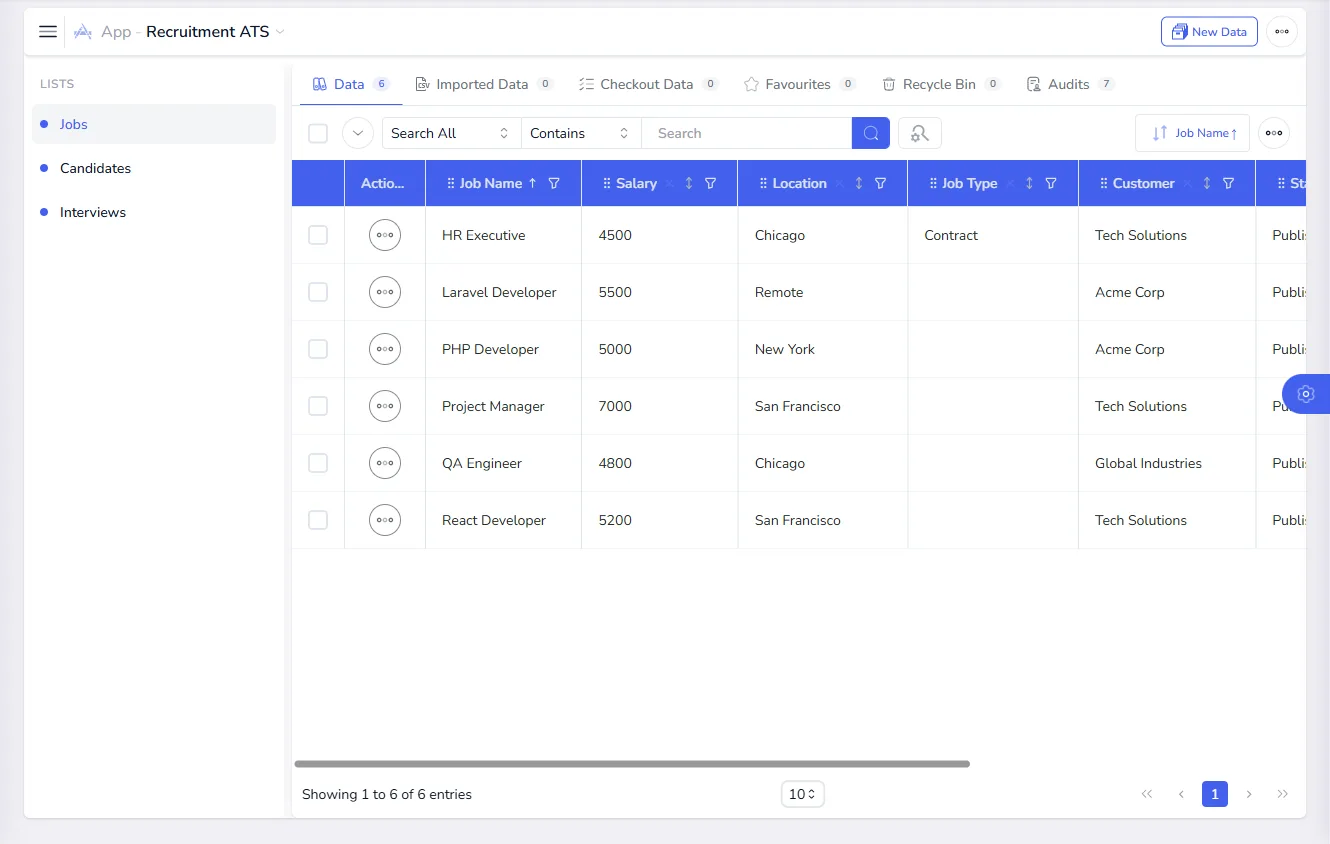
Jobs (primary)
| Field | Type | Notes |
|---|---|---|
| Job Title | Text | Master Field. |
| Client | Record | Links the job to a client. |
| Location | Text | |
| Salary | Number or Currency | |
| Job Type | Dropdown | Permanent, Contract, Part-time. |
| Status | Dropdown | Open, On hold, Filled, Closed. |
| Opened On | Calendar | |
| Job Description | File | The job specification from the client. |
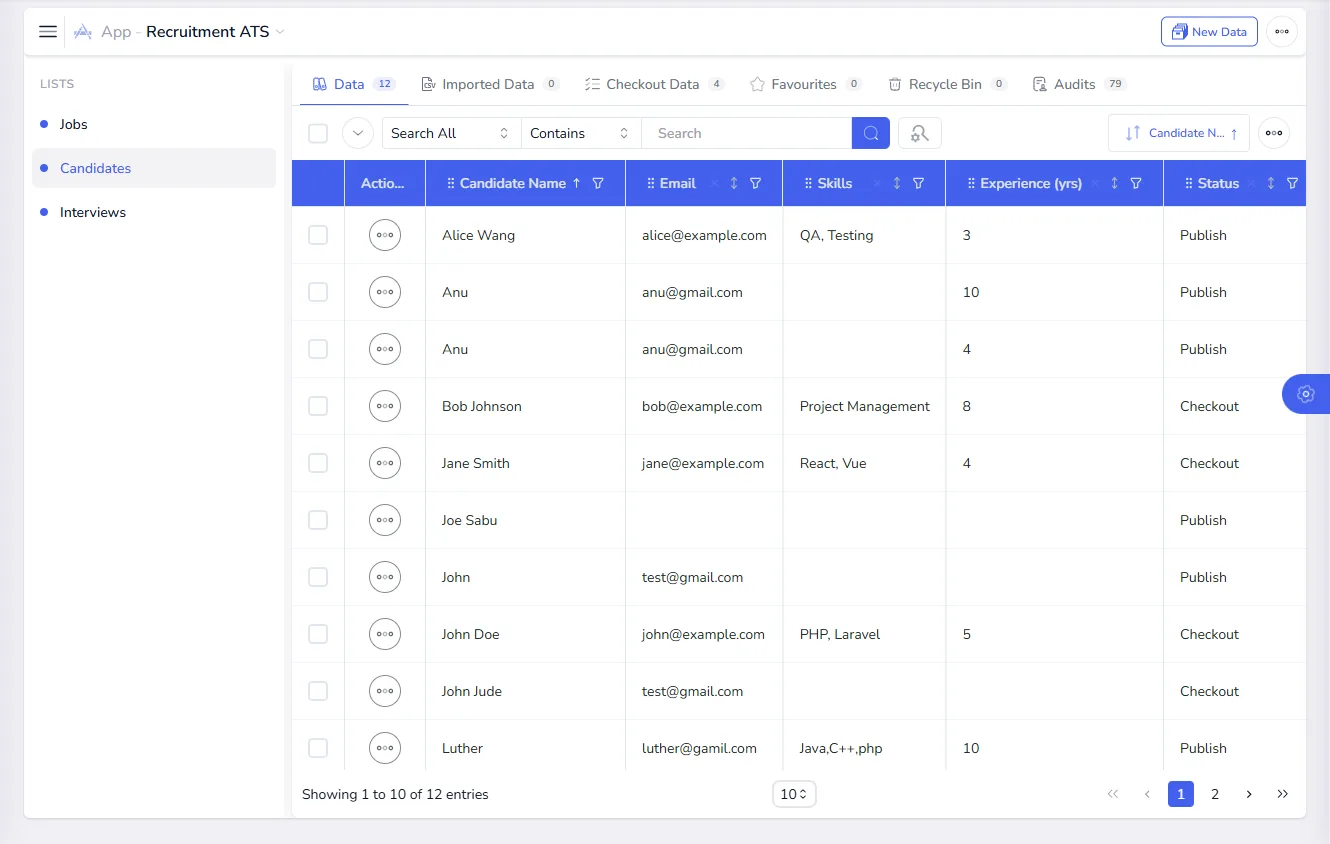
Candidates (secondary)
| Field | Type | Notes |
|---|---|---|
| Candidate Name | Full Name | Master Field. |
| Unique, so the same person is not entered twice. | ||
| Phone | Phone Number | |
| Skills | Text | |
| Experience (years) | Number | |
| Source | Dropdown | Referral, Job board, LinkedIn and so on. |
| CV | File | Stored in the File Manager. |
Applications (secondary)
This list connects a candidate to a job, and holds the pipeline stage.
| Field | Type | Notes |
|---|---|---|
| Job | Record | |
| Candidate | Record | |
| Stage | Dropdown | Applied, Screening, Submitted to client, Interview, Offer, Placed, Rejected. |
| Recruiter | User | The person looking after the candidate. |
| Applied On | Calendar | |
| Notes | Text Area |
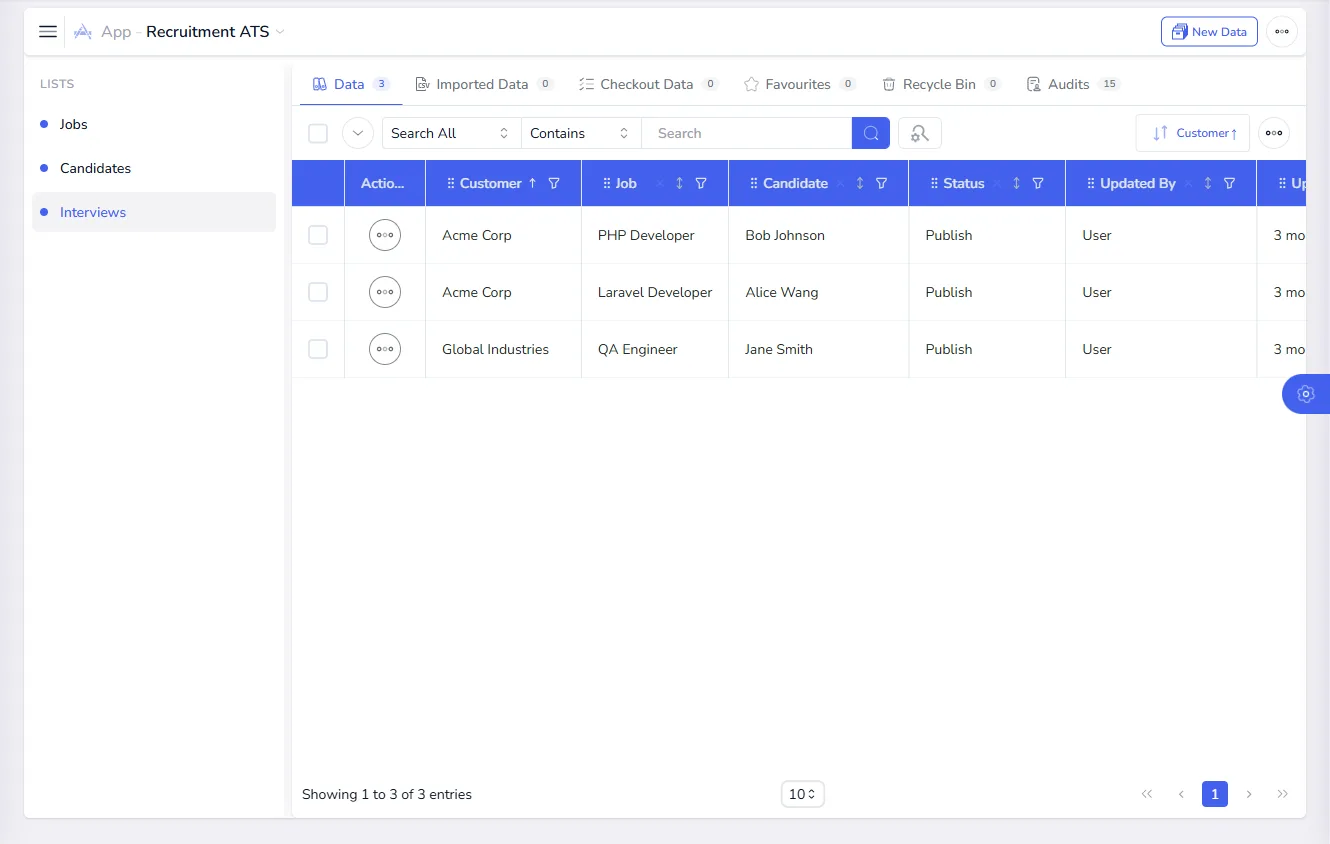
Interviews (secondary)
| Field | Type | Notes |
|---|---|---|
| Application | Record | |
| Interview Date | Calendar | |
| Interview Time | Time | |
| Mode | Dropdown | Phone, Video, On site. |
| Interviewer | Text or User | |
| Feedback | Text Area | |
| Outcome | Dropdown | Pass, Fail, Hold. |
You could also add Placements (candidate, job, start date, fee, invoice status) to track revenue.
Build the app
- Open Apps and select New App. Name it "Recruitment ATS".
- On the Lists step, add the lists. Make Jobs primary and the rest secondary.
- On the Relationships step, add One To Many relationships: from Clients to Jobs, from Jobs to Applications, from Candidates to Applications, and from Applications to Interviews.
- On the Permissions step, decide who can view and change the app.
See Build a custom app for each step in detail.
Who can do what
| Role | Clients | Jobs | Candidates | Applications | Interviews |
|---|---|---|---|---|---|
| Recruiter | Read | Read, update | Create, read, update | Create, read, update | Create, read, update |
| Account manager | Create, read, update | Create, read, update | Read | Read | Read |
| Consultant (view only) | Read | Read | Read | Read | Read |
| Agency owner | Full access | Full access | Full access | Full access | Full access |
Create these in User Roles (see Roles and permissions). Two settings are especially useful for an agency:
- Record Scope. If your agency has several offices, set each list's Data Permission to a scope such as My Branch & Department, so recruiters see their own office's candidates and jobs.
- Field permissions. Candidate contact details are personal data. Open the Email and Phone fields and use Data Permission to allow View only for the people who need to contact candidates.
Documents and e-signature
- CVs. The CV file field keeps each CV with the candidate, and you can search across documents in the File Manager.
- Terms of business. Store each client's agreement in the Agreement field. To get it signed, open it in the File Manager and use Request for Sign.
- Offer letters. When a candidate reaches the Offer stage, send the offer letter for signature the same way. See Send a document for signature.
Running the pipeline
- A client sends a job. Create a Jobs record with status Open.
- Add candidates to the Candidates list, or import a batch from a spreadsheet with Bulk upload.
- Create an Applications record for each candidate you put forward, and move its Stage forward as things progress.
- Schedule an Interviews record when a client wants to meet a candidate, and add the feedback afterwards.
- When a candidate accepts, set the application to Placed and the job to Filled.
Reports
- The pipeline. Filter Applications by Stage to see how many candidates are at each step. Save one search per stage, for example "At offer stage", so it takes one click. See Saved searches.
- Open jobs. Filter Jobs by Status to see what is still open and for which client.
- My candidates. Filter Applications by Recruiter so each recruiter has their own view.
- Everything about a job. Use Data Explorer to open a job beside its applications and interviews. See Data Explorer.
- Where records stand. The dashboard breaks records down by status for each list.
- Client updates. Export a filtered list to send a client a summary of the candidates put forward. Only people with the Export permission can do this.
Automation
- Notify the recruiter when an application's stage changes.
- Notify an interviewer when an interview is created.
- Create records automatically. When an application reaches Placed, create a record in Placements.
See Build a workflow and Notifications.
Tips
- One record per application. Keep the candidate list clean, and put the pipeline stage on the application, not the candidate, because the same person may apply for several jobs.
- Keep stages consistent. The same stage names across every job make reports reliable.
- Protect personal data. Limit who can see contact details, and review access regularly through the Audits view.