Example app - Law firm matter management
How to build a matter management app in FileEazy for a law firm - matters, clients, time entries and key dates - with confidential access, document versioning and e-signed engagement letters.
A law firm runs on matters: who the client is, who is working on it, what has been done, which deadlines are coming and which documents belong to it. A matter management app keeps all of that together and makes sure each matter is visible only to the people who should see it.
This guide shows one practical design. Adapt the fields to your practice areas.
What the app does
- Keeps one record for each matter, linked to the client.
- Stores the matter's documents, such as engagement letters and contracts, in the File Manager and links them to the record.
- Records time entries against each matter so billing starts from accurate data.
- Tracks key dates, such as court dates and filing deadlines.
- Limits each matter to its team, and keeps an audit trail.
The lists
Matters is the primary list. The others are secondary lists linked to a matter or a client.
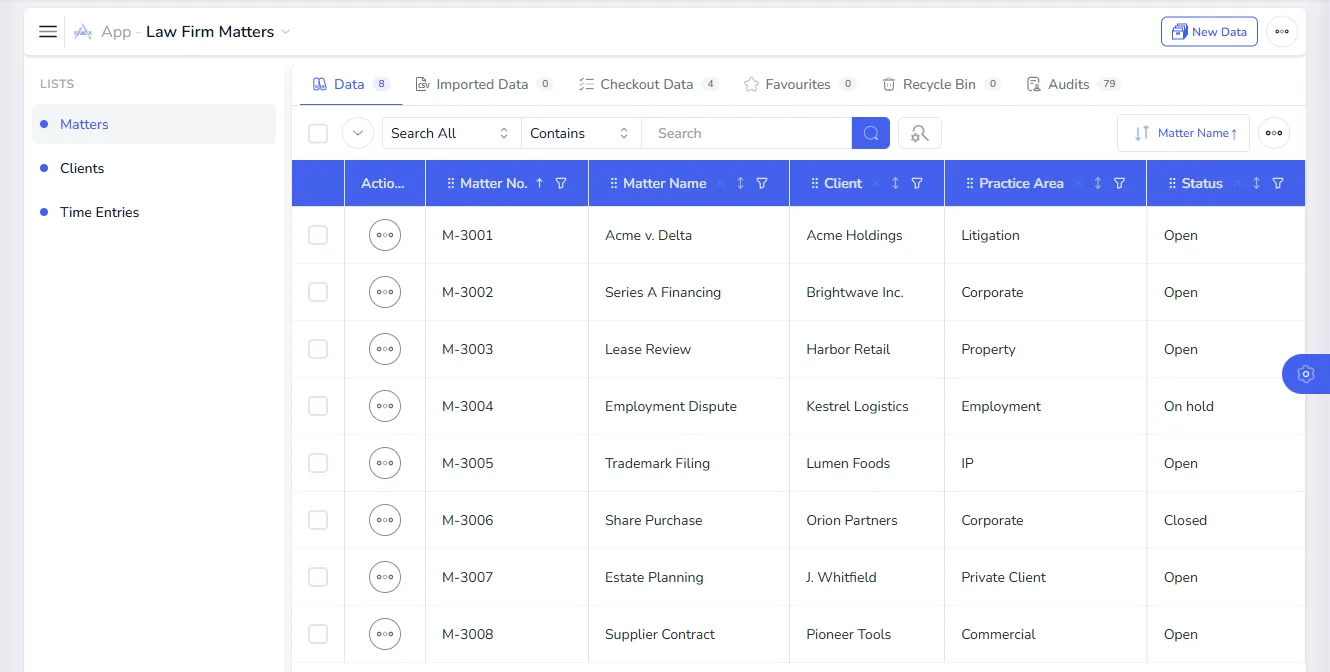
Matters (primary)
| Field | Type | Notes |
|---|---|---|
| Matter No. | Text | Master Field and Unique. |
| Matter Name | Text | Also a Master Field. |
| Client | Record | Links the matter to a client. |
| Practice Area | Dropdown | Litigation, Corporate, Property, Employment and so on. |
| Responsible Lawyer | User | |
| Opened On | Calendar | |
| Status | Dropdown | Open, On hold, Closed. |
| Engagement Letter | File | The signed letter, stored in the File Manager. |
Clients (secondary)
| Field | Type | Notes |
|---|---|---|
| Client Name | Text | Master Field and Unique. |
| Contact Name | Full Name | |
| Phone | Phone Number | |
| Address | Address |
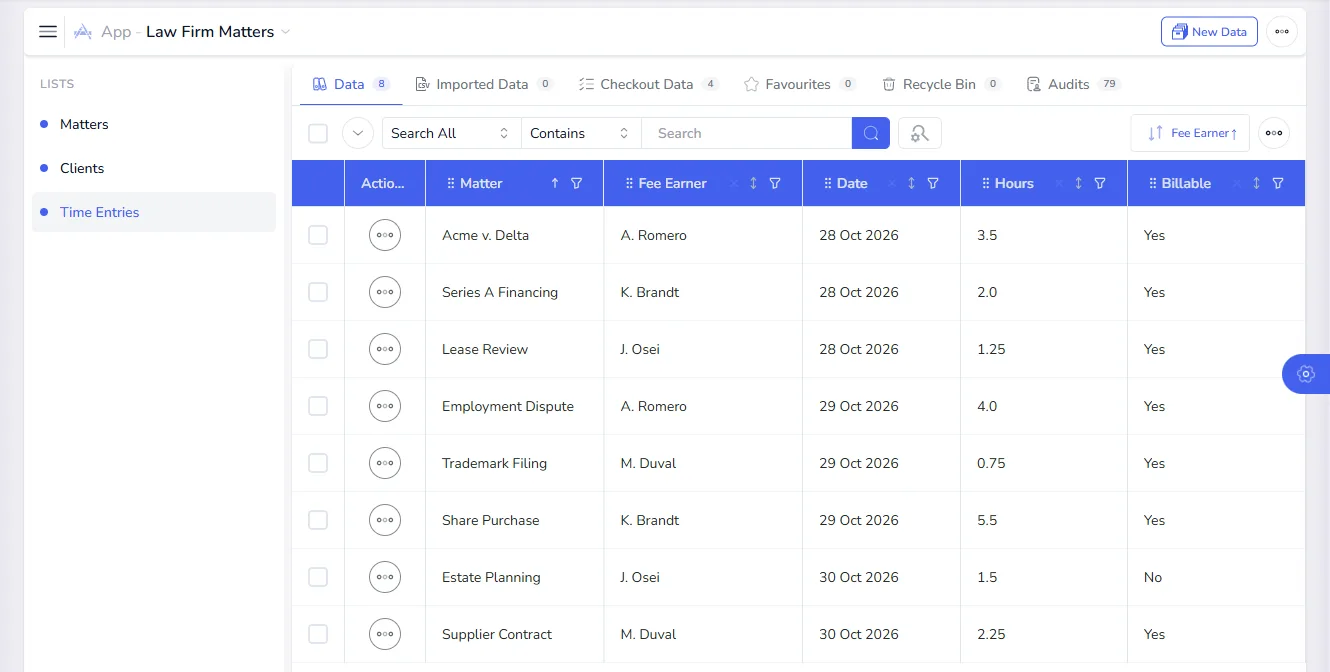
Time Entries (secondary)
| Field | Type | Notes |
|---|---|---|
| Matter | Record | |
| Fee Earner | User | |
| Date | Calendar | |
| Hours | Number | |
| Billable | Dropdown | Yes, No. |
| Narrative | Text Area |
Key Dates (secondary)
| Field | Type | Notes |
|---|---|---|
| Matter | Record | |
| Event | Text | Hearing, filing deadline, completion date. |
| Date | Calendar | |
| Owner | User |
What the data looks like
Each list shows its records in a table that you can search, sort and filter. The sample records below are fictional.
Build the app
- Open Apps and select New App. Name it "Matter Management".
- On the Lists step, add the four lists. Make Matters primary.
- On the Relationships step, add One To Many relationships from Clients to Matters, from Matters to Time Entries and from Matters to Key Dates.
- On the Permissions step, decide who can view and change the app.
See Build a custom app for each step in detail.
Who can do what
| Role | Matters | Clients | Time Entries | Key Dates |
|---|---|---|---|---|
| Partner | Full access | Full access | Read | Full access |
| Associate | Create, read, update | Read | Create, read, update | Create, read, update |
| Paralegal | Read, update | Read | Create, read | Create, read, update |
| Finance | Read | Read | Read, export | Read |
Create these in User Roles (see Roles and permissions). A few settings suit a law firm especially well:
- Record Scope. Use the Data Permission on each list so that lawyers see only the matters they belong to.
- Field permissions. Hide fields such as billing rates from everyone except partners and finance.
- Confidential documents. In the File Manager, restrict a matter's folder to its team, and protect especially sensitive files with a password.
Documents and e-signature
- Engagement letters. Open the letter in the File Manager and choose Request for Sign, then add the client as signer. When it is signed, attach it to the matter's Engagement Letter field. See Send a document for signature.
- Version history. Each time a document is updated, the File Manager keeps the earlier versions, and you can lock a file while someone edits it.
- Finding documents. Search across documents by content or by the matter's details.
Reports and reminders
- Open matters by lawyer. Filter Matters by Responsible Lawyer and Status, and save the search. See Saved searches.
- Unbilled time. Filter Time Entries by Billable and Date to prepare invoices.
- Deadlines this month. Filter Key Dates by Date so nothing is missed.
- A matter at a glance. Use Data Explorer to open a matter beside its time entries and key dates. See Data Explorer.
- Reminders. Notify the owner a few days before a key date. See Build a workflow and Notifications.
- Who changed what. The Audits view shows every change to a matter.
Tips
- One record per matter. Keep clients in their own list so the same client can have many matters.
- Name matters consistently. A numbering scheme makes searches and reports easier.
- Review access when a matter closes. Restrict closed matters to the people who still need them.