Create a list
Step-by-step guide to creating a list in FileEazy - name it, design its sections and fields, preview the form and decide who can see and change the list and its records.
A list is a table of records with its own columns, such as customers, contracts or purchase orders. If you are not sure how lists differ from apps and the File Manager, read Workspaces, apps, lists and the File Manager first. This guide walks through creating one from scratch, using a "Purchase Orders" list as the example.
Creating a list has three steps: Overview, Sections & Fields and Permission. Only the overview is required. You can skip the other two and come back to them later.
Step 1: Open Lists and start a new list
- Select Lists in the main menu.
- Select New List at the top right of the All Lists page.
The Create List page opens with the three steps shown across the top.
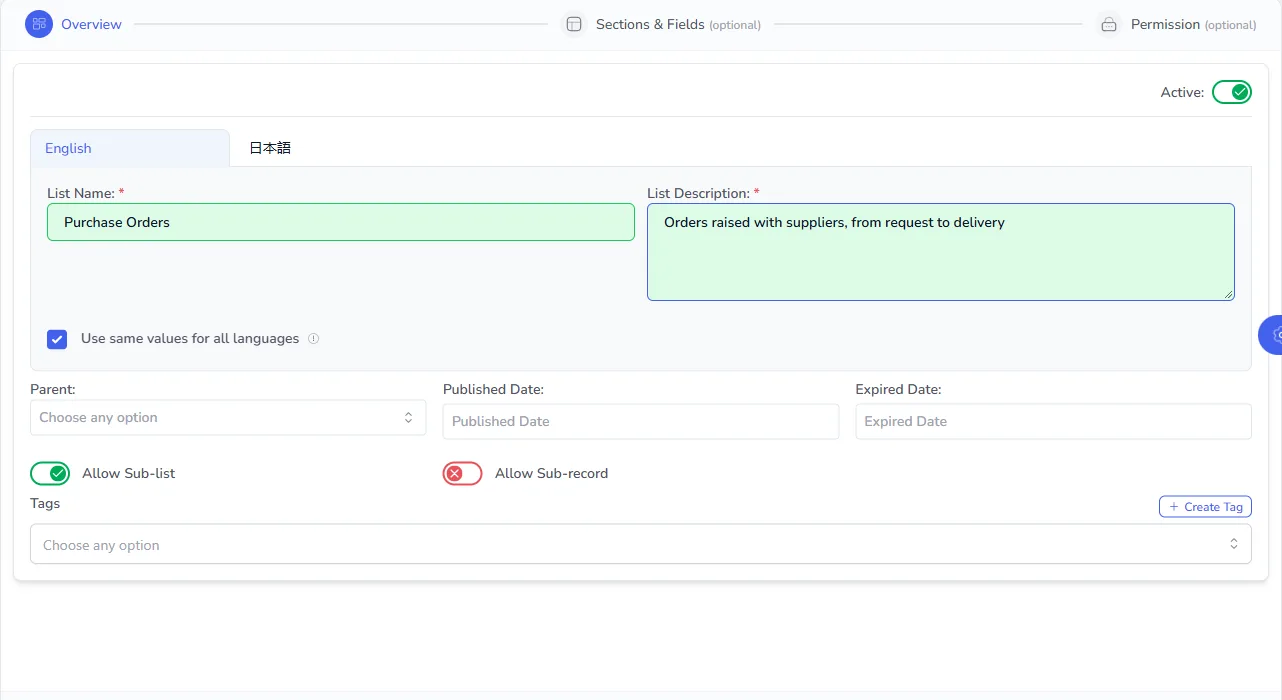
Step 2: Fill in the Overview
- Active - leave this switched on so the list is in use. You can switch a list off later from its card on the Lists page.
- List Name and List Description (both required). The two tabs, English and 日本語, let you write the name in both languages. Leave Use same values for all languages ticked if one version is enough; the same text is then used for both languages.
- Parent (optional) - choose another list to make this one a sub-list of it. A sub-list holds related data linked to the records of its parent.
- Published Date and Expired Date (optional) - optional dates for when the list is published and when it expires.
- Allow Sub-list - switch on if this list may have sub-lists attached to it as related data.
- Tags (optional) - choose existing tags, or select Create Tag to add a new one, so the list is easy to find.
Select Next when you are done.
Step 3: Design the form
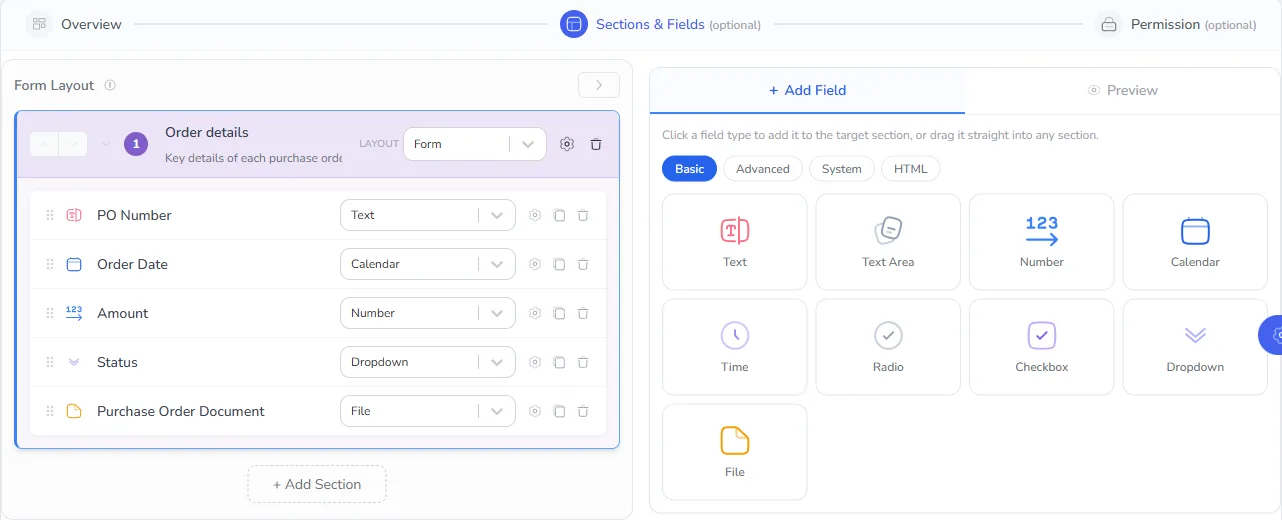
The Sections & Fields step is where you decide what information each record holds. The form is built from sections, and each section holds fields.
- Give the first section a name and an optional description, such as "Order details".
- In the panel on the right, pick a field type and click it to add it to the section. You can also drag a field type straight into a section.
- Rename each field by clicking its name. Use the drop-down beside it to change its type, and the drag handle to put the fields in order.
- Select Add Section to group more fields under another heading.
Each field row also has a settings cog, a copy button and a delete button. The settings control things like whether a field is required, who can edit it, and what options a drop-down offers. See Design lists and fields for every field type and setting.
Open the Preview tab to see the form as people will fill it in, in English or Japanese.
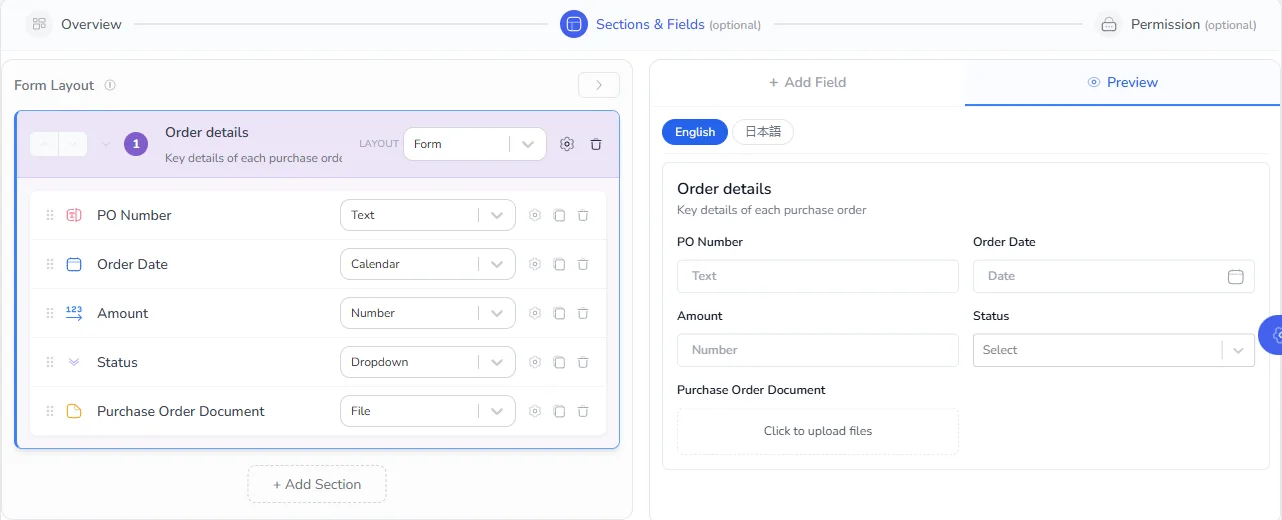
Tip: use a File field when each record needs a document, such as the purchase order itself. The document is stored in the File Manager, and the record keeps a link to it.
Select Next to continue, or Skip to design the form later.
Step 4: Set who can use the list
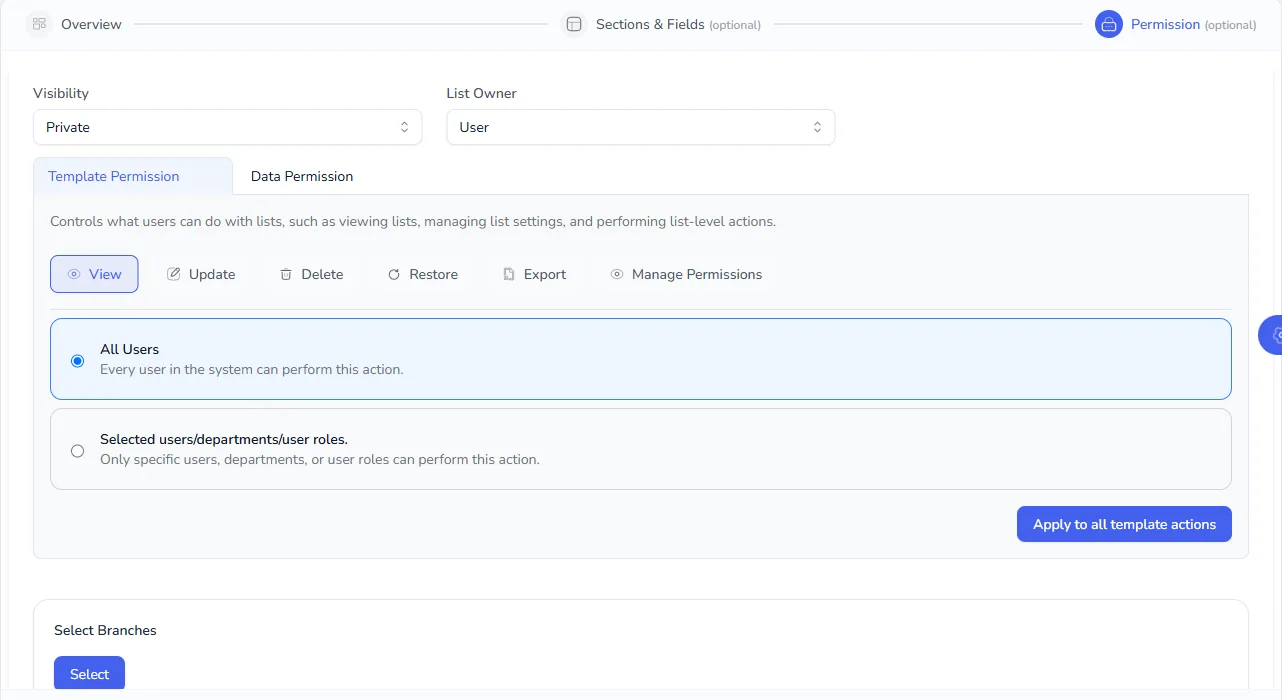
The Permission step controls who can see the list and what they can do with it.
-
Visibility - choose Public or Private. Lists are Private by default, which means people must sign in to open their records. A Public list can be reached by people who are not signed in.
-
List Owner - the user responsible for the list.
-
Template Permission - what people can do with the list itself. Pick an action (View, Update, Delete, Restore, Export or Manage Permissions), then choose who may perform it:
- All Users - everyone in your workspace.
- Selected users/departments/user roles - only the people, departments or roles you name.
Select Apply to all template actions to use the same choice for every action.
-
Data Permission - the same idea, but for the records inside the list. The actions are View, Create, Update, Delete, Restore, Export and Import. For Available for all internal users you can also set a Record Scope, such as My Branch & Department, so people only see records that belong to both their branch and their department. Select Apply to all data actions to apply one choice to every action.
-
Select Branches - the branches the list applies to.
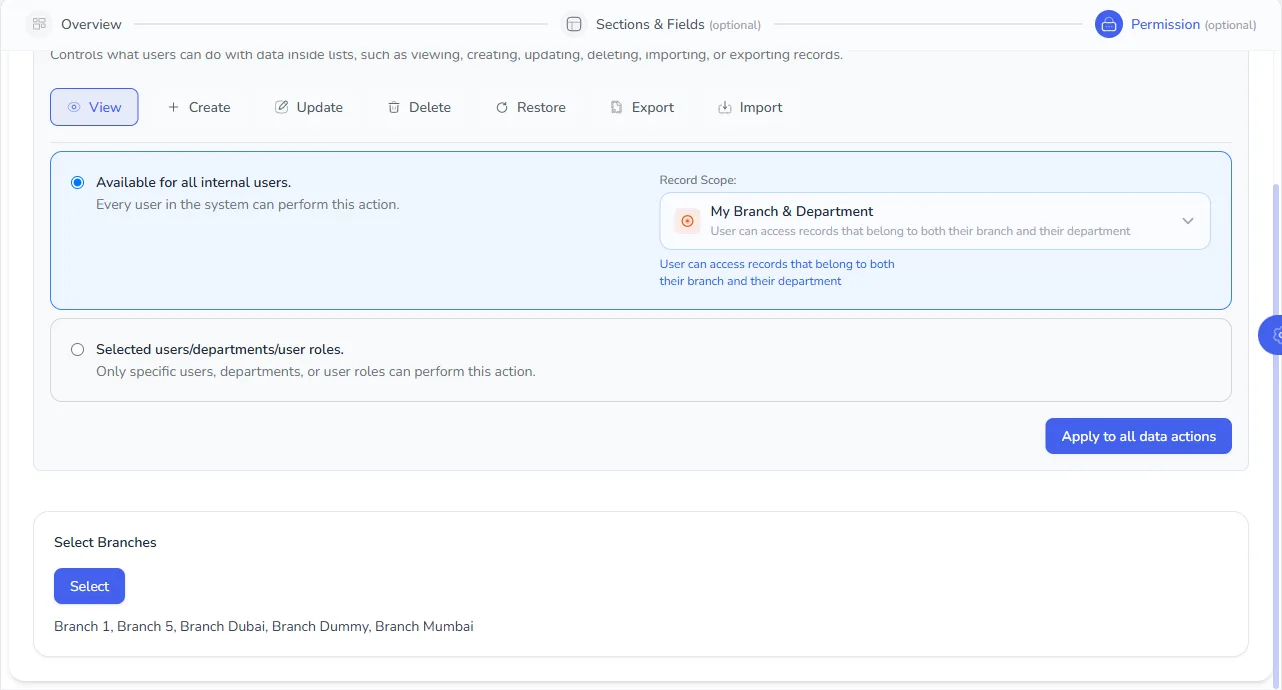
These settings work together with each person's role. See Roles and permissions for how roles decide what people can do across FileEazy.
Step 5: Save the list
Select Save to save and keep editing, or Save & Close to finish. The new list appears on the All Lists page as a card, with a switch to turn it on or off.
Open the list to start adding records. To bring several lists together for one team or process, group them into an app.
Frequently asked questions
Do I have to design the fields when I create the list?
No. The Sections & Fields and Permission steps are both optional. You can save a list with just a name and description, and add sections and fields later.
Can I change a list after I create it?
Yes. Open the list from the Lists page to change its overview, sections, fields and permissions.
What is a sub-list?
A sub-list holds related data for the records of another list. To make a list a sub-list, choose its Parent on the Overview step.
What is the difference between Template Permission and Data Permission?
Template Permission is about the list itself: who can view it, change its design, delete it or export it. Data Permission is about the records inside it: who can view, create, update, delete, import or export them.
Can one list be used in more than one app?
Yes. A list exists on its own and can be used in more than one app.