Share and protect files
How to share a file with colleagues or outside people in FileEazy, control view, edit and download, set an expiry date and password, and protect sensitive files.
Documents are only useful if the right people can reach them, and only safe if the wrong people cannot. This guide covers sharing a file, and the extra protections you can add.
Share a file
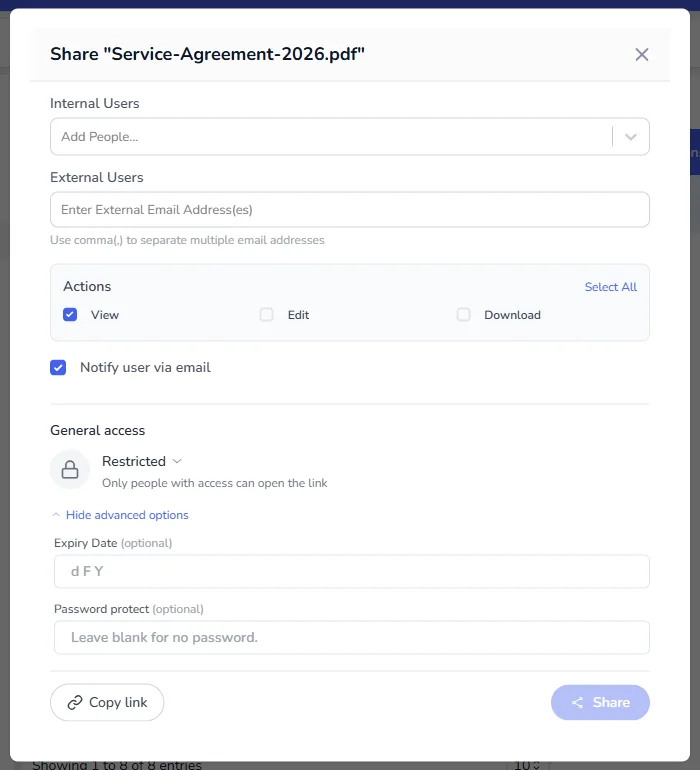
- In the File Manager, select the file's actions button, then Share.
- Under Internal Users, add colleagues from your organisation.
- To include people outside your organisation, type their email addresses under External Users. Separate several addresses with commas.
- Under Actions, tick what they may do: View, Edit and Download. Select All ticks all three. View is ticked by default.
- Leave Notify user via email ticked if you want them to receive an email with the link.
- Select Share.
General access
Under General access, the setting decides who can open the link. The default is Restricted: only people with access can open it. Select it to see the wider options, such as letting anyone with the link open the file.
Pick the narrowest setting that works. Restricted is the safest, and it is almost always what you want for contracts and personal data.
Advanced options
Select Advanced options to add more controls:
- Expiry Date. Access stops on this date.
- Password protect. Anyone opening the link must enter the password. Leave it blank for no password.
Copy the link
Select Copy link to copy the link and paste it into a message yourself. The link follows the same access rules you set, so a restricted link still only works for people you have added.
See what you have shared
Open Shared By Me in the File Manager to see everything you have shared. People you have shared with find the item under Shared With Me.
Protect sensitive files
The file's actions menu has more protection for sensitive files.
| Action | What it does |
|---|---|
| Lock | Marks the file as locked. Other people cannot open or change it until you unlock it. Use it while you are editing. |
| Hide | Hides the file from normal lists. Anyone allowed to can reveal hidden items with Show Hidden Items. |
| Set Password | Asks for a password before the file is opened. |
| Encrypt | Encrypts the file. An encrypted file cannot be previewed until it is decrypted. |
An item that is locked or encrypted shows a notice when someone tries to open it.
Who can do what
Which of these actions you see depends on your role. If an action is missing, ask an administrator to grant it in User Roles. See Roles and permissions.
Keep a record
Open Audits in the File Manager, or see Audit trails, to review who did what to your files and when.
Tips
- Share the folder, not each file, when a team needs everything in it.
- Set an expiry date for outside people. It means you do not have to remember to remove them later.
- Use a password for outside links, and send the password by a different route from the link.
- For a document that needs signatures, use Request for Sign instead of sharing. See Send a document for signature.