Field types and their settings
A reference to every basic field type in a FileEazy form - text, text area, number, calendar, time, radio, checkbox, dropdown and file - with the settings each one has and when to use it.
Every field in a FileEazy form has a type. The type decides what people can enter, such as text, a number, a date or a file, and which settings you can change. This page goes through the basic field types one by one. For how to add fields and the settings every field shares, see Design lists and fields.
Choose the right field
| You need to record | Use |
|---|---|
| A short reference, code or name | Text |
| Notes, comments or a long description | Text Area |
| A quantity, price or score | Number |
| A date, or a date and time | Calendar |
| A time of day only | Time |
| One choice from a few options, all visible | Radio |
| Yes or no, or several choices from a few options | Checkbox |
| One or more choices from a long list | Dropdown |
| A document, photo or other file | File |
Choosing the right type matters. A Number field can be totalled and sorted as a number, a Calendar field can be filtered by date, and a Dropdown keeps everyone using the same spelling.
Settings every field has
Select the settings icon beside a field to open Edit Field Properties. Most settings are the same for every type:
- General: the field label, placeholder, description and tooltip, in English and Japanese.
- Data: the default value, and the Protected, Database Index, Master Field and Default Sort switches.
- Validation: Required, Unique and the other general rules. See Validation rules for fields.
- Style: how the field looks on the form (see below).
- Data Permission: who can view, create, update and delete the field. See Field and section permissions.
Text, number and calendar fields also have an Advanced tab for prefixes, suffixes, calculated values and running numbers. See Prefix, suffix and calculated fields.
Style settings
| Setting | What it does |
|---|---|
| Read Only | The value can be seen but not changed. |
| Hide Label | Hides the field's label on the form, while keeping it in the form builder. |
| Hidden | Hides the whole field from the form. |
| Show in List View | Shows the field as a column in the list of records. |
| Show in Grid View | Shows the field when records are shown as a grid. |
| Field Width | How much of the row the field takes, from 1 to 12. 12 is the full width, 6 is half and 4 is a third. |
| Label Position | Where the label sits: top-left, top-right, left, right, bottom-left or bottom-right. |
| Custom CSS Class | Adds your own style class, for organisations with custom styling. |
Text
For short, single-line entries such as a PO number, a person's name or a vehicle registration.
| Tab | Setting | What it does |
|---|---|---|
| Data | Text Case | Keeps what people type as it is, or changes it to uppercase or lowercase. |
| Validation | Minimum Length, Maximum Length | The fewest and most characters allowed. The maximum starts at 255. |
| Advanced | Prefix, Suffix | Adds fixed text, or text built from other fields and dates, before or after the value. |
| Advanced | Calculated Field | Fills the field automatically from other fields. |
Example: a Registration Number field with Text Case set to uppercase, so "ab12 cde" is saved as "AB12 CDE".
Text fields are the usual choice for generated reference numbers, such as INV-26-218-N. See Prefix, suffix and calculated fields.
Text Area
For longer, multi-line text such as notes, a job description or meeting minutes.
| Tab | Setting | What it does |
|---|---|---|
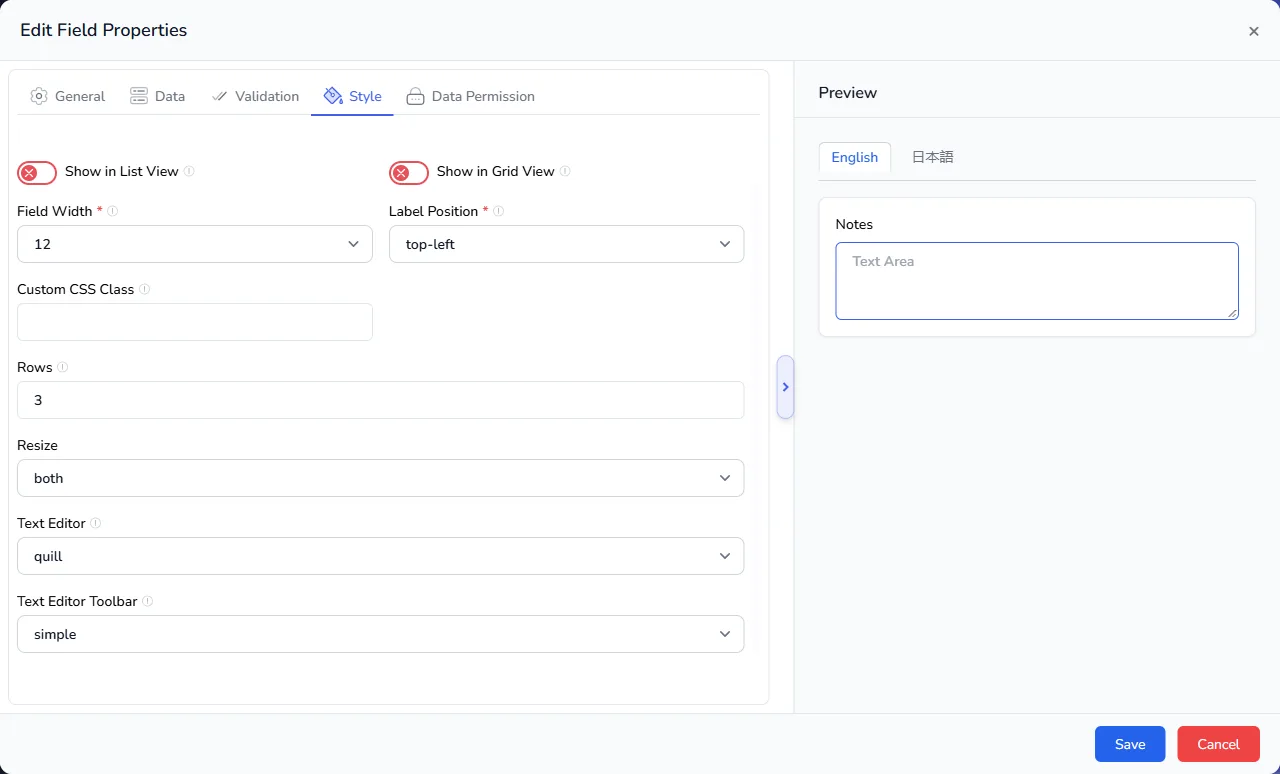
| Style | Rows | How many lines of text are visible before the box scrolls. Starts at 3. |
| Style | Resize | Whether people can drag the box larger: none, both, horizontal or vertical. |
| Style | Text Editor | Turns the box into a rich text editor, so people can use bold, italics, lists and links. Choose ckeditor, tinyMCE, quill or markdown_editor, or none for plain text. |
| Style | Text Editor Toolbar | How many formatting tools the editor shows: basic for minimal formatting, simple for common tools, or advanced for the full set. |
| Validation | Minimum Length, Maximum Length | The fewest and most characters allowed. |
Example: a Job Description field with 8 rows, the quill editor and the simple toolbar, so recruiters can add headings and bullet points.
Use plain text (none) when the text will be exported or used in reports, and a rich text editor when formatting helps people read it.
Number
For quantities, prices, scores and any value you may want to add up or sort.
| Tab | Setting | What it does |
|---|---|---|
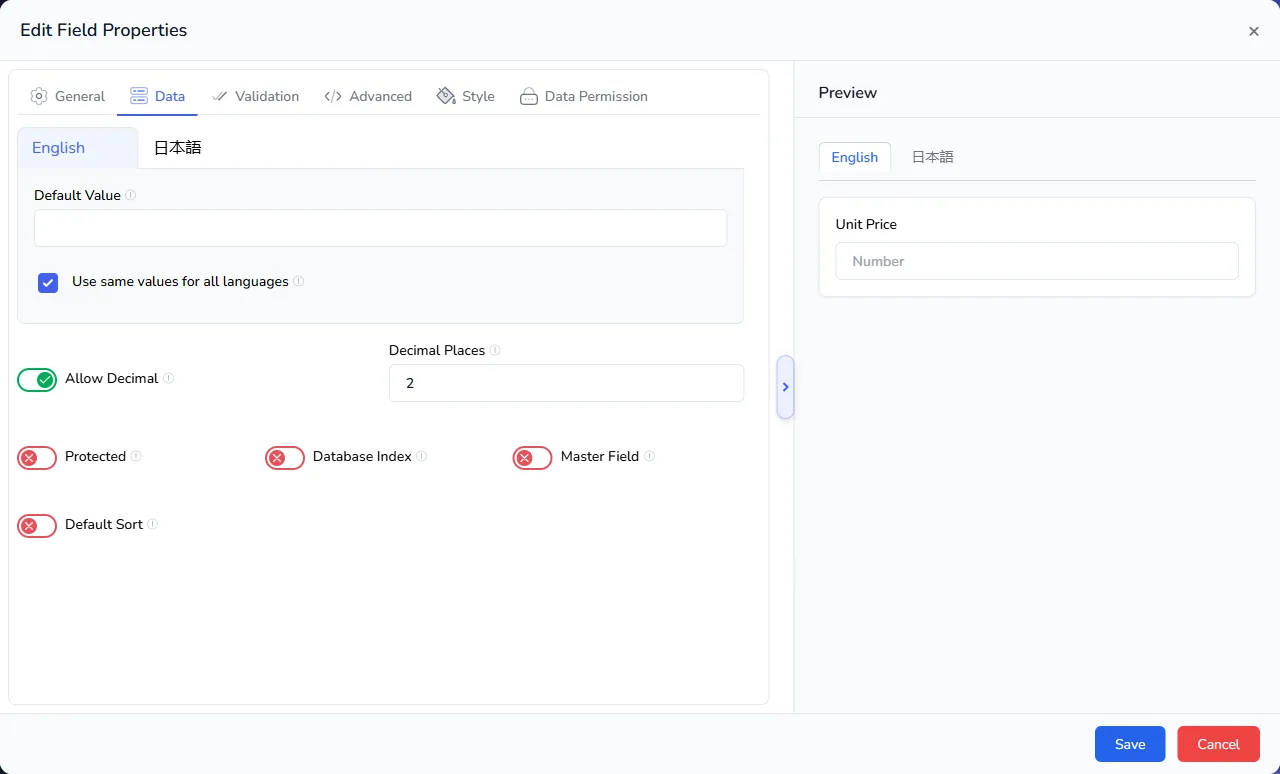
| Data | Allow Decimal | Lets people enter decimals. When it is off, only whole numbers are accepted. |
| Data | Decimal Places | How many decimal places are kept. Starts at 2. |
| Validation | Minimum Value, Maximum Value | The smallest and largest numbers allowed. |
| Advanced | Prefix, Suffix | Adds text before or after the number. |
| Advanced | Calculated Field | Works the number out from other fields. |
| Advanced | Auto Increment | Gives each new record the next number automatically, in order or at random, with a start number, an end number (0 for no limit) and a step. |
Examples:
- Unit Price: decimals allowed, 2 decimal places, minimum 0.
- Quantity: whole numbers only, minimum 1.
- Asset Number: auto increment from 1, so records are numbered 1, 2, 3 and so on.
A field cannot be both a calculated field and an auto increment field. See Prefix, suffix and calculated fields.
Calendar
For dates, such as a delivery date, a date of birth or a contract end date. Switch on Time Field to record a time as well.
| Tab | Setting | What it does |
|---|---|---|
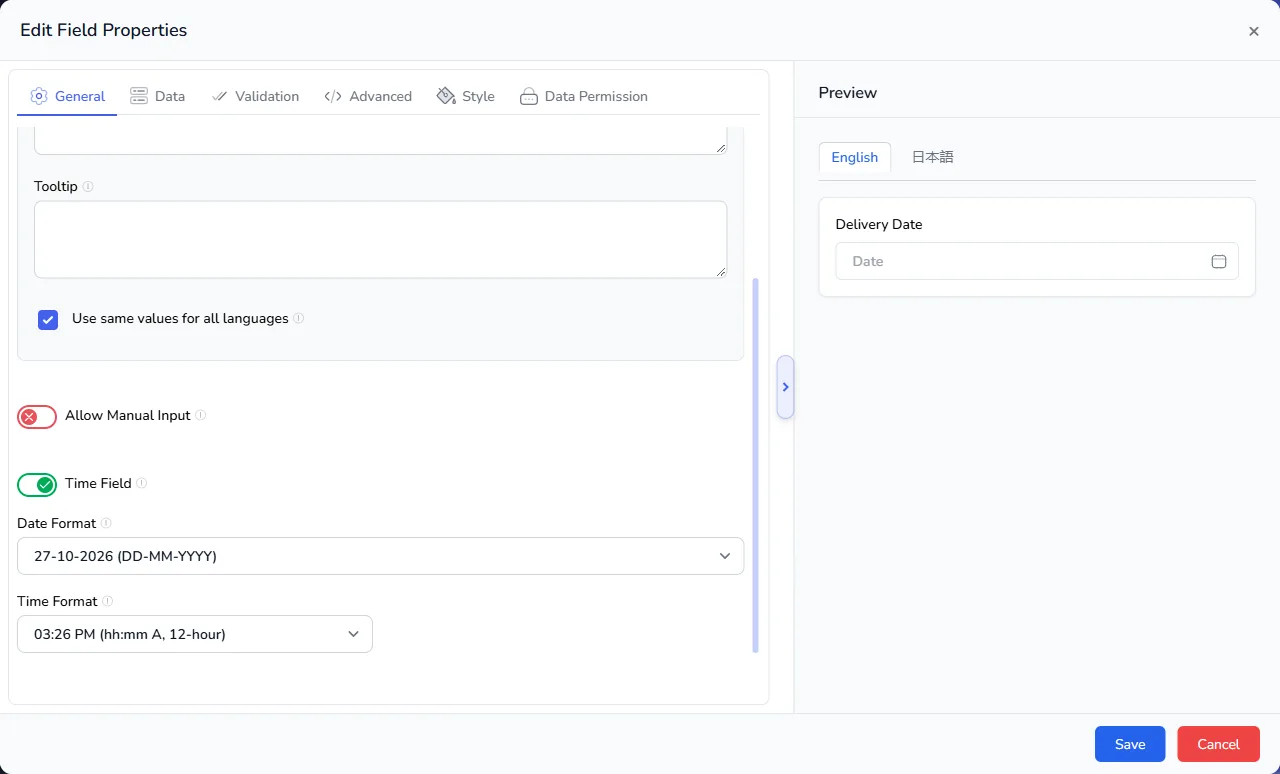
| General | Allow Manual Input | Lets people type the date instead of picking it from the calendar. |
| General | Time Field | Adds time selection, so the field holds a date and a time. |
| General | Date Format | How the date is shown: 27-10-2026, 27/10/2026, 27 October 2026, 2026-10-27 or 2026/10/27. |
| General | Time Format | How the time is shown when Time Field is on: 24-hour or 12-hour, with or without seconds. |
| Validation | Past Date, Future Date | Whether dates before or after today can be chosen. |
| Validation | Start Date, End Date | The earliest and latest dates that can be chosen. |
| Advanced | Calculated Field | Works the date out from other fields, such as a start date plus 365 days. |
Examples:
- Delivery Date: Past Date off, so deliveries can only be planned ahead.
- Appointment: Time Field on, with the 12-hour format.
- Contract End Date: calculated as Contract Start Date plus 1 year, using Add Years.
Choose a date format your team reads without thinking. 27 October 2026 is the clearest when people in different countries use the same list.
Time
For a time of day on its own, such as an opening time or a shift start.
| Tab | Setting | What it does |
|---|---|---|
| General | Allow Manual Input | Lets people type the time instead of picking it. |
| General | Time Format | 15:24 or 15:24:31 (24-hour), or 03:24 PM or 03:24:31 PM (12-hour). |
If you need a date as well, use a Calendar field with Time Field switched on instead.
Radio, Checkbox and Dropdown
These three types let people choose from a set of options. They share most of their settings.
| Tab | Setting | What it does |
|---|---|---|
| Data | Data Source | Where the options come from: None for your own options, or User, User Role, Department, Branch or List. |
| Data | Options | Your own options, with an optional code for each. |
| Data | Option Display | Shows each option as Option, or as Option (Code). |
| Data | Option Sort Order | Default (the order you set), Ascending (A to Z) or Descending (Z to A). |
| Data | Allow Adding Option | Lets people add a new option while filling in the form. |
| Data | Data Source Filter | Narrows the options using another field, for example showing only the jobs of the chosen company. |
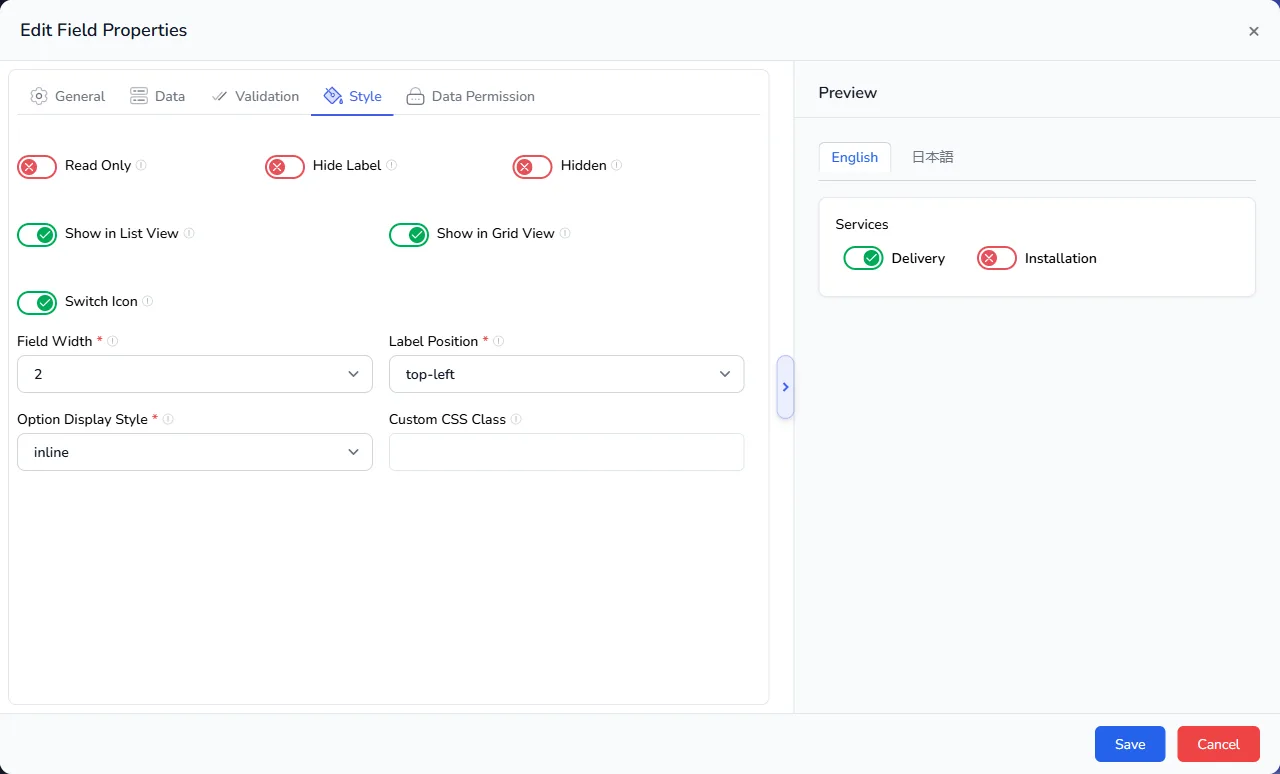
| Style | Option Display Style | inline puts the options side by side; block puts each on its own line. Radio and Checkbox only. |
Each type also has its own setting:
| Type | Setting | What it does |
|---|---|---|
| Radio | - | People choose exactly one option. |
| Checkbox | Switch Icon | Shows each option as an on/off switch instead of a tick box. |
| Dropdown | Allow Multiple Values | Lets people choose more than one option. |
Which one to use:
- Radio for two to five options that people should see at a glance, such as Priority: Low, Medium, High.
- Checkbox for a yes/no question, such as Urgent, or a few options where more than one can apply, such as Services: Delivery, Installation.
- Dropdown for longer lists, such as countries or products, and for options that come from another list.
To fill the options from another list, and to show a value from that list, such as a country's time zone, see Use data from another list.
File
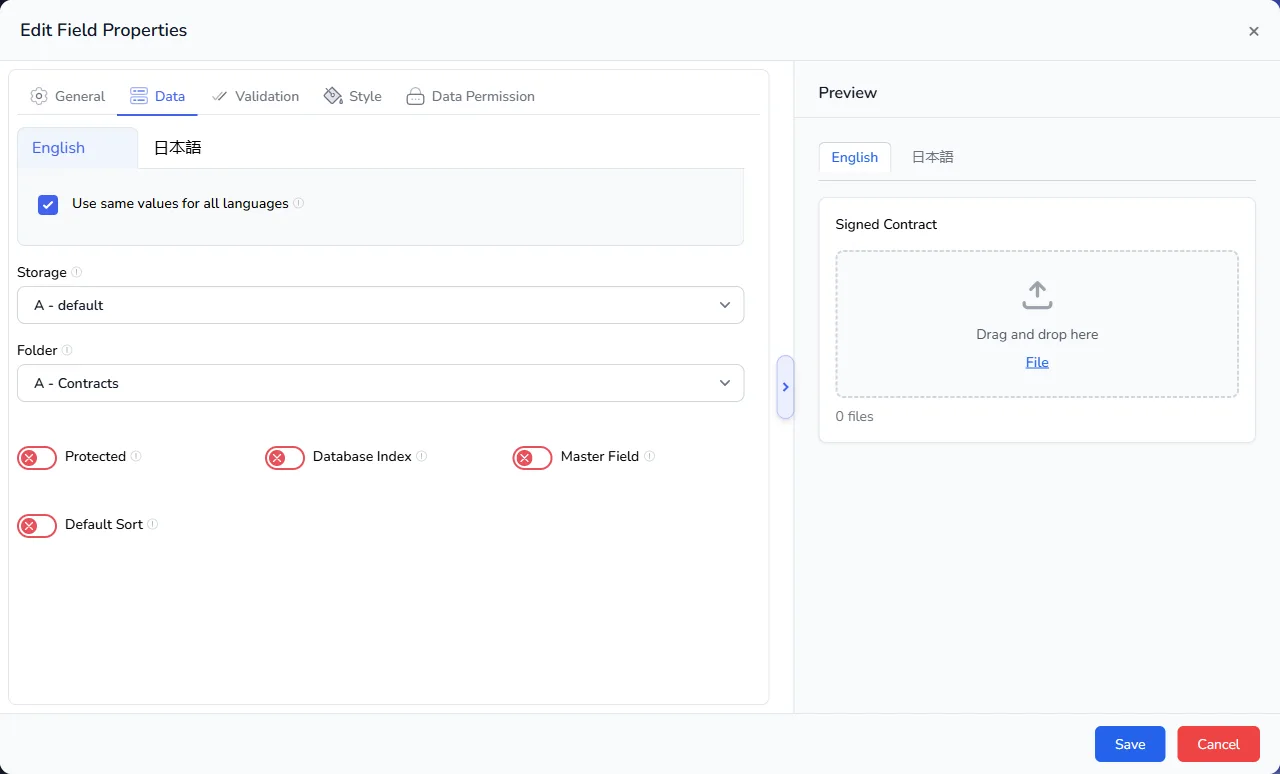
For attaching documents, photos and other files to a record. Uploaded files are kept in the File Manager.
| Tab | Setting | What it does |
|---|---|---|
| Data | Storage | The storage location where uploaded files are saved. |
| Data | Folder | The folder in that storage where the files go. |
| Style | Dropzone | Shows a drag-and-drop area, so people can drop files onto the form. On by default. |
| Validation | Allowed File Types | The file extensions people may upload, such as .pdf or .jpg. |
| Validation | Minimum No. of Files, Maximum No. of Files | How many files are needed and allowed. A new file field allows 1. |
| Validation | Minimum File Size, Maximum File Size | The smallest and largest file allowed. |
Examples:
- Signed Contract: saved to the Contracts folder,
.pdfonly, exactly one file. - Site Photos:
.jpgand.png, up to 10 files.
Choose a folder for each file field, so files from the same list are kept together and are easy to find later. See Set up storage locations and Set up folders.
Advanced, System and HTML fields
Beyond the basic types, the Advanced group has fields with the right format built in, such as Email, Phone Number, Currency and Signature. The System group lets people pick real users, departments, branches, tags and records, and the HTML group adds headings, labels, paragraphs and buttons to lay out the form. For what each one is for, see Design lists and fields.
Tips
- Pick the type before you collect data. Changing a field's type later can leave existing values in the wrong format.
- Use Number for anything you will add up. A price stored as text cannot be totalled.
- Use choices instead of free text where you can. A dropdown keeps "London", "london" and "LDN" from becoming three different answers.
- Keep labels short and add a tooltip. The label names the field; the tooltip explains it.