Validation rules for fields
How to stop wrong or incomplete data being saved in FileEazy - required fields, unique values, text length, number ranges, date limits and file rules, with examples for each.
Validation rules check what people type before a record is saved. They catch mistakes early, such as a missing reference number, a duplicate invoice, a delivery date in the past or a file that is too large, so the data in your lists stays clean and reliable.
Where to set validation
- Open the list in the list builder and go to Sections & Fields.
- Select the settings icon beside the field.
- Open the Validation tab.
- Set the rules, then select Save.
The rules you see depend on the field type. Every field has the general rules. Text, number, date and file fields have extra rules of their own.
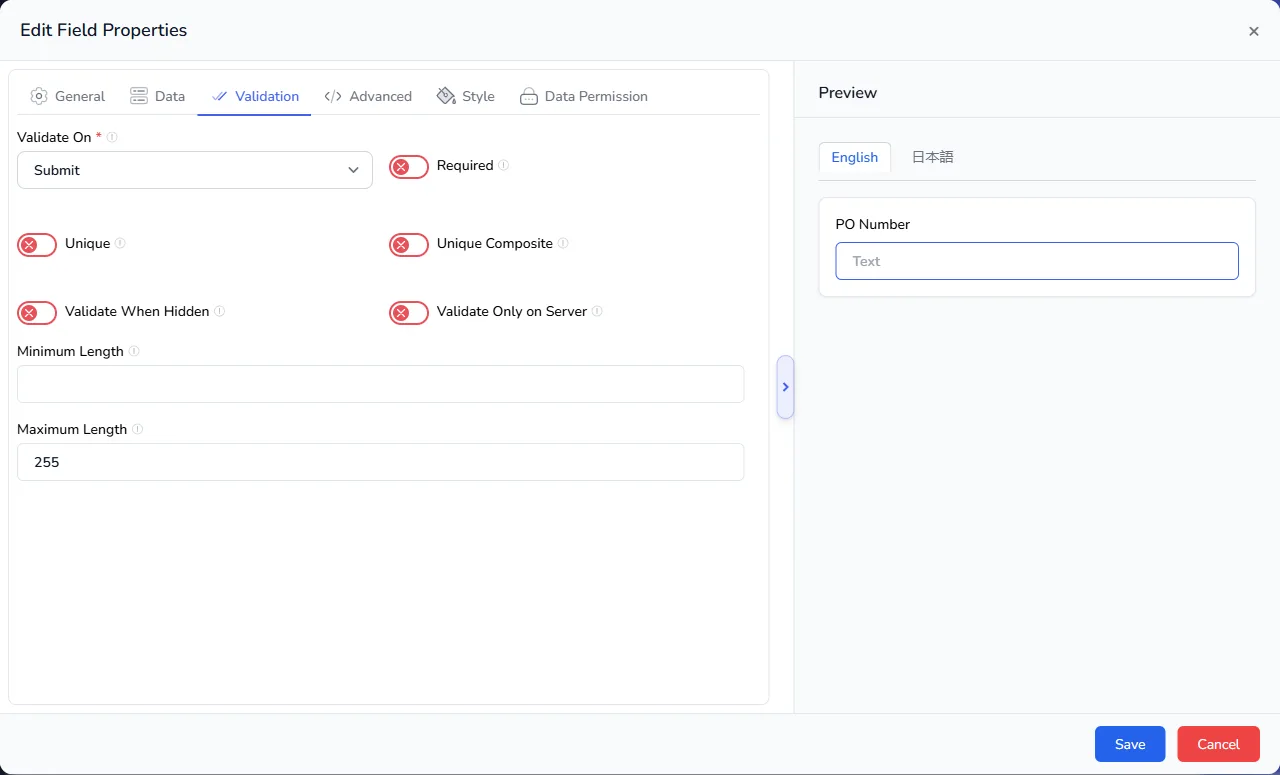
Rules every field has
| Rule | What it does |
|---|---|
| Validate On | When the rules are checked. Submit checks them when the form is saved. |
| Required | The field must be filled in before the form can be saved. Required fields show a red asterisk. |
| Unique | The value must not already exist in another record of this list. |
| Unique Composite | The combination of this field and the other fields marked Unique Composite must not already exist. |
| Validate When Hidden | Checks the field even when it is hidden on the form. |
| Validate Only on Server | Runs the checks on the server only, so the rules are not visible in the browser. |
Required
Use Required for the information a record cannot do without, such as a customer name, a PO number or a contract date. Keep the number of required fields small, so people are not forced to invent values just to save a form.
Unique
Use Unique for identifiers that must never repeat, such as an employee ID, an invoice number, a vehicle registration or an email address. If someone enters a value that is already used, the record is not saved.
Unique Composite
Sometimes one field can repeat, but a combination cannot. For example, many people share a name, and many contacts work for the same company, but the same name at the same company is almost certainly a duplicate.
To prevent it:
- Open the Name field and switch on Unique Composite.
- Open the Company field and switch on Unique Composite.
- Save the list.
A record is now refused only if both the name and the company match an existing record.
More examples:
| Fields combined | Prevents |
|---|---|
| Employee + Leave Start Date | Two leave requests for the same person on the same day. |
| Room + Booking Date + Time | Double-booking a room. |
| Product + Supplier | Listing the same supplier twice for one product. |
| Student + Course + Term | Enrolling a student twice in the same course. |
Validate When Hidden
A hidden field is still part of the form. Normally its rules are skipped. Switch on Validate When Hidden only when a hidden field must still pass its checks, for example a hidden value that is filled in automatically. Use it with care: if a hidden field fails, people cannot see it to correct it.
Validate Only on Server
Switch this on when the rule itself should stay private, or when you want the server to be the final judge of the data. The checks still run when the form is saved.
Text and Text Area fields
| Rule | What it does |
|---|---|
| Minimum Length | The fewest characters allowed. |
| Maximum Length | The most characters allowed. A text field starts with a maximum of 255. |
Examples:
- A PO Number that is always 8 characters: minimum 8, maximum 8.
- A Comment that must say something useful: minimum 10.
- A Short Description for a report: maximum 120.
On the Data tab, Text Case can also change what people type to Uppercase or Lowercase automatically, which suits codes and references.
Number fields
| Rule | What it does |
|---|---|
| Minimum Value | The smallest number allowed. |
| Maximum Value | The largest number allowed. |
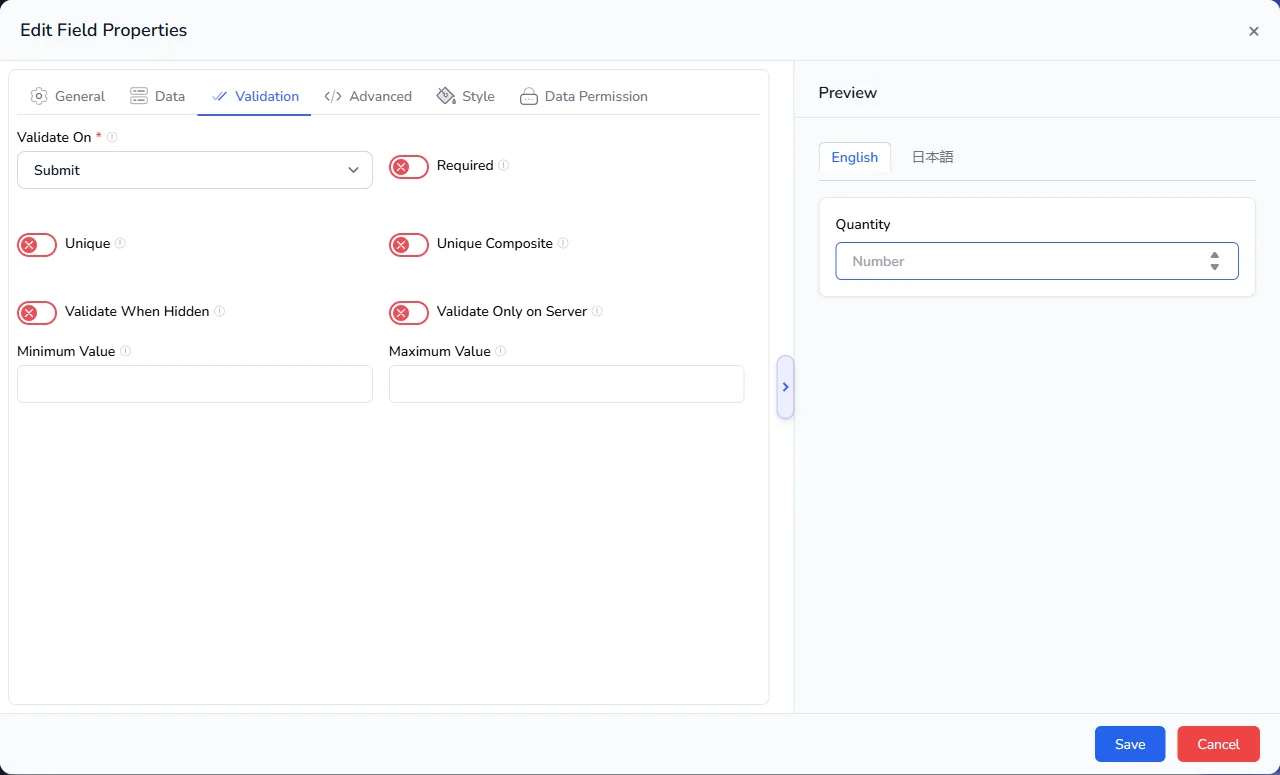
Examples:
- Quantity: minimum 1, so an order line cannot be zero.
- Discount %: minimum 0, maximum 100.
- Age: minimum 18 for an employee record.
On the Data tab, Allow Decimal and Decimal Places decide whether the number can have decimals, and how many.
Calendar fields
| Rule | What it does |
|---|---|
| Past Date | Allows dates before today. |
| Future Date | Allows dates after today. |
| Start Date | The earliest date that can be chosen. |
| End Date | The latest date that can be chosen. |
Both Past Date and Future Date are on by default, so any date can be chosen.
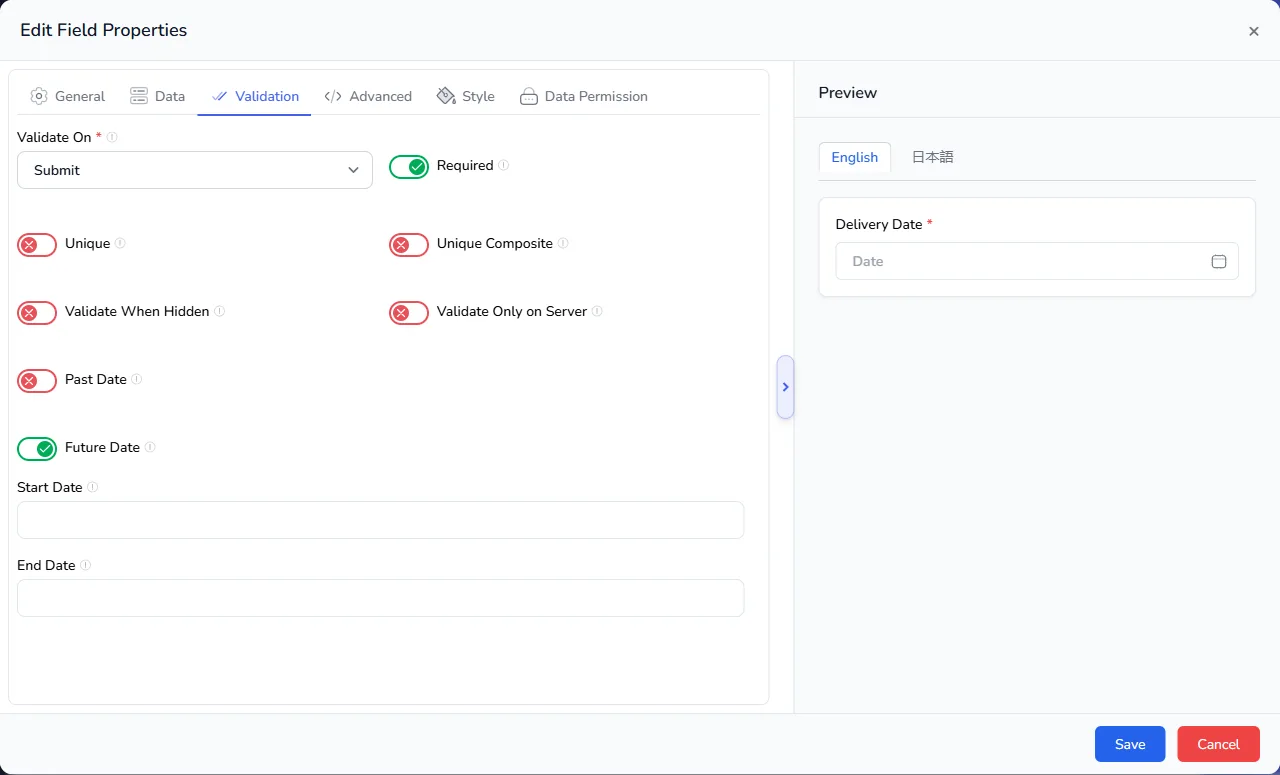
Examples:
| Field | Set it up like this |
|---|---|
| Delivery Date | Turn off Past Date, so deliveries can only be planned ahead. |
| Date of Birth | Turn off Future Date. |
| Expense Date | Turn off Future Date, so nobody claims expenses in advance. |
| Event Date in 2027 | Set Start Date to 1 January 2027 and End Date to 31 December 2027. |
On the General tab, Allow Manual Input lets people type a date instead of picking it from the calendar.
File fields
| Rule | What it does |
|---|---|
| Allowed File Types | The file extensions people may upload, such as .pdf, .jpg or .png. |
| Minimum No. of Files | The fewest files needed. Use 0 for no minimum. |
| Maximum No. of Files | The most files allowed. A new file field allows 1. Use 0 for no limit. |
| Minimum File Size | The smallest file allowed. Use 0 for no limit. |
| Maximum File Size | The largest file allowed. Use 0 for no limit. |
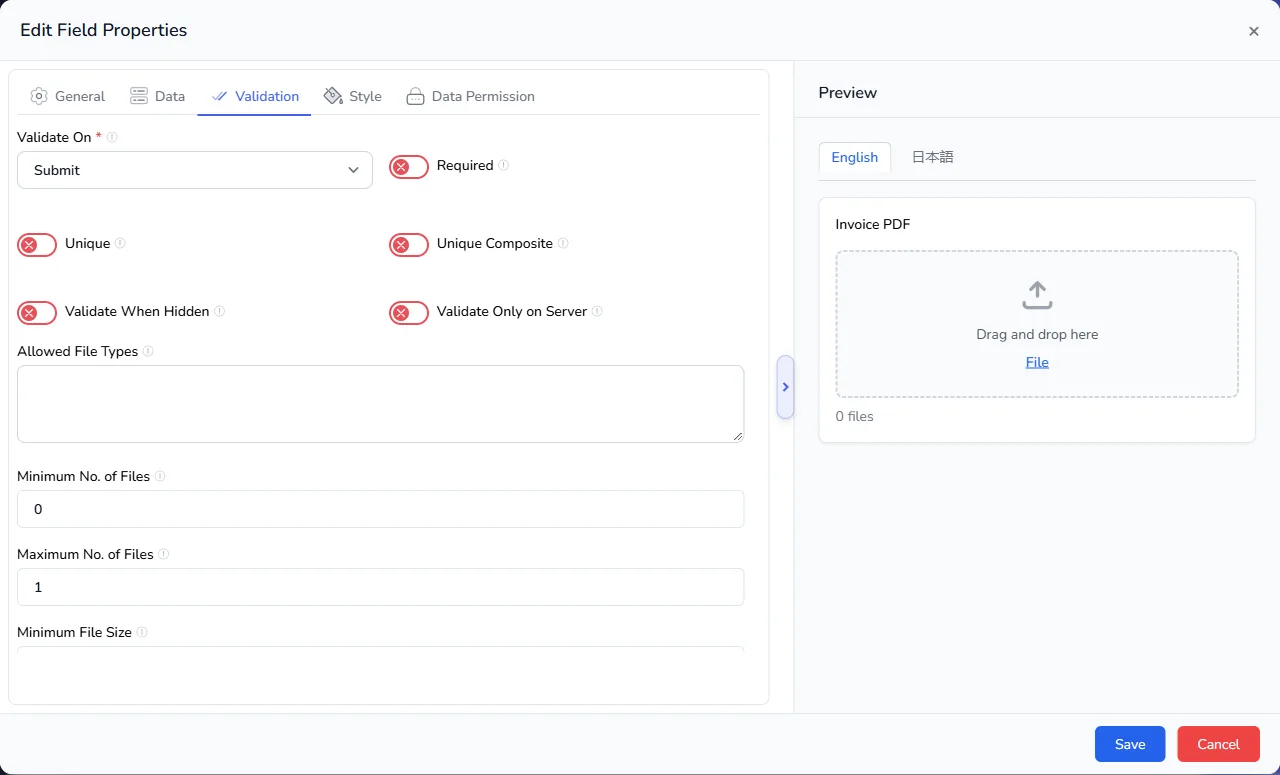
Examples:
- Signed Contract: allow
.pdfonly, exactly one file. - Site Photos: allow
.jpgand.png, up to 10 files. - Supporting Documents: allow
.pdf,.docxand.xlsx, with a maximum file size to keep storage under control.
On the Data tab of a file field, Storage and Folder decide where in the File Manager the uploaded files are kept. See Set up storage locations.
Drop-downs, radios and checkboxes
Choice fields use the general rules. Make them Required when a choice must be made. Because people can only pick from the options you give them, the data is already consistent.
Validation and imports
When you import records from a CSV file, the same rules are checked during the Validate step, and rows that break them are reported before anything is saved. See Import records from a CSV file.
Tips
- Test the rule. Add a test record that breaks the rule, and check that it is refused.
- Explain the rule. Use the field's Description or Tooltip on the General tab, such as "8 characters, starting with PO".
- Use Unique for identifiers, Unique Composite for duplicates. A combination often catches duplicates that a single field cannot.
- Do not over-restrict. Every rule is one more reason a form can fail. Add rules where wrong data causes real problems.