Fields you can place on a document for signing
The fields you can place on a PDF before sending it for signature - signature, initials, text, password, checkbox, dropdown and list box - and how to set each one up.
On the Add Input Fields step of a signature request, you place fields on the PDF: the boxes each signer fills in when they sign. Every field belongs to one signer, so each person sees exactly what they need to complete.
This guide describes each kind of field and its settings. For the whole sending process, see Send a document for signature.
If you switch on Quick Sign, this step is skipped and signers place their own signature, initials and text. See What is Quick Sign?
Add a field
There are two ways:
- From the toolbar: choose a field above the PDF, then click on the page where it should go.
- From the page: right-click the PDF where the field should go, and choose the kind of field from the menu.
Drag a field to move it, and drag its edges to resize it. A new field belongs to the first signer until you assign it to someone else.
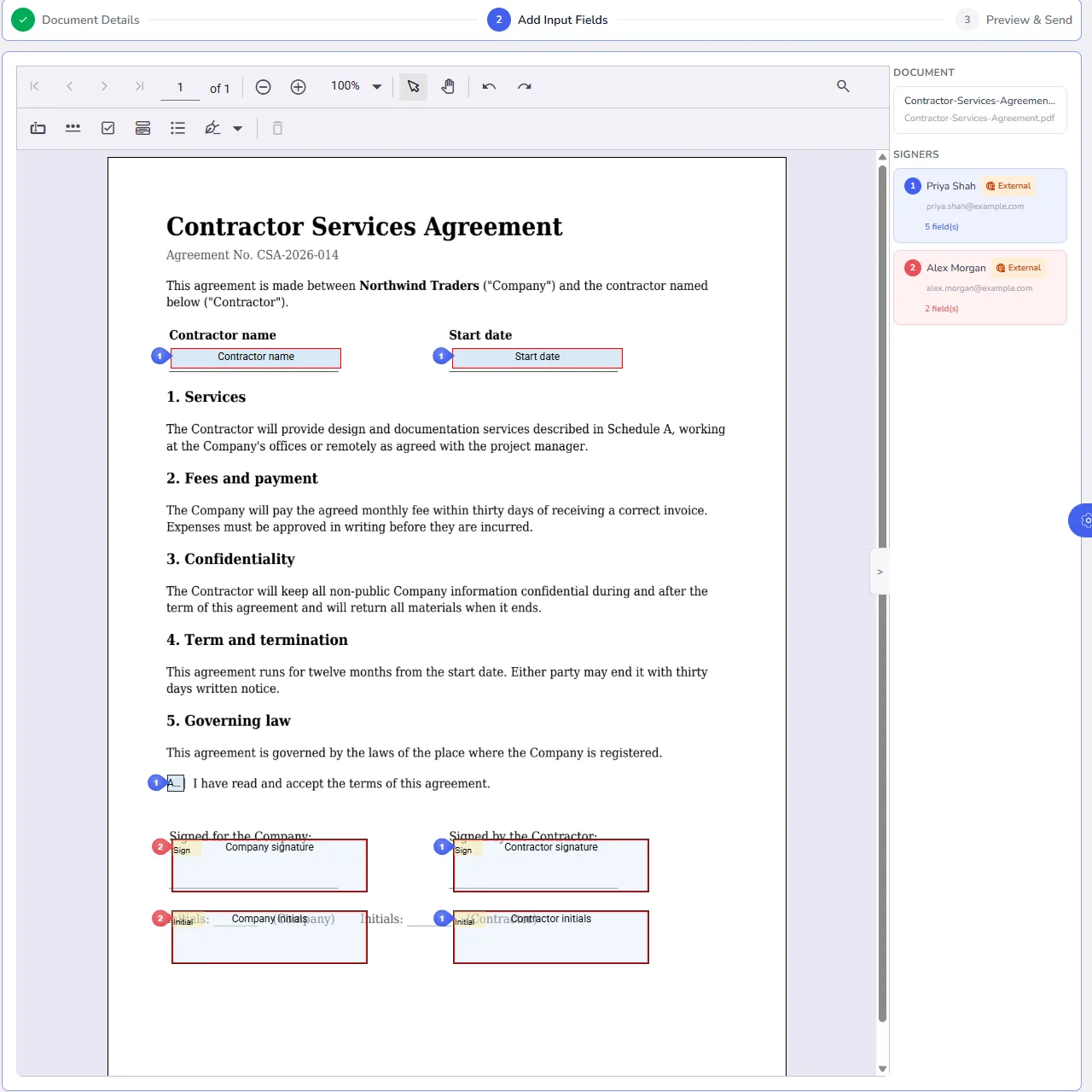
Each signer has their own colour, and the panel on the right shows how many fields each signer has, such as "5 field(s)" or "No fields placed".
The kinds of field
| Field | The signer | Use it for |
|---|---|---|
| Signature | Signs with their full signature | Signature lines, such as "Signed by the Contractor" |
| Initial | Adds their initials | The foot of each page, or next to changes |
| Text Field | Types text | Names, job titles, dates, addresses, reference numbers |
| Password | Types text that is hidden as they type | Codes or numbers that should not be shown on screen |
| Checkbox | Ticks a box | "I have read and accept the terms" |
| Dropdown | Chooses one option from a list | A plan, a branch, a payment method |
| List Box | Chooses from a visible list of options | Choices where all options should be seen at once |
Signature and Initial are under the pen icon in the toolbar.
Signature
The signer's full signature. How they sign, by typing, drawing, uploading an image, or with a certificate or hardware token, depends on the signing method. See Signing methods, OTP and certificates.
Place at least one signature field for every signer, unless they only need to fill in other fields.
Initial
The signer's initials. A common use is one initial field at the foot of every page, so each page is acknowledged, and one beside any handwritten change.
When a signer creates their signature, they set their initials at the same time, so they do not have to draw them again for every field.
Text Field
Free text that the signer types, such as their full name, job title, the start date or an address. In the field's Appearance you can set the font, size, style and alignment, and a Maximum length to keep the answer short, for example 10 characters for a date.
Password
Works like a text field, but the characters are hidden as the signer types. Use it for something that should not be shown on screen while they fill it in.
Checkbox
A box the signer ticks. Use it for confirmations, such as "I have read and accept the terms", or for choices like "Paper copy required".
Make a checkbox Required when the signer must tick it to continue, for example to accept terms.
Dropdown
A list the signer chooses one option from. Add the options in the field's Options tab, for example "Monthly", "Quarterly" and "Annual" for a billing cycle.
List Box
Like a Dropdown, but the options are shown in a box rather than a closed list, so the signer sees them all at once. Add the options in the Options tab.
Field properties
Right-click a field and choose Properties to set it up. The window has up to three tabs, depending on the kind of field.
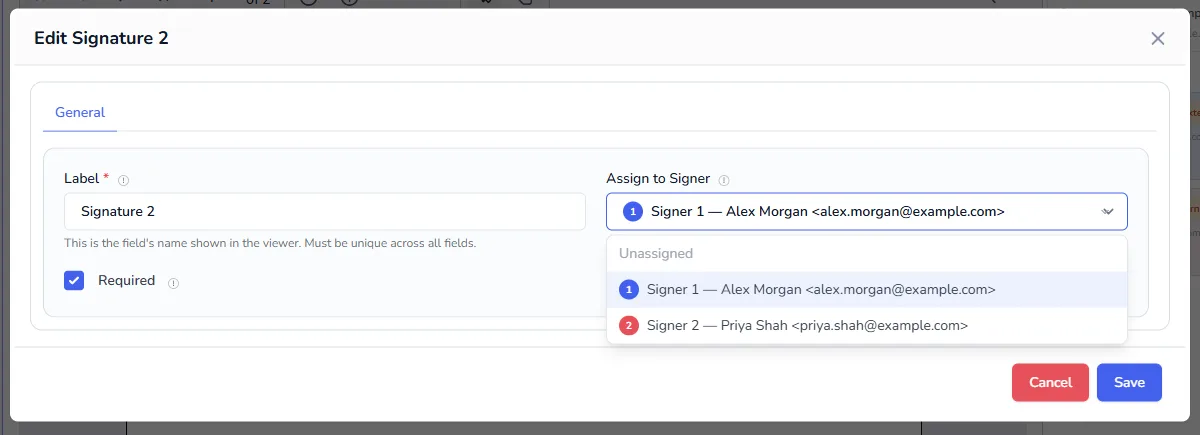
General
| Setting | What it does |
|---|---|
| Label | The field's name, shown in the field list and in the properties window. Each label must be unique, so use clear names such as "Company signature" or "Contractor start date". |
| Assign to Signer | The signer who fills in this field. |
| Tooltip | Help text shown when the signer points at the field, such as "Enter your start date as DD/MM/YYYY". |
| Required | The signer must fill in this field before they can finish. |
| Checked | For a checkbox: starts the box ticked. |
Appearance
For Text Field, Password, Checkbox, Dropdown and List Box fields:
| Setting | What it does |
|---|---|
| Font family | Helvetica, Courier or Times New Roman. |
| Font size | The size of the text in the field. |
| Font style | Bold, italic, underline or strikeout. |
| Alignment | Left, centre or right. |
| Maximum length | The most characters a text field accepts. |
| Fill | The background colour of the field. |
Match the font and size to the document, so the filled-in text looks like part of it.
Options
For Dropdown and List Box fields: add, change and remove the options the signer chooses from.
Assign fields to the right signer
Every field must belong to a signer, and new fields start with the first signer. When you have several signers:
- Right-click each field and choose Properties.
- Choose the person in Assign to Signer.
- Select Save.
The field takes that signer's colour. Before you continue, check the count beside each signer on the right. A signer with No fields placed has nothing to sign.
Tip: place and assign all of one signer's fields, then all of the next signer's. It is quicker than switching back and forth.
Example: a contractor agreement
| Field | Kind | Signer | Required |
|---|---|---|---|
| Contractor name | Text Field | Contractor | Yes |
| Start date | Text Field | Contractor | Yes |
| Accept terms | Checkbox | Contractor | Yes |
| Contractor initials | Initial | Contractor | Yes |
| Contractor signature | Signature | Contractor | Yes |
| Company initials | Initial | Company | Yes |
| Company signature | Signature | Company | Yes |
Frequently asked questions
Can a signer fill in a field that belongs to someone else?
No. Each signer fills in only their own fields.
Can I reuse field positions for the next document?
Fields belong to the document you are sending. For a document you send often, keep its other details in a saved contact or template to save time. See Saved contacts and templates.
What if I forget a field?
On the Preview & Send step, the list of input fields shows every field with its signer. Use Edit to go back and add it before you send.