Saved contacts and templates for signature requests
Save the companies you send documents to, with their contact details and signers, and the set-up for each kind of document, then load them to fill in a signature request in one click.
Most signature requests go to companies you have sent to before, or follow a set-up you use again and again. Save them once, and every later request starts with one click instead of a page of typing.
- A saved contact holds everything about a company you send documents to: its name, its contact person and their email and phone. If the same people sign for that company every time, it holds them too.
- A template holds the set-up for a kind of document: the message, your internal signers and their order, the CC and receivers, and the security settings.
Both are saved with Save as Preset and listed under Manage Presets, at the top of the first step of a request, Signature Request Details. The difference is only in what you put in them and how you name them.
Saved contacts
Save a company as a contact
- Start a signature request. See Send a document for signature.
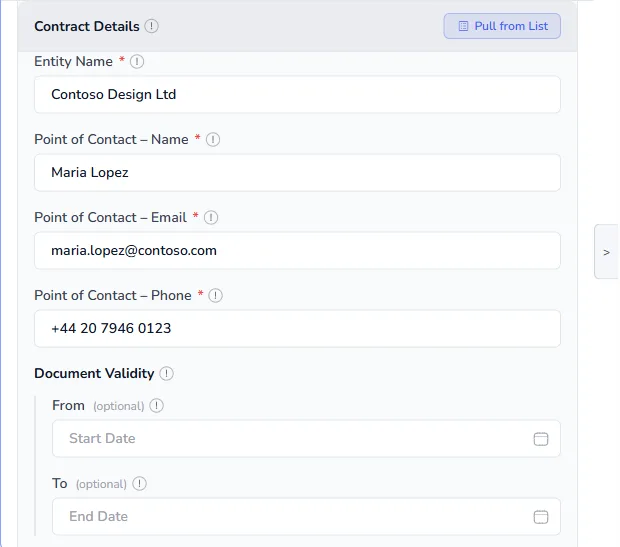
- Fill in Contract Details: the Entity Name and the contact person's Name, Email and Phone. Type them, or use Pull from List.
- Optional: under Signers, add the people who sign for this company, such as their director as an External signer, and your own manager as an Internal signer.
- Optional: add the CC / Receivers who should always be kept informed, for example the company's accounts team.
- Select Save as Preset at the top of the form.
- Name it after the company and the person, such as "Contoso Design Ltd - Maria Lopez", so it is easy to find.
- Select Save. A message confirms that it was saved.
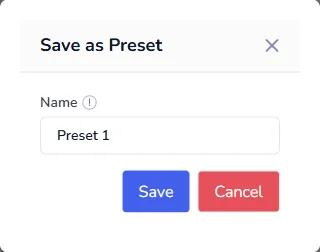
The form is checked before it is saved, so a contact is only saved when the details are complete and correct.
Send to a saved contact
- Start a new signature request.
- Select Manage Presets. The Saved Request Presets window lists everything you have saved, newest first, with the date each one was last updated.
- Select Load beside the company. The loaded entry is marked CURRENT.
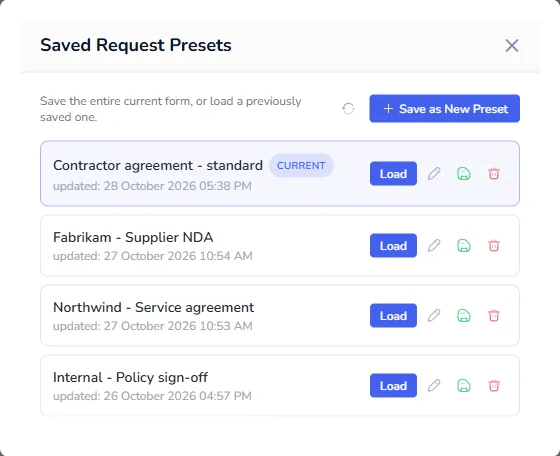
The contract details fill in straight away:
So do the signers, in the same order, with fresh deadlines:
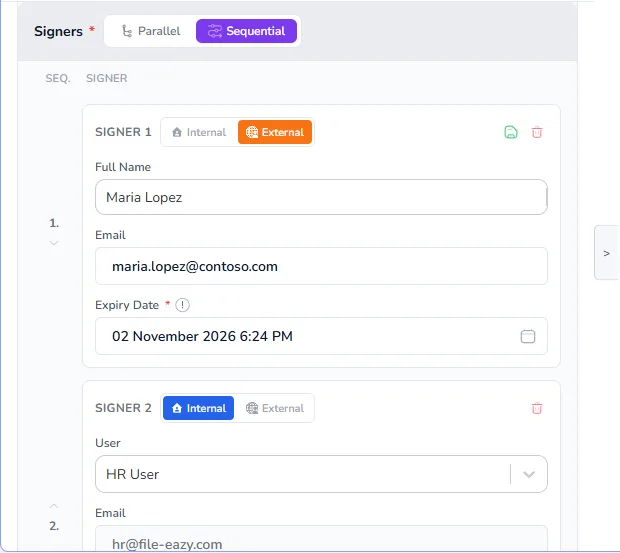
- Enter the Title, check the deadlines, and select Next to place the fields.
You can still change anything after loading, for example to add a second signer for this one agreement. The changes apply to this request only, unless you save them back.
Keep a saved contact up to date
When the company's contact person, email or phone changes:
- Load the saved contact.
- Correct the details.
- Select Save as Preset, then Update "name" to save the changes into the same contact.
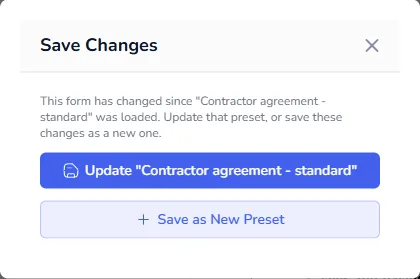
Choose Save as New Preset instead to keep the old details and save the new ones separately, for example when the company has a second contact person.
Templates
A template is the same feature used for a kind of document instead of a company. Save and load it exactly like a saved contact.
| Template | What it holds |
|---|---|
| Contractor agreement - standard | Sequential signing: the contractor first, then the HR manager. OTP on. Receivers: Finance. |
| Supplier NDA | Parallel signing, OTP on, Legal as a receiver. |
| Internal policy sign-off | Quick Sign on, OTP off, attachment set to Link, so staff sign wherever they like. |
| Customer order form | The sales owner, a message with payment terms, and certificate validation on. |
Saved contact, template, or both?
| You send | Save |
|---|---|
| Many different documents to the same company | A saved contact for the company, with its signers |
| The same kind of document to many different companies | A template for the document, then Pull from List for each company |
| The same document to the same company every time, such as a monthly statement | One entry with everything: the company, its signers and the settings |
What is saved, and what is not
Save as Preset keeps the whole first step except the parts that change on every request:
| Saved | Not saved |
|---|---|
| Owner | Title |
| Message | Signing expiry and each signer's Expiry Date |
| Contract Details: entity name and point of contact | Document Validity dates (From and To) |
| Whether the renewal reminder is on, and its Reminder Window | The sender row in CC / Receivers |
| Signers: parallel or sequential, each signer and their order | The PDF itself |
| Notify when and Attachment for signers | Fields placed on the PDF in Add Input Fields |
| CC / Receivers, their notification settings and message | |
| Additional Settings: OTP, Allow Reassign, summary report, Quick Sign, signing method and certificate validation |
Deadlines are left out on purpose. When you load, they are set fresh from today, just as on a brand-new request, so a request never starts out already expired. The title is left out because it names the document being sent.
Contract details are saved as they were when you saved them, not as a link to the list they were pulled from. To use the latest details from the list, select Pull from List again after loading.
Manage saved contacts and templates
Each entry in Manage Presets has four buttons:
| Button | What it does |
|---|---|
| Load | Fills the form from the entry. |
| Pencil | Renames the entry. |
| Save icon | Replaces the entry with what is in the form now. |
| Bin | Deletes the entry. |
Use Save as New Preset in the same window to save the current form as a new entry at any time.
When you open a request that has already been sent, for example to change a signer or extend a deadline, you can still select Save as Preset to keep its details for next time. You cannot load an entry over a request that is already under way.
Tip: use a naming pattern so the list stays easy to scan, such as "Company - Contact" for saved contacts and "Template - Document" for templates.
Frequently asked questions
Who can see saved contacts and templates?
Everyone in your workspace who sends signature requests. When a colleague saves a customer, you can load it too. Anyone can update or delete an entry, so use clear names and agree who looks after the shared ones.
Does a template include the fields I placed on the PDF?
No. Saved contacts and templates cover the Signature Request Details step only. The fields you place in Add Input Fields belong to the document. To skip placing fields altogether, switch on Quick Sign in the template. See What is Quick Sign?
Why are the deadlines different after I load?
Deadlines are always set fresh from today when you load a saved contact or template, so that a request never starts out already expired. Change them if you need different dates.
Can I load a saved contact and a template together?
Loading replaces the whole form, so load one entry at a time. If you often send the same kind of document to the same company, save one entry that holds both the company and the settings.
How is a saved contact different from a saved signer?
A saved contact fills in a whole request for a company. A saved signer is a single outside person you can pick in any request. See Save and reuse outside signers.