Organisation settings - company details, preferences, mail and email templates
Set up FileEazy for your organisation - company name and logo, date and time formats, time zone, the mail accounts FileEazy sends from, and the wording of every email it sends.
When you start with FileEazy, a few settings make it look and behave like your own organisation's system: your name and logo, the date format your team reads, the mail account emails come from, and the wording of those emails. This guide covers four groups in Settings: General Settings, Preference Settings, Mail Settings and Email Templates.
The other groups have their own guides:
| Group | Guide |
|---|---|
| Sign-In Settings | Set up single sign-on |
| Security Settings | Sign-in and access control |
| Notification Settings | Notifications |
| Storage Settings | Set up storage locations |
| Languages | Languages |
Settings are for administrators. If you do not see Settings in the menu, your role does not include it. See Roles and permissions.
How settings pages work
- Select Settings in the main menu and choose a group on the left.
- Each group has a Settings tab and an Audits tab. Audits shows who changed the settings and when.
- To make a change, select the pencil at the top right of the panel, change the values, and select Save.
The ? at the top right of each settings page opens the matching help guide.
General Settings
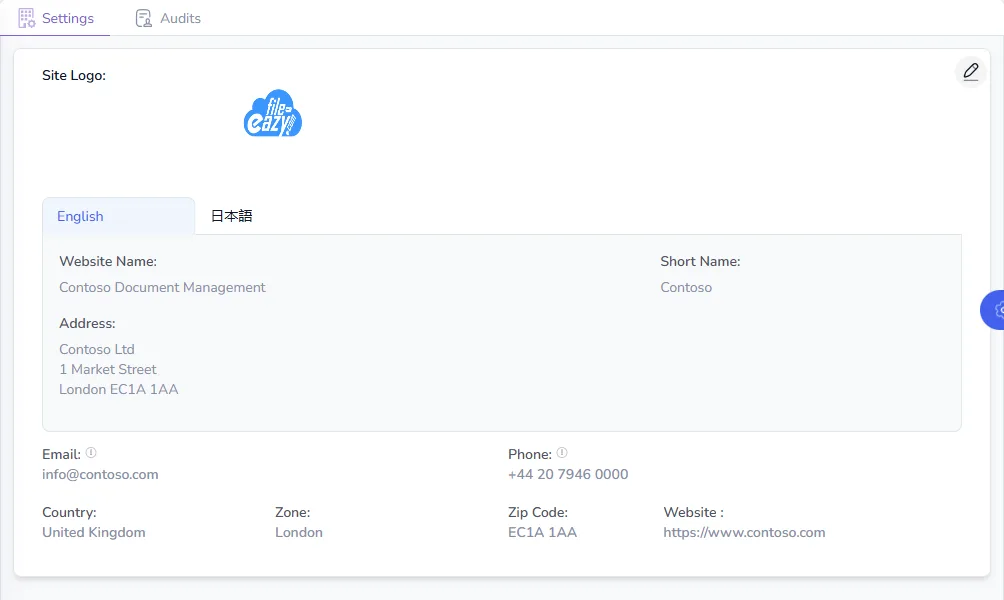
General Settings holds the details of your organisation.
| Setting | What to enter |
|---|---|
| Site Logo | Your logo. Upload an image, or remove the current one. |
| Website Name | Your organisation's full name for FileEazy, such as "Contoso Document Management". |
| Short Name | A short version, used where space is tight, such as "Contoso". |
| Address | Your organisation's address. |
| Email and Phone | The main contact details. |
| Country, Zone and Zip Code | Where your organisation is based. |
| Website | Your public website. |
Website Name, Short Name and Address can be written in each language, using the English and 日本語 tabs. Switch on Auto-fill other languages to copy what you type into every language, or switch it off to write each one separately.
Email templates can include these details, such as your company name, through the Company variables. See Email Templates.
Preference Settings
Preference Settings controls how information is shown for everyone in FileEazy.
| Setting | What it does |
|---|---|
| Document Expiry Notification | How many days of notice FileEazy gives before a document expires. Set from 0 to 180 days, in steps of 10. |
| Number of Rows Per Page | How many rows lists show on each page, from 10 to 1,000. People can still change it while they work. |
| Date Format | How dates are written, such as 29 October 2026 or 29/10/2026. |
| Time Format | 24-hour or 12-hour, with or without seconds. |
| Time Zone | The time zone dates and times are shown in. |
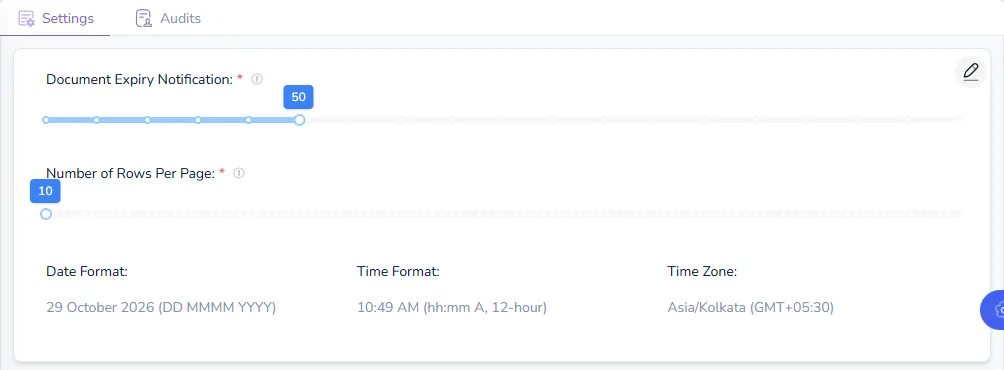
Choose the date format your team reads without thinking. If people in several countries use FileEazy, a format with the month as a word, such as 29 October 2026, avoids confusing 10/11 with 11/10.
After you save, FileEazy may ask you to refresh the page. Select Refresh Now to see the new formats straight away, or Refresh Later to finish what you are doing first.
Mail Settings
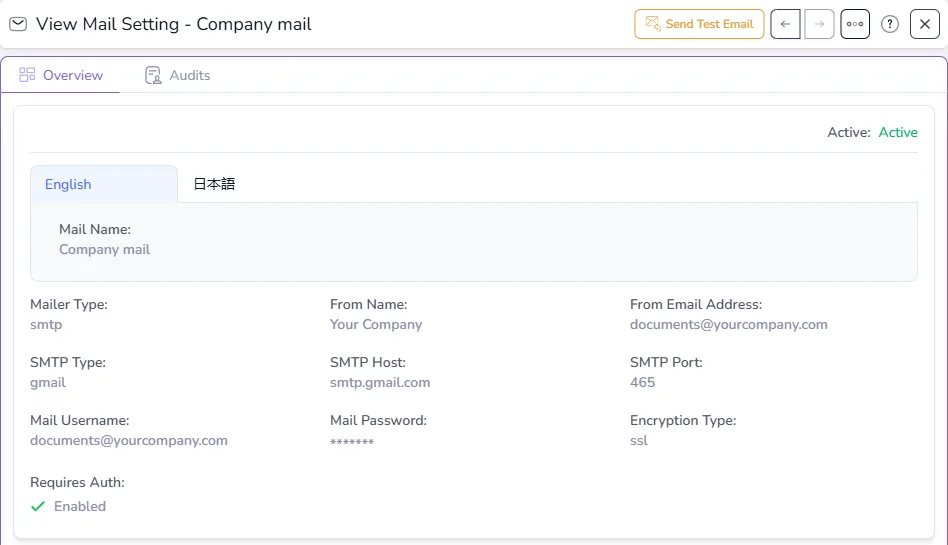
FileEazy sends email for signature requests, notifications, password resets and more. Mail Settings lists the mail accounts it sends from. Each account shows its Mail Name, Mailer Type, From Email Address and whether it is active.
Add a mail account
- Select New Mail Setting at the top right.
- Enter a Mail Name so you can recognise it, such as "Company mail".
- Enter the From Name and From Email Address people will see, such as "Contoso" and [email protected].
- Choose the Mailer Type and fill in its details (see the table below).
- Save the account, then select Send Test Email to check that it works.
| Mailer Type | What you need |
|---|---|
| SMTP | Your mail server's SMTP Host, SMTP Port, Mail Username and Mail Password, the Encryption Type (SSL or TLS) and whether it Requires Auth. Works with most email providers, such as Microsoft 365 and Google Workspace. |
| Amazon SES | Your AWS Access Key ID, Secret Access Key and Region. |
| Postmark | Your Postmark Token. |
| Sendmail | Nothing more: email is sent through the server's own mail program. |
Your email provider or IT team can give you these details. For SMTP, port 465 is normally used with SSL, and port 587 with TLS.
Choose the account used for outgoing email
Switch on Outgoing Mail on an account to allow users to send email through it. When you have more than one account, this decides which ones are used.
If emails do not arrive
- Select Send Test Email on the account. If it fails, check the host, port, username, password and encryption.
- Check that the account is Active.
- Ask recipients to check their spam folder. Using an address on your own domain, set up for sending by your IT team, helps emails reach inboxes.
Email Templates
Every email FileEazy sends is based on a template: the welcome email for new users, password resets, signature requests, reminders and more. Email Templates lists them all, with their Template Name, Template Key, Template Type and status.
Edit a template
- Open a template, such as Signature Request – Sign Document.
- Select Edit from its menu.
- Change the Template Subject and Template Body in the English and 日本語 tabs.
- Select Preview to see the result, or Send Test Email to receive it yourself.
- Select Save.
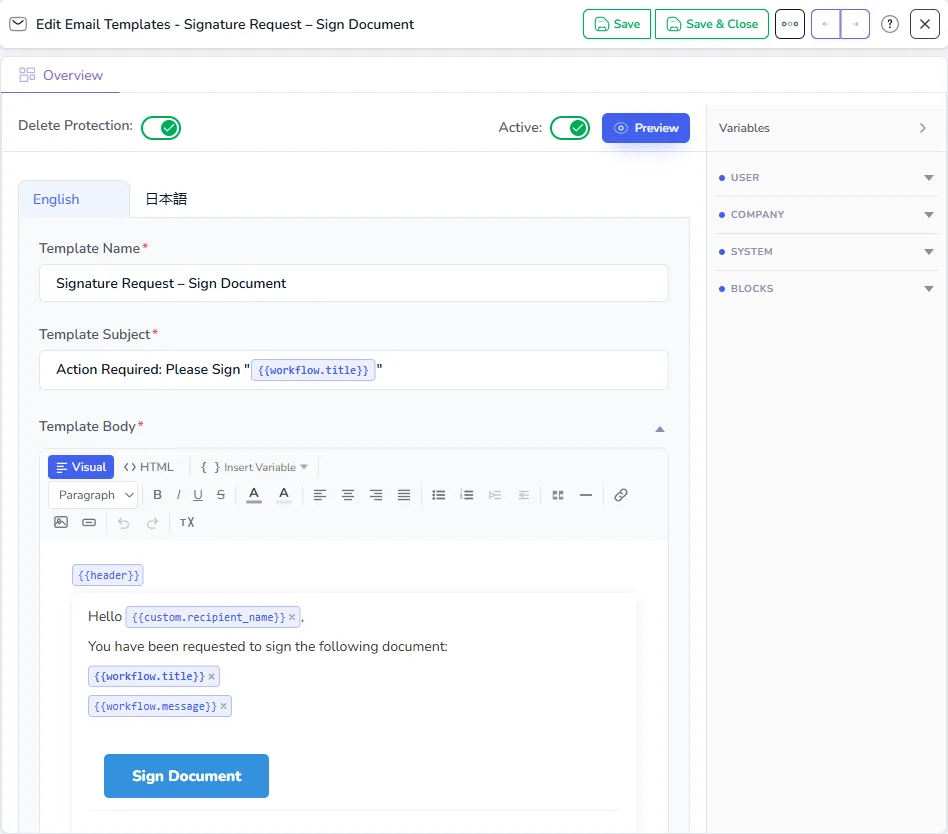
The body editor has a Visual view for normal editing, with headings, bold, lists, colours, links, images and buttons, and an HTML view for full control of the layout.
Variables
Variables are placeholders that FileEazy fills in when it sends the email, written in double braces, such as {{custom.recipient_name}}. In the editor they appear as tags.
To add one, place the cursor where it belongs and choose it from Insert Variable, or from the Variables panel on the right. The panel groups them as:
| Group | Examples |
|---|---|
| User | The recipient's or sender's name and email |
| Company | Your company name and details from General Settings |
| System | Links and values for this email, such as the signing link or the document title |
| Blocks | Shared sections, such as {{header}} and {{footer}} |
For example, the signature request template starts with "Hello {{custom.recipient_name}}" and shows the document's title with {{workflow.title}}.
Header and footer blocks
Templates with the type Partial, such as Header Block and Footer Block, are not sent on their own. They are shared sections that Full templates include with {{header}} and {{footer}}. Change your logo or footer text once in the block, and every email that uses it changes too.
Other template settings
| Setting | What it does |
|---|---|
| Template Key | The name FileEazy uses to find the template. Do not change it. |
| Template Type | Full for a complete email, Partial for a block used inside other templates. |
| Group | The area the template belongs to, such as Signature Workflow. |
| Active | Switch off to stop the template being used. |
| Delete Protection | Stops the template from being deleted. Built-in templates, such as Signature Request – Sign Document, have it switched on. |
To add a template of your own, select New Email Templates.
Tips
- Set up mail first. Without a working mail account, people do not receive invitations, signature requests or password resets.
- Test every change. Use Send Test Email after changing a mail account or a template.
- Keep variables intact. Deleting
{{custom.sign_link}}from a signature request leaves signers without a link. - Check both languages. If your team uses English and Japanese, update the template in both tabs.
- Review changes in Audits. Every settings group records who changed what.