Prefixes, suffixes, calculated fields and auto numbers
How to add a prefix or suffix to a field, build a calculated value from other fields, and generate automatic numbers in a FileEazy list, with examples such as order numbers and due dates.
Some fields should not be typed by hand. An order number should be generated. A due date should be worked out from a start date. A reference should start with the same letters every time. FileEazy can do these with four settings on the Advanced tab of a field.
Where to find them
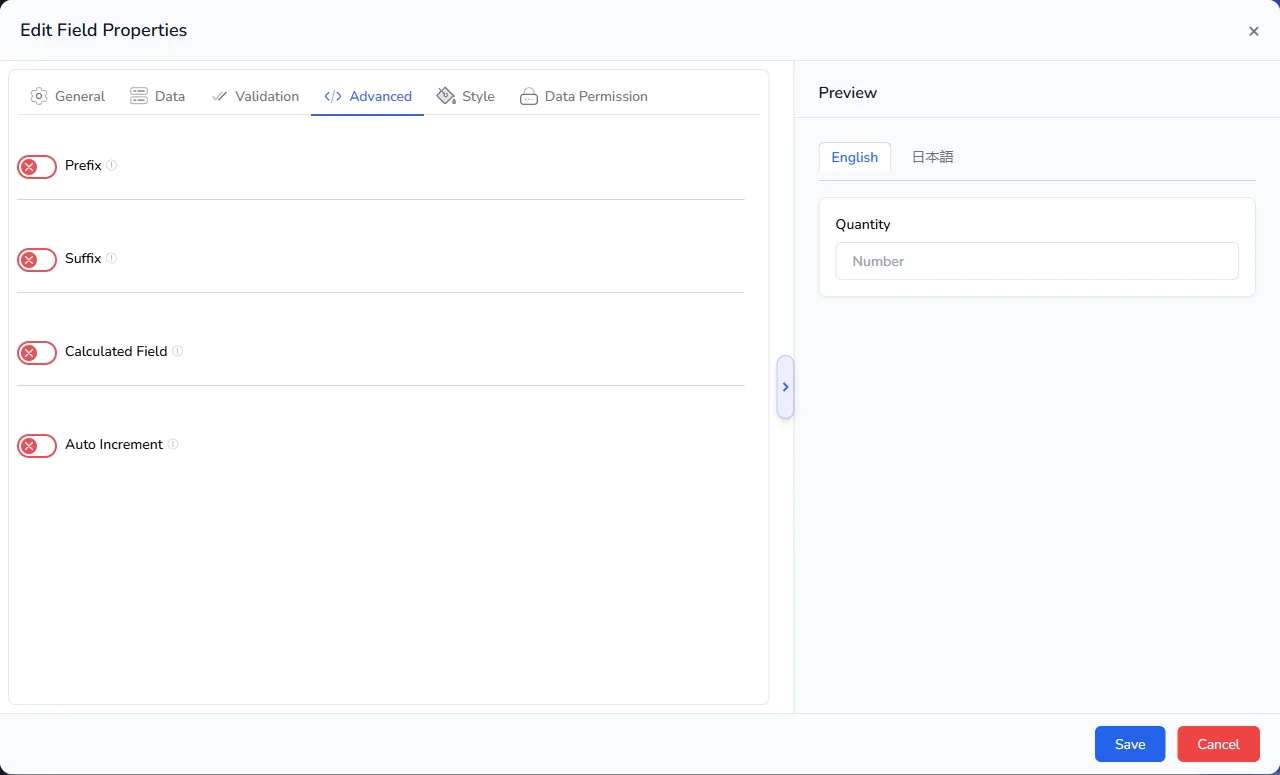
In the list builder, on the Sections & Fields step, select the settings icon beside a field. In Edit Field Properties, open the Advanced tab. You will see switches for:
- Prefix and Suffix, on text and number fields.
- Calculated Field, on text and number fields.
- Auto Increment, on number fields.
See Design lists and fields for the rest of the field settings.
Add a prefix or suffix
A prefix is text shown before the value, and a suffix is text shown after it. Typical uses are a currency symbol, a unit such as "kg", or a code such as "ORD".
- Switch on Prefix (or Suffix).
- Leave Prefix Type on Prefix Text, which lets you build the pattern.
- In the Prefix/Suffix Builder, build the pattern. Each piece you add appears in the pattern box:
- Custom Value: fixed text, such as
ORD. - Fields / System Values: the value of another field, or a system value.
- Functions: date functions, such as Full year, Short Year, Month Number, Month Name, Day and Day Name.
- Operator and Separators: symbols such as plus, minus, a dash or a space between the pieces.
- Custom Value: fixed text, such as
- Check the Generated Expression below the pattern. Use Test Formula to try it with sample values.
- The Preview panel on the right shows the field with the prefix in place.
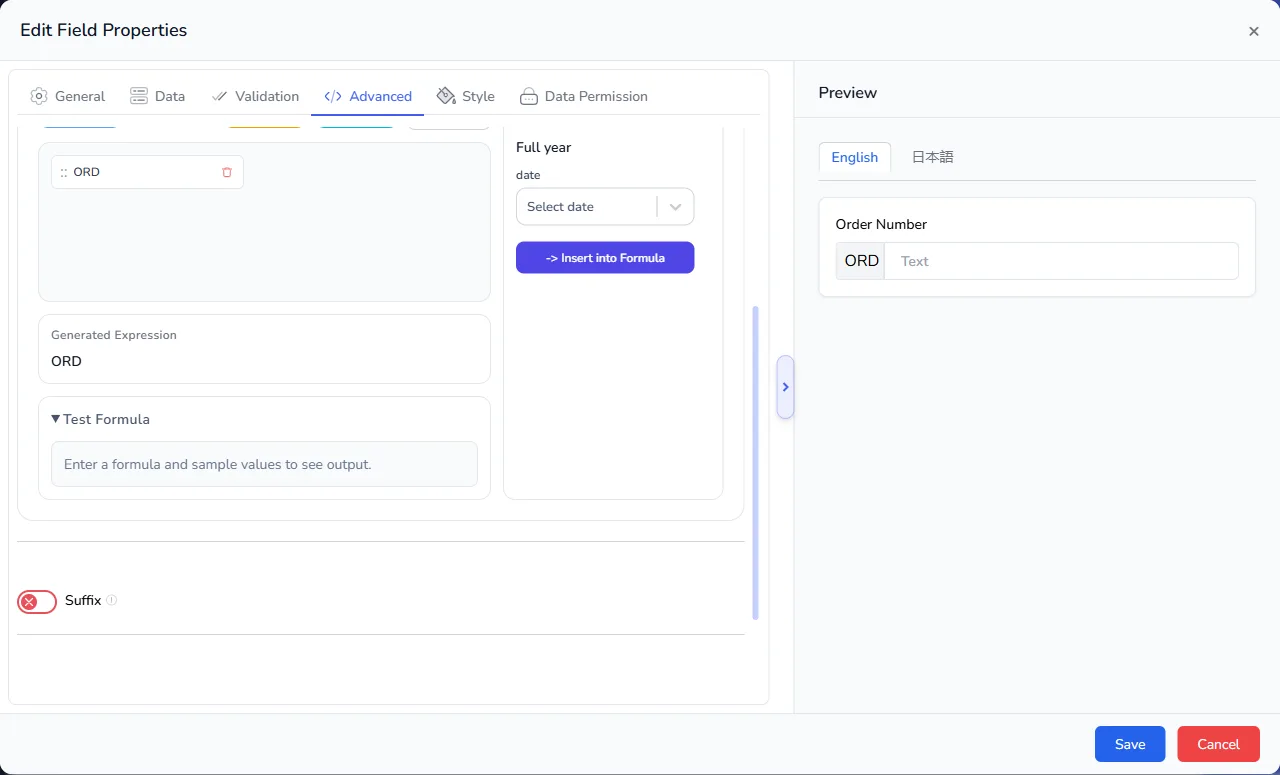
For example, a prefix built from the fixed text ORD and a dash puts "ORD-" in front of every order number. Add the Full year function and choose a date, and the prefix includes the year, for example "ORD-2026-".
The pieces you can use
System Values fill in today's date and time when the record is saved:
| System value | Gives |
|---|---|
| Today | Today's date. |
| Now | Today's date and the time. |
| Current Year | The year, such as 2026. |
| Current Month | The month number, such as 10. |
| Current Day | The day of the month, such as 27. |
Functions take a date, from a date field or from Today, and return part of it:
| Function | Example result for 27 October 2026 |
|---|---|
| Full year | 2026 |
| Short Year | 26 |
| Month Number | 10 |
| Month Name (Full) | October |
| Month Name (Short) | Oct |
| Day | 27 |
| Day Name (Full) | Tuesday |
| Day Name (Short) | Tue |
Separators put a symbol between the pieces: hyphen -, underscore _, forward slash /, backslash \, pipe |, at mark @, hash #, dollar $, ampersand &, star *, brackets ( ) < > { }, or a space.
Fields use the value of another field in the same list. A drop-down field can be used by its option name or by its code. See Use option codes.
Build a calculated field
A calculated field works out its value from other fields, so people do not have to type it.
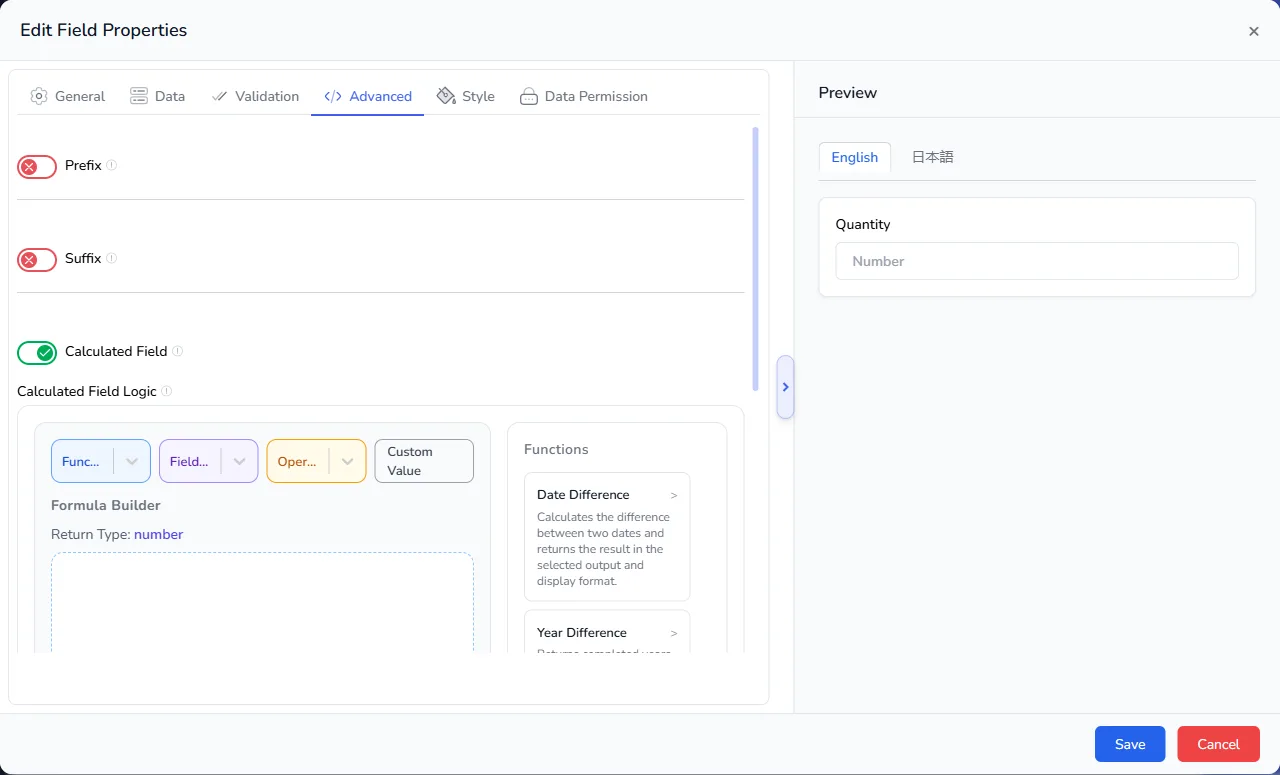
- Switch on Calculated Field.
- In the Formula Builder, build the formula from these pieces:
- Functions: for dates, such as Add Days, Subtract Days, Add Months, Add Years, Date Difference, Year Difference, Month Difference, Day Difference and Time Difference.
- Fields & System Values: other fields in the same list.
- Operators: plus, minus, multiply, divide and modulo, for numbers.
- Custom Value: a fixed value.
- The Return Type shown above the formula tells you what kind of value it gives, such as number or text.
- Check the Generated Expression, and use Test Formula to try it with sample values.
Calculate once, or keep it current
A calculated field can work in one of two ways. The Always Recalculate switch below the builder decides which.
| Always Recalculate | How the value behaves | Use it for |
|---|---|---|
| Off | Calculated once, when the record is created. Editing the record later does not change it. | Values that must stay fixed, such as a reference number, an invoice due date set at the time of issue, or a price agreed on the day. |
| On | Recalculated every time the record is accessed, so it always reflects the latest values and today's date. | Values that should stay current, such as days until a contract expires, an employee's years of service, or how overdue an invoice is. |
Choose carefully. A due date that recalculates would move whenever the record is opened, which is rarely what you want. A "days overdue" figure that does not recalculate would be out of date the next day.
Calculate Value on server runs the calculation on the server instead of in the browser. Use it when the server's result should override whatever value was submitted from the form.
Some fields also offer Allow Manual Override of Calculated Value, which lets a person type over the calculated value.
Examples
| You want | Build it like this |
|---|---|
| A line total | Quantity times Unit Price, in a number field. |
| A contract end date | Add Months to the Start Date. |
| A renewal date | Add Years to the Start Date. |
| Days between two dates | Day Difference between the two date fields. |
| Years between two dates | Year Difference between the two date fields. |
| Hours worked | Time Difference between the Start Time and End Time, after break minutes. |
Generate automatic numbers
Auto Increment gives each new record a unique number without anyone typing it.
- Switch on Auto Increment on a number field.
- Choose the Auto Increment Type:
- sequential_increment gives numbers in order, 1, 2, 3 and so on.
- random_increment gives a unique random value for each record.
- Set the Minimum Value, Maximum Value and Increment Factor. The minimum is where numbering starts, and the increment factor is the step between numbers.
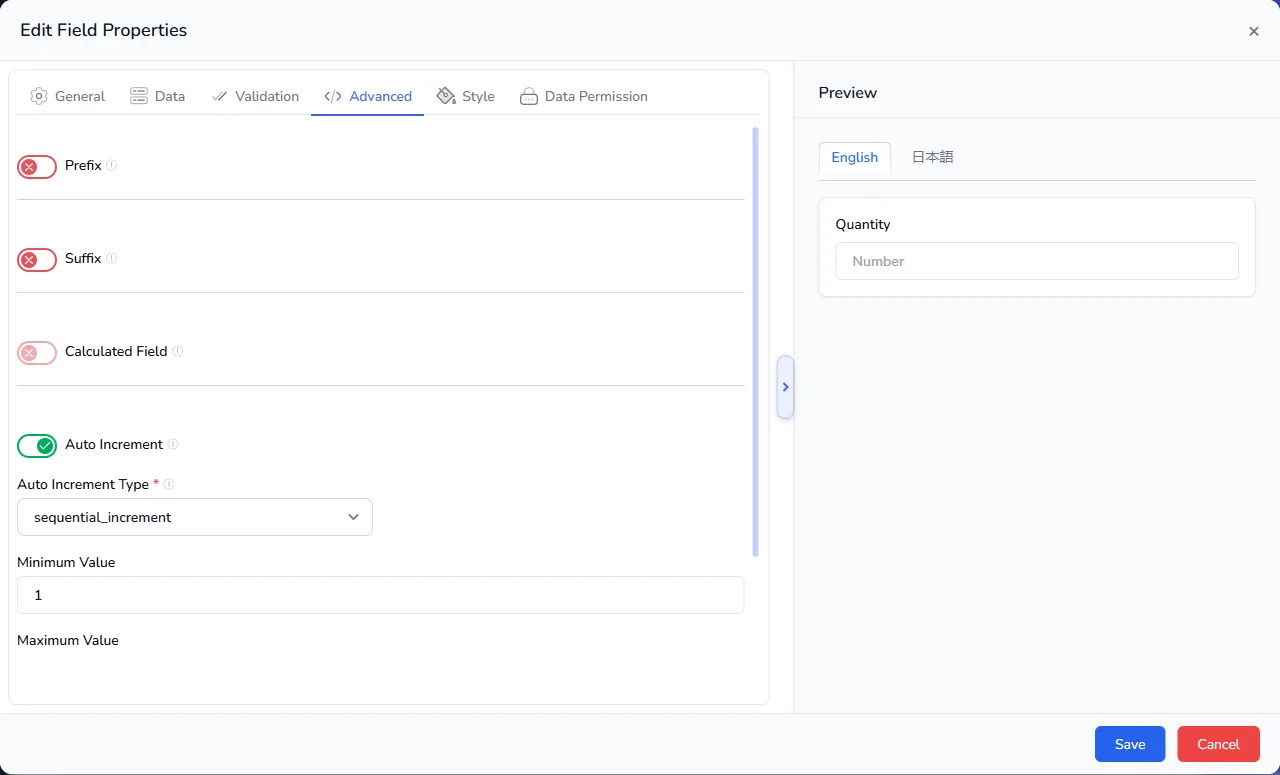
When someone adds a record, the field shows "Value will be assigned after saving", and the number appears once the record is saved.
Auto Increment and Calculated Field cannot be on at the same time. Switching on one turns the other off.
An order number such as ORD-2026-1
Combine the settings on a number field:
- Switch on Auto Increment, type sequential_increment, minimum 1.
- Switch on Prefix and build
ORD, a dash and the year.
Each new order then gets the next number, shown with its prefix.
Example: an invoice number such as INV-26-218-N
A finance team wants invoice numbers made of four parts, all separated by hyphens, such as INV-26-218-N.
| Part | Example | Where it comes from |
|---|---|---|
| A fixed prefix | INV |
Typed once, the same on every invoice. |
| The current year, short | 26 |
Short Year of the system value Today. |
| A running number | 218 |
Auto Increment on the field. |
| The customer type code | N |
The code of the customer's type, carried by the customer chosen in a drop-down. |
Step 1: give each customer a type code
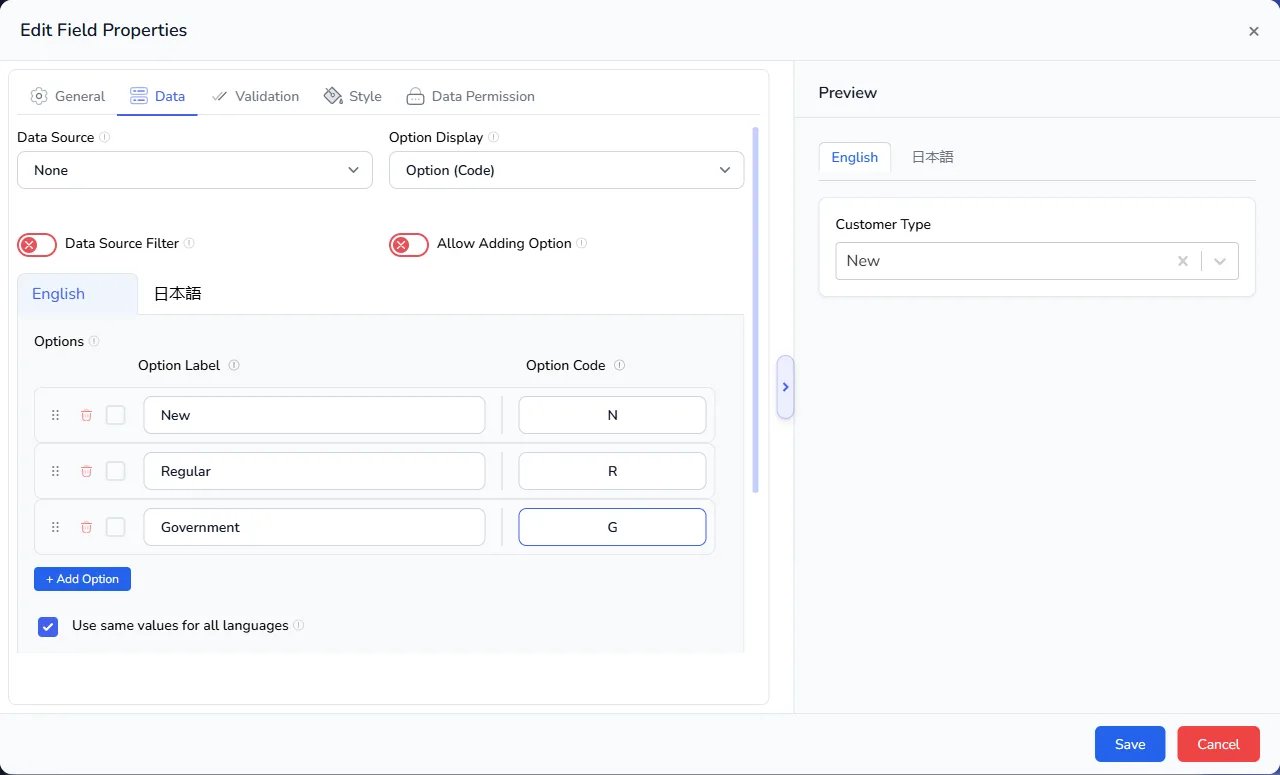
- In the Customers list, add a Dropdown field called Customer Type.
- Open its settings and go to the Data tab.
- Set Option Display to Option (Code). An Option Code column appears beside each option.
- Enter the options and their codes, for example New
N, RegularR, GovernmentG. - Save the field and the list, and set each customer's type.
Step 2: let the invoice pick a customer
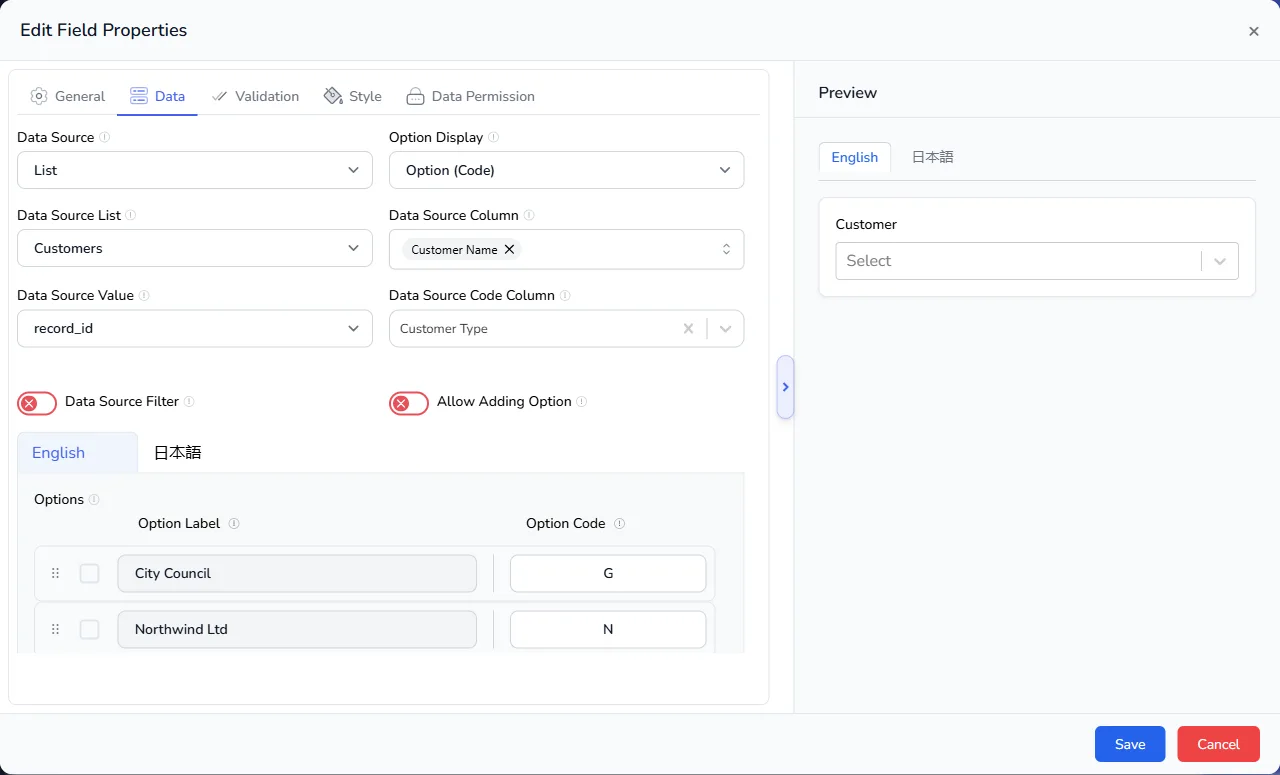
- In the Invoices list, add a Dropdown field called Customer, and open the Data tab.
- Set Data Source to List, and Data Source List to Customers.
- Set Data Source Column to Customer Name, so people pick a customer by name.
- Set Option Display to Option (Code). A Data Source Code Column setting appears.
- Set Data Source Code Column to Customer Type.
The options preview now lists each customer with its type code, so you can check the setup before saving.
See Use data from another list for more on drop-downs fed by a list.
Step 3: number the invoices
Add a Number field called Invoice Number, open its settings and go to the Advanced tab.
- Switch on Auto Increment, with type sequential_increment.
- Set Minimum Value to the first number you want, such as
218to continue an existing series, or1for a new one. Leave Maximum Value at0for no limit, and Increment Factor at1.
Step 4: build the prefix INV-26-
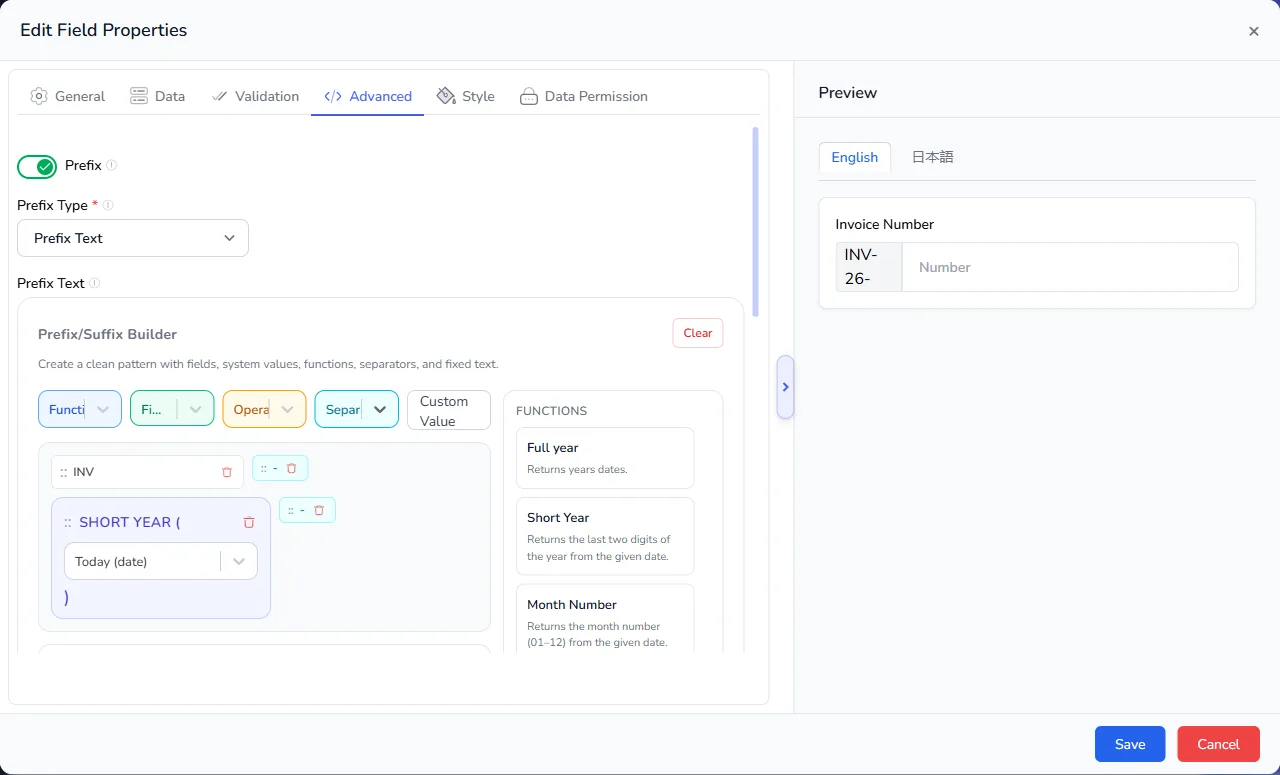
Switch on Prefix, leave Prefix Type on Prefix Text, and in the builder add, in this order:
- Custom Value: type
INV. - Separators: Hyphen (-).
- Functions: select Short Year. In the date box that appears, choose Today (date), then select Insert into Formula.
- Separators: Hyphen (-).
The Generated Expression reads INV-Short Year(today:date)-, and the preview on the right shows INV-26- in front of the number.
Step 5: build the suffix -N
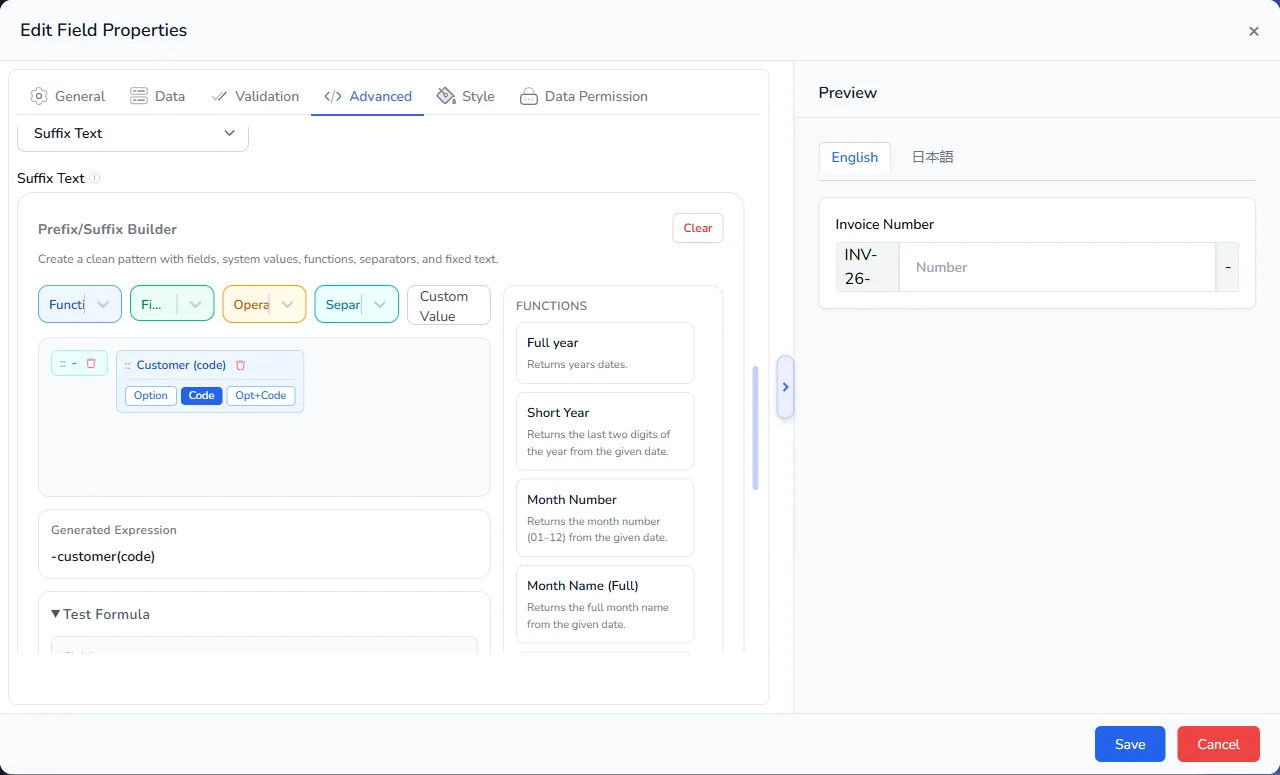
Switch on Suffix, leave Suffix Type on Suffix Text, and add:
- Separators: Hyphen (-).
- Fields: select Customer (select). On the Customer piece, choose Code. The other choices are Option, for the customer's name, and Opt+Code, for both.
The Generated Expression reads -customer(code).
Save the field and the list.
The result
When someone creates an invoice and picks a customer, the form shows the prefix and the suffix straight away, with the number to follow:

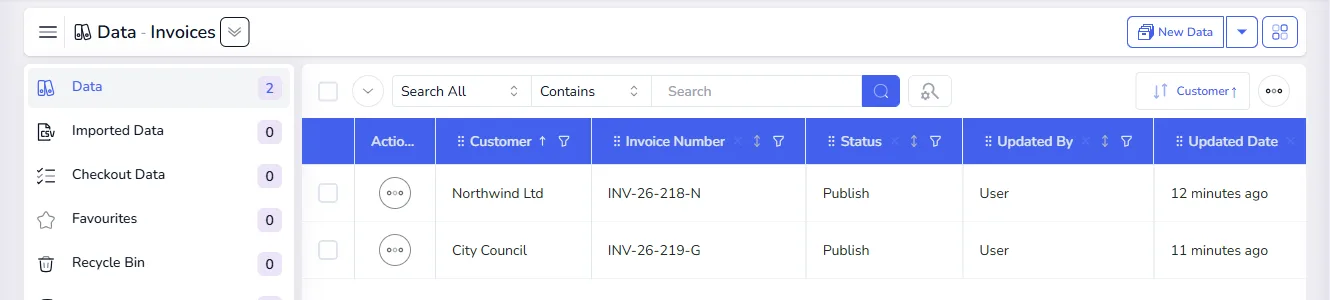
When the record is saved, the running number is added. The first invoice, for Northwind Ltd (a New customer), became INV-26-218-N. The next, for City Council (a Government customer), became INV-26-219-G.
Things to decide
- Year from Today or from the invoice date. Today uses the date the invoice is created. If invoices can be back-dated, add an Invoice Date field and apply Short Year to it instead. The date box offers Today, Now, a custom value, and the date fields in your list.
- One series or one per year. The running number counts across the whole list and does not restart each year by itself.
- Make the customer required. Without a customer, the suffix is empty. Set Required on the Customer field's Validation tab.
- Keep codes stable. Once invoices have been issued, do not change a customer type's code.
Example: an asset tag such as DL-26-1
An IT team wants every asset to carry a tag made of a category code, the year it was bought and a running number, such as DL-26-1 for a desktop bought in 2026.
The fields
| Field | Type | Settings |
|---|---|---|
| Category | Dropdown | Options with codes, for example Desktop/Laptop DL, Server SV, Network NW. Mark it Required. |
| Purchase Date | Calendar | |
| Asset Number | Number | Auto Increment on, type sequential_increment, Increment Factor 1. Prefix on, built as below. |
The prefix pattern, built in the Prefix/Suffix Builder from left to right:
- Fields / System Values: Category, shown as its code.
- Separators: a dash (
-). - Functions: Short Year, applied to the Purchase Date field.
- Separators: a dash (
-).
When someone adds an asset, the Asset Number shows DL-26- as soon as the category and purchase date are filled in, with "Value will be assigned after saving". When the record is saved, the running number is added.
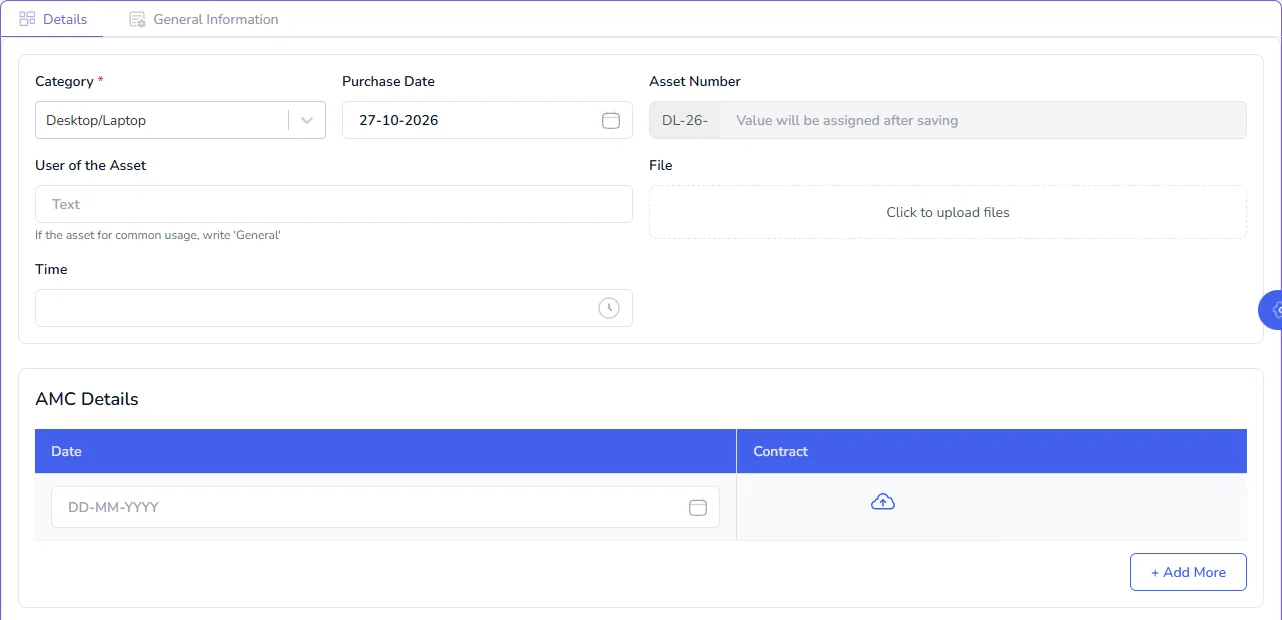
The running number belongs to the whole list, so each new asset gets the next number whatever its category.
Printing the tag as a QR code label is coming soon.
For more on option codes and on taking values from another list, see Use data from another list.
Tips
- Test with a sample record. Save the field, add a test record and check the value.
- Keep formulas short. If a formula gets long, split it into two calculated fields.
- Protect calculated fields. Use field permissions so that only the right people can change them. See Roles and permissions.
- Keep dates as date fields. Date functions work on calendar fields, not on text.