Use data from another list
How to fill a field in one FileEazy form with data from another list - drop-downs fed by a list, filters that narrow the choices to match another field, option codes, and relationships.
Most organisations keep the same information in many places: customer names, job titles, countries, categories. Typing them again on every form leads to spelling mistakes and data that cannot be reported on. FileEazy lets a field in one form take its values from another list, so each piece of information is kept once and reused everywhere.
Ways to reuse data
| Method | What it does | Use it for |
|---|---|---|
| Dropdown fed by a list | The choices in a drop-down come from the records of another list. | Picking a customer, a job, a product or a category. |
| Data Source Filter | Narrows those choices to records that match another field on the form. | Choosing a company and then seeing only its jobs. |
| Option codes | A short code stored with each option, used in prefixes and numbering. | Building asset tags or reference numbers. |
| System fields | Choices come from FileEazy itself: users, roles, departments, branches and tags. | Assigning an owner or a department. |
| Relationships | Connect two lists in an app so records are linked and shown together. | Seeing a job with all its candidates. |
The rest of this guide explains each one, with examples.
Keep shared data in its own list
Start by giving the shared data a home. For example:
- Customers: company name, contact, country.
- Jobs: job title, customer, location, salary.
- Asset Categories or a Category drop-down: Desktops, Servers, Network, Furniture.
- Countries: country name, timezone, currency.
Each record in that list becomes one choice in the forms that use it. When you add a customer to the Customers list, it appears in every drop-down that uses the list. See Create a list.
Fill a drop-down from another list
Set it up
- Open the list that needs the field in the list builder, and go to Sections & Fields.
- Add a Dropdown field and name it, for example "Customer".
- Select the settings icon beside the field and open the Data tab.
- Set Data Source to List.
- In Data Source List, choose the list to take the values from, such as Customers.
- In Data Source Column, choose the column to show in the drop-down, such as Company Name. You can choose more than one column.
- To carry a short code with each choice, set Option Display to Option (Code), then choose a Data Source Code Column. See Use option codes.
- Save the field.
When someone fills in the form, the drop-down lists the records of the other list, by the column you chose.
Data Source options
| Setting | What it does |
|---|---|
| Data Source | None for your own typed options, List for another list, or User, User Role, Department or Branch for FileEazy's own data. |
| Data Source List | The list the choices come from. |
| Data Source Column | Which column, or columns, of that list are shown as the choice. |
| Data Source Value | What is stored when a choice is picked: the record itself (record_id) or a column value. |
| Data Source Code Column | A column whose value is used as the code for each choice. It appears when Option Display is Option (Code). |
| Data Source Filter | Narrows the choices with conditions. |
| Option Display | Shows each choice by its Option label or by its Option (Code). |
| Allow Multiple Values | Lets people pick more than one record. |
Narrow the choices: dependent drop-downs
A dependent drop-down, sometimes called a cascading drop-down, changes its choices based on an earlier field. Choose a company, and the next drop-down shows only that company's jobs.
Example: choose a company, then one of its jobs
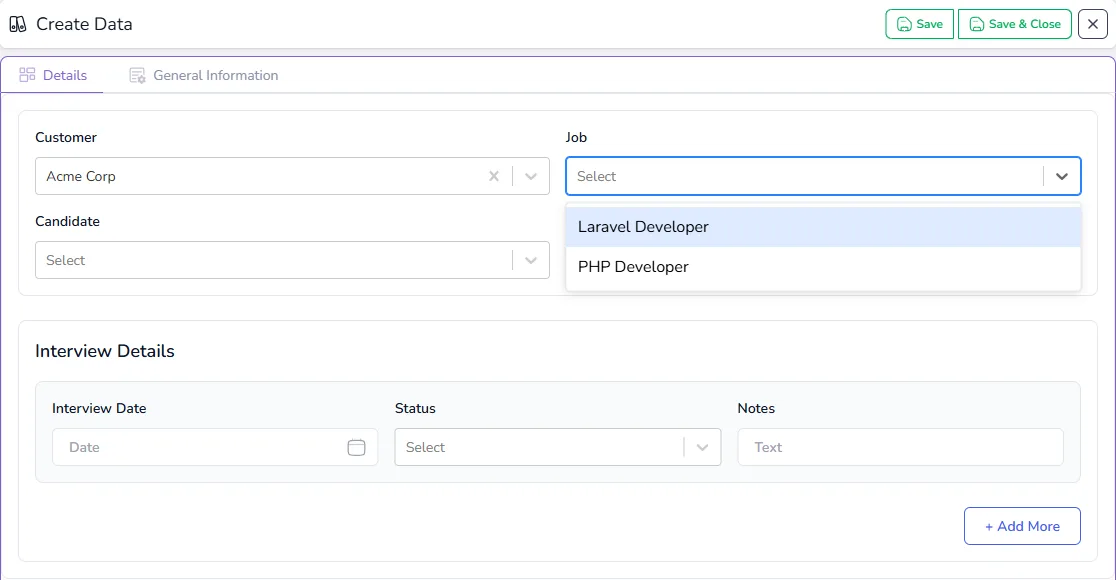
The Interviews list in the recruitment example has two drop-downs:
- Customer takes its choices from the Customers list.
- Job takes its choices from the Jobs list, with a filter: show only jobs whose Customer equals the Customer chosen on this form.
The Job drop-down stays empty until a customer is chosen. Once Acme Corp is chosen, it lists only Acme Corp's jobs.
Set it up
- Make sure the second list holds a link to the first. Here, each record in Jobs has a Customer field.
- In the form, add the first drop-down (Customer) and point it at the Customers list.
- Add the second drop-down (Job) and point it at the Jobs list.
- On the second drop-down's Data tab, switch on Data Source Filter.
- Add a condition: the Customer column of the Jobs list equals the Customer field on this form.
- Choose All or Any if you add more than one condition.
- Save, and test with a new record.
Example: choose a country, see its timezone
The same method brings in any other column of the chosen record. A Countries list holds each country with its Timezone, and a form needs both.
- Keep a Countries list with the columns Country and Timezone.
- In the form, add a Country drop-down fed from the Countries list, showing the Country column.
- Add a Timezone drop-down, also fed from the Countries list, but showing the Timezone column.
- On the Timezone drop-down, switch on Data Source Filter with the condition: the Country column of the Countries list equals the Country field on this form.
When someone picks Japan, the Timezone drop-down offers only Japan's timezone, Asia/Tokyo. Use the same pattern to bring in a country's currency, dialling code or tax rate, a product's price, or a customer's account manager.
More ideas
| First field | Second field shows |
|---|---|
| Country | Only the branches in that country. |
| Project | Only that project's tasks. |
| Department | Only that department's people or cost centres. |
| Client | Only that client's open matters or contracts. |
| Product category | Only products in that category. |
Use option codes
Each option in a drop-down can carry a short code as well as its name: "Desktop/Laptop" with the code DL, "Server" with SV, "Network" with NW. Codes are useful because they are short and stable.
- For your own options, set Option Display to Option (Code). An Option Code column appears beside each option, and the drop-down shows both, such as "New (N)".
- With a list as the source, Data Source Code Column picks which column holds the code.
- In a prefix or suffix, a drop-down field can be used as its Option, its Code, or Opt+Code. Choosing Code is how codes end up in reference numbers.
For a step-by-step example that takes a code from another list into an invoice number such as INV-26-218-N, see Prefixes, suffixes, calculated fields and auto numbers.
Example: asset tags built from a category code
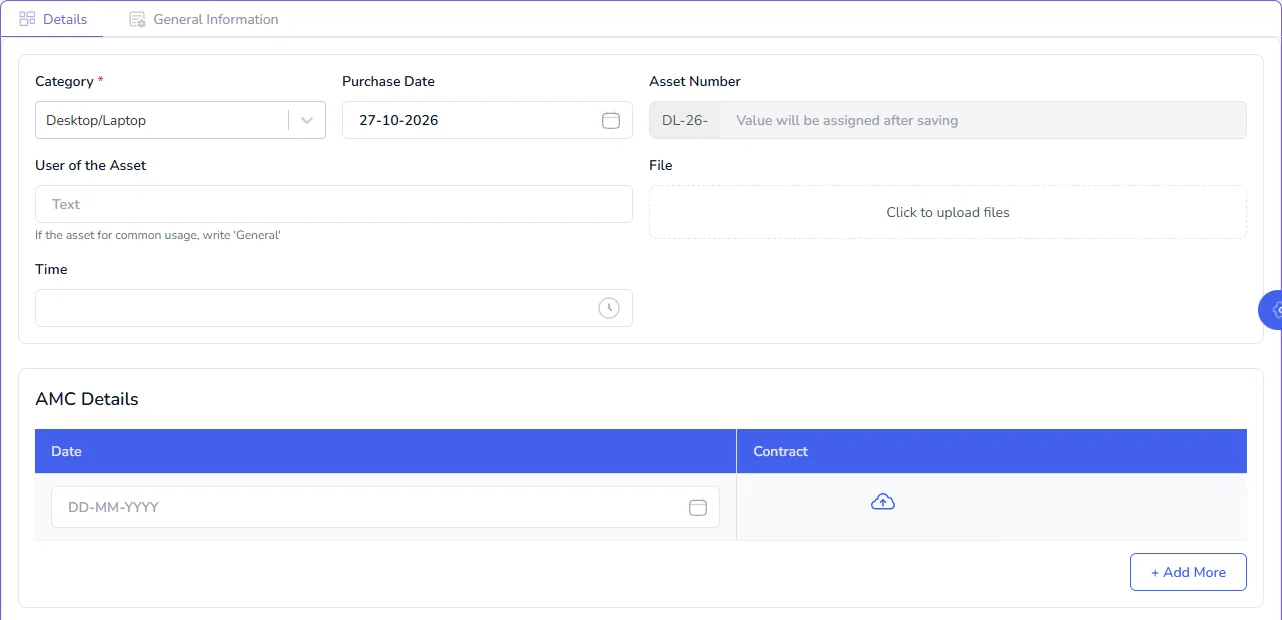
An Assets list has a Category drop-down whose options carry codes, a Purchase Date, and an Asset Number. The asset number is built from:
the Category's code + - + the year of the Purchase Date + - + a running number
So a desktop bought in 2026 gets a tag such as DL-26-1. The form shows the start of the tag as soon as the category and date are filled in, and the number is added when the record is saved.
For step-by-step instructions, see Prefixes, suffixes, calculated fields and auto numbers.
Pick users, departments and other FileEazy data
You do not need a list for people or structure. Use a System field, or set a drop-down's Data Source to User, User Role, Department or Branch. The choices always match your real users and structure, and change when they change. See Design lists and fields.
Connect lists with relationships
When two lists belong to the same app, a relationship links their records, so a job's page shows its candidates, and a customer's page shows its jobs. Relationships can link records automatically with match conditions, and can carry deletions and updates across with cascade rules. See Link related lists.
Use a drop-down when someone filling in a form needs to pick a related record. Use a relationship when you want related records to show together and stay consistent.
Tips
- Keep reference data in one place. One Customers list, one Countries list. Every form that needs it points there.
- Give options short, stable codes. Codes are used in numbering, so do not change them once records exist.
- Filter early fields first. Put the first drop-down above the one that depends on it, so the form reads naturally.
- Check permissions on the source list. People need to be allowed to see the records that feed a drop-down. See Roles and permissions.
- Test with a new record. Fill in the form and check that each drop-down shows the choices you expect.