Sections, layouts and repeating rows
How to organise a FileEazy form into sections, choose a layout for each one - form, card, tab, step, accordion or table - and let people add repeating rows such as order lines or contacts.
A long form is easier to fill in when it is split into parts. In FileEazy, each part is a section. A section has a name, its own fields, and a layout that decides how it is shown: as a plain form, a card, a tab, a step in a wizard, a fold-out panel or a table. A section can also repeat, so people can add as many rows as they need, such as order lines, contacts or interview rounds.
Add and arrange sections
You work with sections on the Sections & Fields step of the list builder. See Create a list to get there.
Add a section
- Select + Add Section under the last section.
- Click Section Name in the new section's header and type a name, such as "Contacts".
- Click Section Description to add a short line of help under the name, if it is useful.
Add fields to a section
Click a section to select it, then click a field type in the panel on the right, or drag the field type straight into the section you want. See Design lists and fields for the field types.
Move a field to another section
When a form has more than one section, each field shows a drop-down with an arrow beside its type. Choose another section there to move the field, or drag the field by its handle.
Reorder or delete a section
- Use the up and down arrows on the left of a section header to move it.
- Use the bin icon on the right of the header to delete it.
Choose a layout
Each section header has a LAYOUT drop-down. The layout changes how the section looks to people filling in the form. It does not change the data that is saved. Open the Preview tab at any time to see the result.
Form
The standard layout. The section name is shown as a heading, with its fields laid out underneath. Use it for most sections.
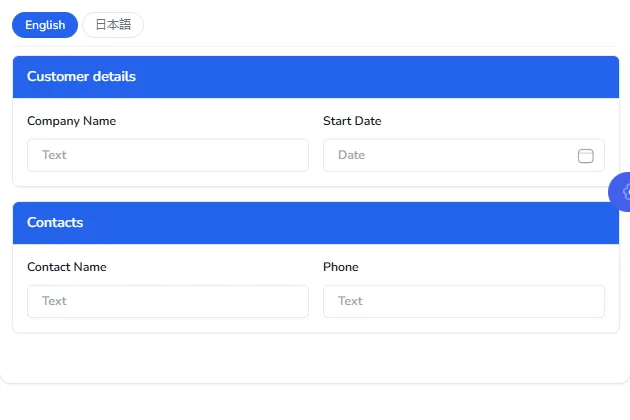
Card
The section sits in a box with a coloured header bar. Use it to make a section stand out, or to separate blocks of information on a long page.
Tab
Sections set to Tab are shown as tabs across the top, and people switch between them. Only one tab's fields are visible at a time. Use tabs when a record has several groups of information that people rarely need at the same time, such as Details, Contacts and Billing.
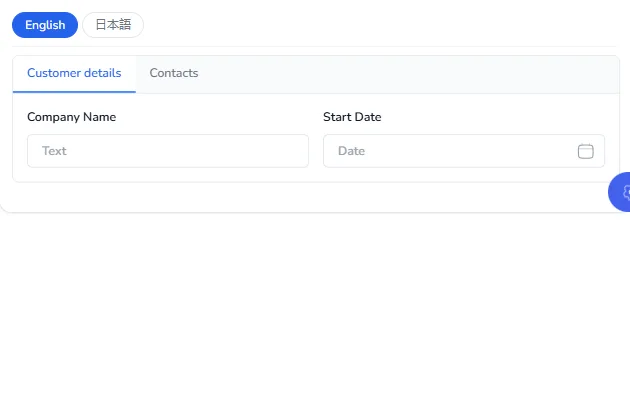
All the sections you set to Tab are shown together as one set of tabs.
Step
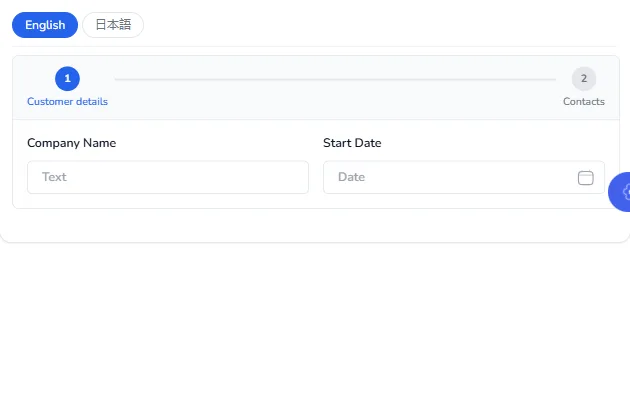
Sections set to Step become a numbered sequence, like a wizard. People see one step at a time, with the steps shown as a progress bar at the top. Use steps for long forms that are filled in once from start to finish, such as an application or an onboarding form.
Accordion
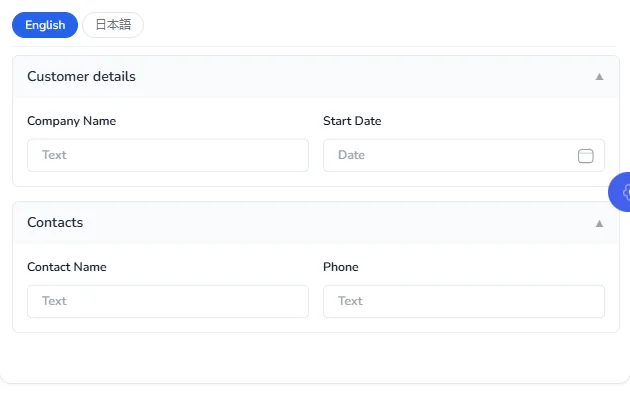
Sections set to Accordion are shown as panels that open and close with the arrow on the right of the header. Use accordions for optional or rarely used details, so the form stays short until someone needs them.
Table
The section's fields become the columns of a table, with each entry as a row. Use the table layout together with Repeatable for lists of items within a record, such as order lines or contacts.
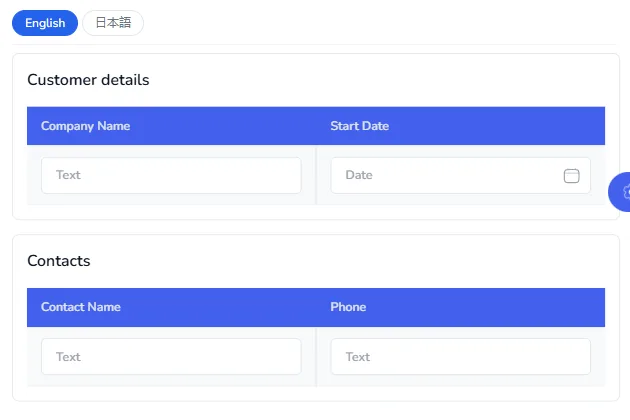
Which layout to use
| You want | Use |
|---|---|
| A simple form | Form for every section. |
| To highlight one block of information | Card for that section. |
| Several groups of details on one record | Tab for those sections. |
| A guided, start-to-finish form | Step for every section. |
| Optional details that stay out of the way | Accordion for those sections. |
| A list of items inside a record | Table, with Repeatable switched on. |
You can mix layouts on one form. For example, a Form section for the main details followed by a repeatable Table section for line items.
Section settings
Select the settings icon on a section header to open Edit Section Properties. It has three tabs.
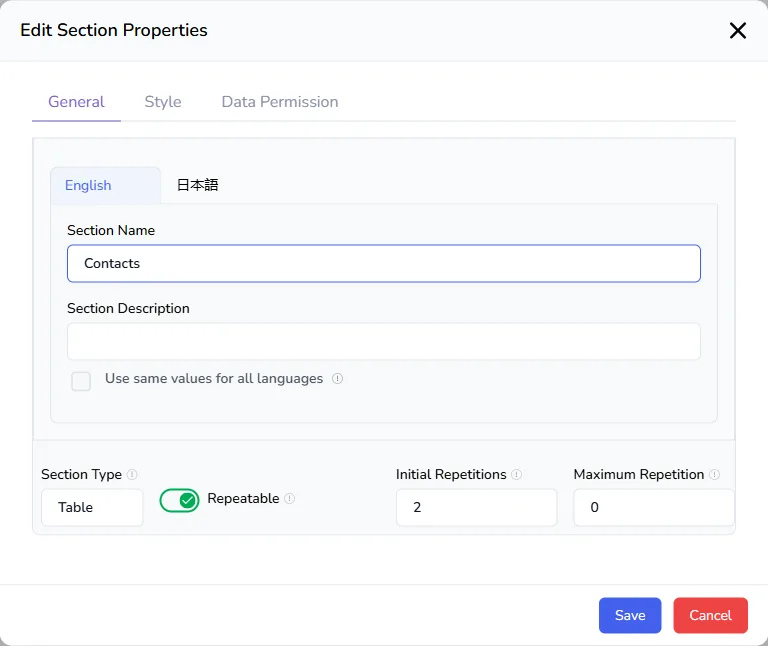
General
| Setting | What it does |
|---|---|
| Section Name | The heading people see. Use the English and 日本語 tabs for both languages. |
| Section Description | A short line of help under the name. |
| Use same values for all languages | Tick it to use the same name and description in both languages. |
| Section Type | The layout of the section, the same as the LAYOUT drop-down in the header. |
| Repeatable | Lets people add the section more than once. See below. |
| Initial Repetitions | How many repetitions are shown when the form opens. |
| Maximum Repetition | The most repetitions allowed. Use 0 for no limit. |
Style
| Setting | What it does |
|---|---|
| Default Field Width | The width of new fields in this section, from 1 to 12. The section is 12 units wide, so 6 puts two fields side by side and 4 puts three. |
| Apply to Existing Fields | Applies the default width to the fields already in the section. |
| Custom CSS Class | Adds your own style class to the section, for organisations with custom styling. |
Data Permission
Decides who can View, Create, Update and Delete the information in this section. For each action, choose one of:
- Available for all internal users: everyone in your organisation.
- Available for all internal and external (guest) users: everyone, including guest accounts.
- Selected users/departments/user roles: only the people, departments or roles you choose.
Tick Apply to all fields to give every field in the section the same permission, instead of setting each field separately. This is the quickest way to hide a whole block of information, such as bank details, from most people. See Field and section permissions.
Repeating sections
A repeatable section lets people enter the same group of fields as many times as they need, inside one record. Under the section, an + Add More button adds another row.
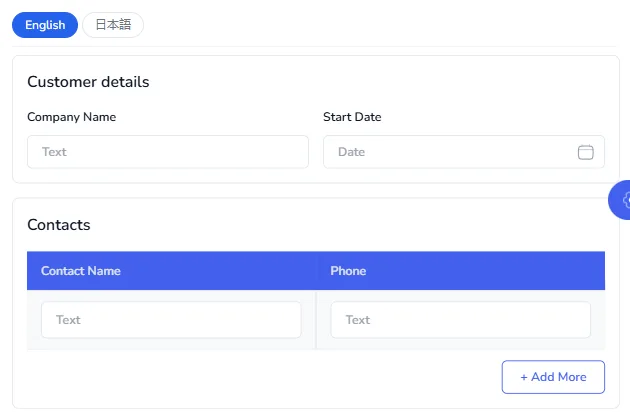
Set up a repeating section
- Add a section and put the fields for one entry in it, such as Contact Name and Phone.
- Open the section's settings.
- Switch on Repeatable.
- Set Initial Repetitions to the number of empty rows to show at first, usually 1.
- Set Maximum Repetition to a limit, or leave it at
0for no limit. - Set Section Type to Table for a compact grid, or leave it as Form to show each entry as its own block.
- Save the section, and check the result in the Preview tab.
Examples
| Record | Repeating section | Fields in each row |
|---|---|---|
| An order | Order lines | Product, Quantity, Unit Price |
| A customer | Contacts | Contact Name, Role, Email, Phone |
| An asset | Maintenance contracts | Date, Contract (file) |
| An interview | Interview rounds | Interview Date, Status, Notes |
| An employee | Education | Qualification, Institution, Year |
| A project | Milestones | Milestone, Due Date, Owner |
Repeating section or separate list?
A repeating section keeps the rows inside the record. That suits small, simple groups that only matter as part of the record, such as an order's lines.
Use a separate list, linked with a relationship, when the rows need a life of their own: their own permissions, their own reports, or links to other records. Candidates and interviews in a recruitment app are a good example. See Link related lists.
Tips
- Name sections the way people think about the information. "Contacts" and "Billing" are clearer than "Section 2".
- Keep each section short. Five to eight fields per section is easy to scan.
- Use the same layout for related sections. Tabs and steps only work as a set.
- Put the fields people always need first. Use accordions for the rest.
- Check both languages. Use the English and 日本語 buttons in the Preview tab.