Sign a document you were sent
What signers see and do - open the signing link, verify with a code, fill in and sign each field, submit, decline or pass the task on - and what happens once everyone has signed.
This guide is for the people who receive a signature request: what they see, how they sign, and what they can do if they cannot sign. It also explains what happens once everyone has signed, which is useful for the sender too.
Open the request
Each signer receives an email when it is their turn, with the document title, any message from the sender, and a link to sign.
- People outside your organisation sign straight from the link. They do not need a FileEazy account.
- FileEazy users are asked to sign in, and then sign from their own account. Signed-in users can also find the request under E-Signatures > Requested of me.
If the link was meant for another person, the page says so. Signers should always use the link sent to them.
When it is not your turn yet
With sequential signing, a signer who opens the link before the people before them have signed sees Not Your Turn Yet. They receive another email when it is their turn.
Verify your identity
If the sender switched on OTP verification, the signer sees Verification required before the document opens:
- Select Send OTP. A 6-digit code is sent to the email address the request was sent to.
- Enter the code and select Verify.
The code is valid for 10 minutes. Select Resend if it did not arrive or has expired. Never share the code with anyone.
Fill in and sign
The document opens with the signer's own fields highlighted. A Progress count shows how many of their fields are done.
- Select Start to jump to the first field.
- Fill it in, then select Next to go to the next one. The button shows which field comes next.
- For a Signature or Initial field, the Signature panel opens.
Signers fill in only their own fields. Fields for other signers are not available to them.
Create your signature
The Signature panel offers the ways to sign that the sender allowed:
| Tab | How it works |
|---|---|
| Electronic Signature | Type your name and choose a handwriting style, Draw with a mouse or finger, or Upload an image. Set your signature and initials together. |
| Digital Signature - Certificate | Sign with a digital certificate. Generate one, or Upload your own. |
| Digital Signature - Token/HSM | Sign with a certificate on a hardware token or smart card, using the Fortify app. |
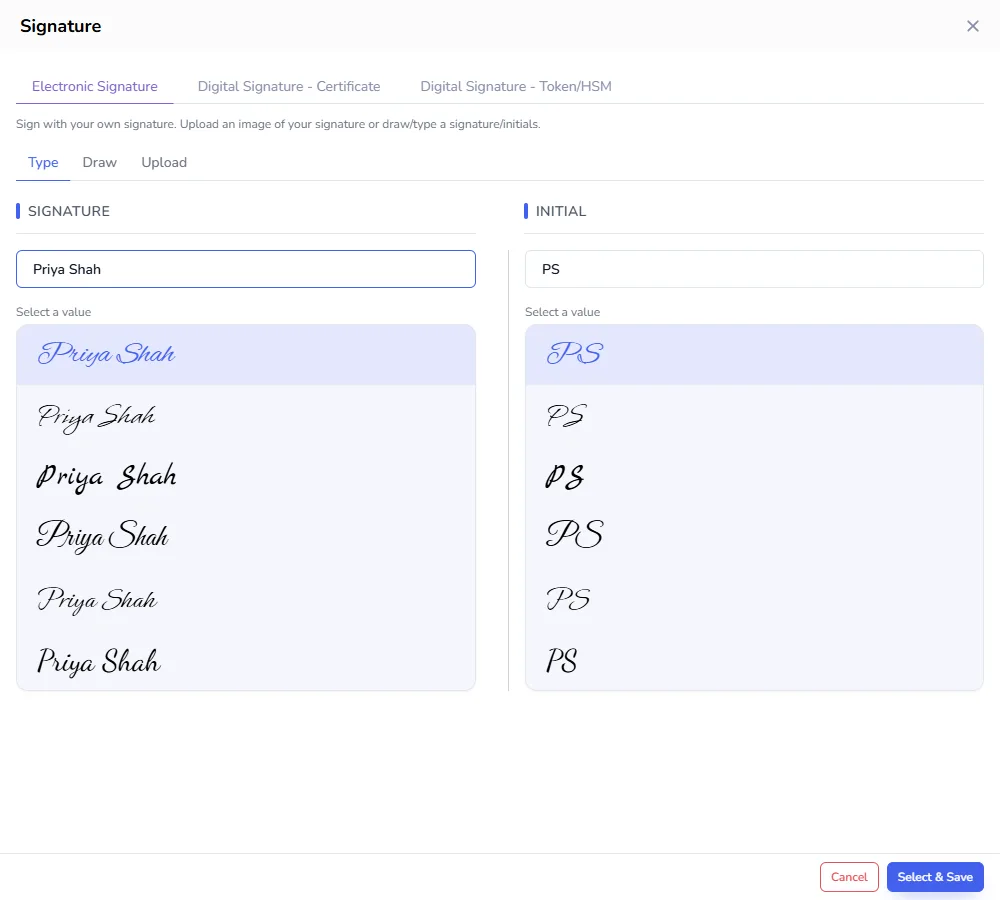
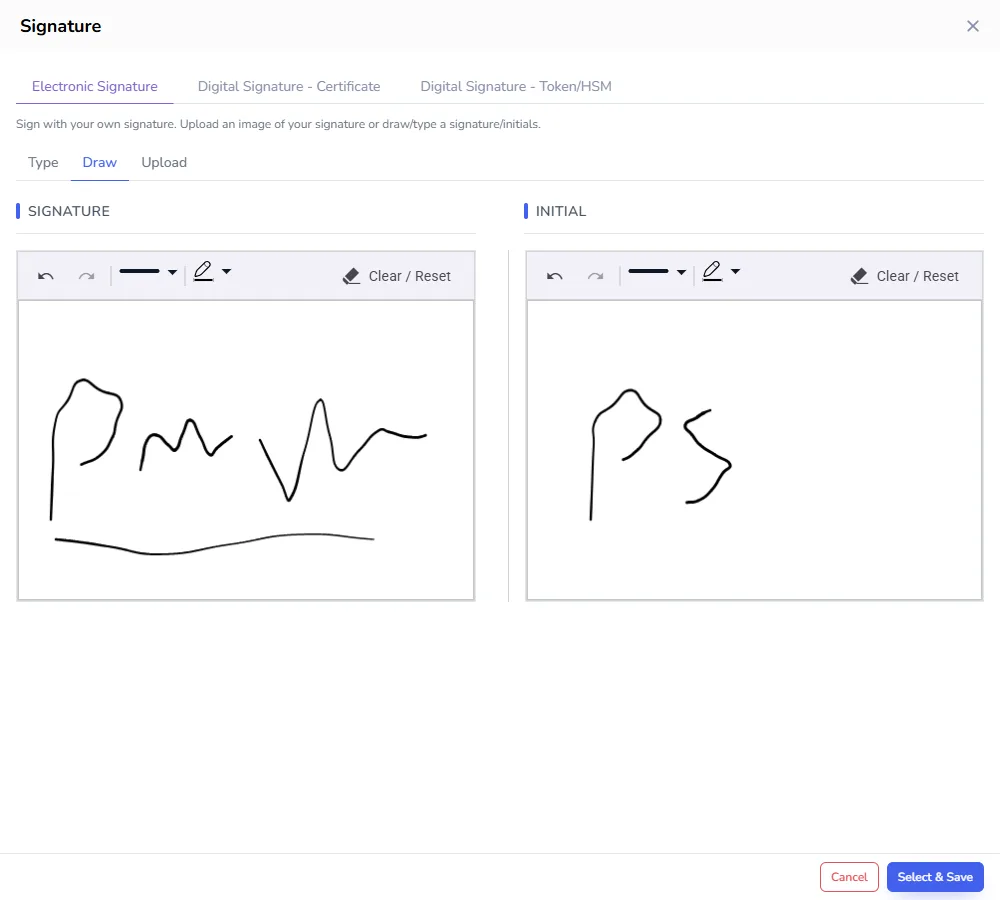
Once created, the signature and initials are added to every signature and initial field without drawing them again. For details of each method, see Signing methods, OTP and certificates.
Quick Sign requests
If the sender used Quick Sign, there are no fields placed in advance. Right-click anywhere on the document to place your signature, initials or text where they belong, then submit.
Submit
- When all required fields are done, select Submit.
- The Terms & Conditions window opens with the Electronic Record and Signature Disclosure. Read it and select Accept & Submit to confirm that you agree to sign electronically. To read the terms first without submitting, open them from the Terms & Conditions link and select Agree & Continue.
- Wait a moment while the signature is added to the document.
When it is done, the page shows Your signature has been affixed successfully. The signer can view and download the document. Opening the link again shows a read-only copy.
If you cannot sign
Decline
Select Decline if you do not agree to sign, for example because the terms are wrong. Enter a reason; the sender sees it. The request stops, and nobody else can sign it.
Reassign
If the sender allowed it, select Reassign to pass the task to someone else, for example a colleague who has authority to sign. Choose a FileEazy user, or enter the person's name and email. They take your place, the sender is notified, and your link becomes read-only.
Ask for more time
If the deadline has passed, the page says the request is past its due date. Select Request an extension, add a short message, and send it. The sender is notified and can set a new deadline. You receive a new link when they do.
What happens after everyone has signed
| What | Where |
|---|---|
| The signed document | Saved back to the same file in the File Manager as a new version, with all signatures on it. Earlier versions are kept. |
| The sender | Is notified that the request is complete. |
| Signers, CC and receivers | Are notified according to their Notify when setting, with the document attached, a link, or neither, according to Attachment. |
| Signature summary report | If the sender switched it on, a summary of the request, every signer, the times they signed and the signing method is bundled with the final signed document. |
| The record of events | Every step, from sending and viewing to verifying, signing, declining and reassigning, is recorded in E-Signatures > Audits. |
The request then shows as Completed on the E-Signatures dashboard. See Track signature status.
Frequently asked questions
I did not receive the email.
Check your spam or junk folder, and ask the sender to check the email address. The sender can also send a reminder from E-Signatures.
The OTP code does not work.
Codes expire after 10 minutes and only the latest code works. Select Resend and use the new code.
Can I change my signature after submitting?
No. Once submitted, your part is complete and the document is read-only for you. If something is wrong, contact the sender. They can recall the request and send a new one.
Can I sign on my phone?
Yes. The signing page works in a mobile browser, and you can draw your signature with your finger.