Save and reuse outside signers
Save the name and email of people who sign from outside your organisation, then pick them from a list in any signature request instead of typing them again.
People who sign from outside your organisation, such as customers, suppliers and contractors, do not have a FileEazy user. You add them as External signers by typing their name and email. Save them once, and in every later request you pick them from a list instead.
Saved signers are separate from saved contacts. A saved contact fills in a whole request for a company, while a saved signer is one person you can add to any request, whichever saved contact or template you load. See Saved contacts and templates.
Pick a saved signer
- In Signers, select Add Signer, or use Signer 1.
- Select External.
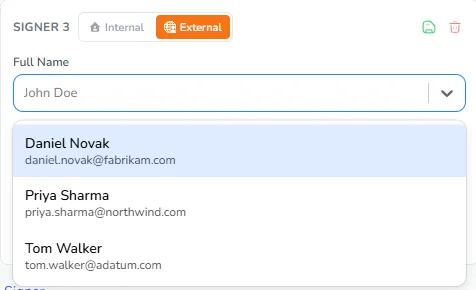
- Click Full Name. Your saved signers are listed, each with their email address under the name.
- To find someone quickly, start typing their name. The list narrows as you type.
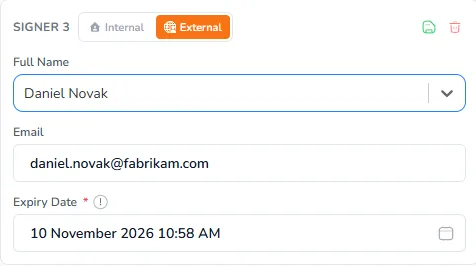
- Choose the person. The Email fills in.
Save a new signer
- Add an External signer and type their Full Name and Email.
- Select the green Save Contact icon at the top right of the signer's box.
- The Save Contact window opens with their name filled in. Select Save.
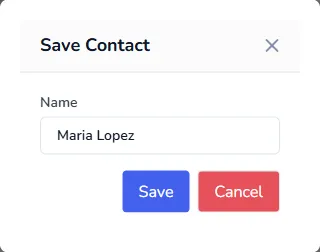
A message confirms the signer was saved. They appear in the Full Name list straight away, in this request and in every request after it.
Add someone without saving them
You do not have to save everyone. Type the name in Full Name and the email in Email, and carry on. The person is added to this request only.
Outside signers who already have a FileEazy user
If you add someone as External but their email matches a FileEazy user in your workspace, FileEazy sends the request to that user as an Internal signer. They sign from their own account, and their name comes from their user profile.
Who can see saved signers
Everyone in your workspace who sends signature requests. When a colleague saves a customer's signer, you can pick them too. Save each person once, with their full name, so everyone finds the same entry.
Saved signers and CC / Receivers
Saved signers are for signers. People in CC / Receivers are added by choosing a user or typing a name and email.
Tips
- Save people who sign often. Directors, account managers and regular contractors are good candidates.
- Use full names. "Maria Lopez" is easier to find than "Maria".
- Keep signers in a saved contact when they always sign for that company. Then loading the saved contact adds them for you. See Saved contacts and templates.