Fill contract details from a list
Fill the company and contact details of a signature request from a record in your customer, supplier or partner list with Pull from List, instead of typing them every time.
Every signature request has a Contract Details section that records who the document is going to. If you already keep your customers, suppliers or partners in a FileEazy list, Pull from List fills those details from one record, so you never retype them and never mistype an email address.
The contract details
| Field | What it holds |
|---|---|
| Entity Name | The other party: a company, organisation or person. |
| Point of Contact - Name | The person you deal with there. |
| Point of Contact - Email | Their email address. |
| Point of Contact - Phone | Their phone number. |
All four are required. You can type them, pull them from a list as described here, or load them from a saved contact. See Saved contacts and templates.
Why it saves time
- No retyping. The details are copied straight from the record.
- No mistakes. The email and phone come from the same record as the company, so they always belong together.
- One place to keep details up to date. When a contact changes, update the record in the list. Every new request then picks up the new details.
Set up a list to pull from
You need a list with one record for each company, and a column for each of the four details. A list like this is ideal:
| Company Name | Contact Person | Phone | |
|---|---|---|---|
| Contoso Design Ltd | Maria Lopez | [email protected] | +44 20 7946 0123 |
| Fabrikam Inc. | Daniel Novak | [email protected] | +1 425 555 0142 |
| Northwind Traders | Priya Sharma | [email protected] | +61 2 5550 1234 |
A customer list in a CRM app, or a supplier and partner list, usually has these columns already. If you need to build one, see Create a list. Use clear column names, such as Contact Person rather than Name 2, so they are easy to pick.
Fill the contract details from a record
- Start a signature request. See Send a document for signature.
- In Contract Details, select Pull from List.
- In List to pull from, choose the list. Each list is shown with the app it belongs to, such as Customers (Customer Management).
- Under Entity Name, choose the column that holds the company name, such as Company Name. The box beside it then lists every value in that column.
- In that second box, choose the record, such as Contoso Design Ltd. The company name appears below.
- Under Point of Contact - Name, choose the column that holds the contact's name, such as Contact Person. The name fills in from the record you chose in step 5.
- Under Point of Contact - Email, choose the email column. The email fills in.
- Under Point of Contact - Phone, choose the phone column. The phone number fills in.
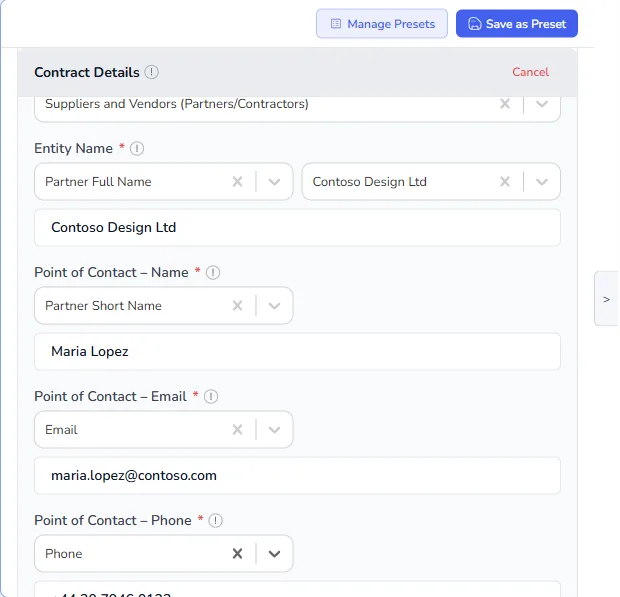
How the record and the columns work together
You choose the record once, under Entity Name. For the three contact fields, you only choose a column. FileEazy takes the value of that column from the same record.
This means:
- The contact details can never come from a different company by mistake.
- If you choose a different record under Entity Name, all three contact fields change to match it.
- Until you choose a record, the contact fields show Pick an entity first.
Correct a value for this request
Each value appears in an ordinary box under its column, and you can type over it. Use this when one request needs something different, for example a different contact person for this agreement only. Your change applies to this request. The record in the list does not change.
When a value is missing
If the chosen record has nothing in a column, the box shows No value in this column for the selected record. Either type the value in the box, or choose a different column. To fix it for good, fill in the missing value in the list record.
Go back to typing the details
Select Cancel at the top of Contract Details to leave list mode. The four boxes are cleared, ready for you to type the details yourself.
Examples
| You send | Pull from | Entity Name column | Contact columns |
|---|---|---|---|
| Sales contracts and order forms | Customers list in your CRM app | Customer Name | Contact Person, Email, Phone |
| NDAs and supplier agreements | Suppliers list | Supplier Name | Account Manager, Email, Phone |
| Offer letters | Candidates list in your recruitment app | Candidate Name | Candidate Name, Email, Mobile |
| Tenancy agreements | Tenants list | Tenant Name | Tenant Name, Email, Phone |
When the other party is a person rather than a company, choose the same name column for Entity Name and Point of Contact - Name.
Pull from List with saved contacts and templates
- Template first, then the list. Load a template for the kind of document, then use Pull from List for the company. This suits a standard agreement that goes to a different company each time.
- Saving after pulling. If you save a saved contact or template after pulling from a list, the details are saved as they are at that moment, not as a link to the list. Loading it later fills in the same values, even if the record has changed since. To use the latest details, select Pull from List again after loading.
See Saved contacts and templates.
Frequently asked questions
Does Pull from List change my list?
No. It only reads the record. Anything you type over in the contract details stays with the signature request.
Is the contact person added as a signer?
No. The contract details record who the agreement is with. Add the people who sign under Signers. If the contact person also signs, add them as an External signer, or pick them from your saved signers. See Save and reuse outside signers.
Which lists can I pull from?
Any list you can open. The lists are shown with the app they belong to, so you can tell similar names apart.