Field and section permissions
How to control who can see, enter, change or delete individual fields and sections in a FileEazy form - for example keeping salaries, prices or personal data visible only to the right roles.
Not everyone who works with a list should see everything in it. A recruiter needs a candidate's skills but not their expected salary. A sales assistant can update an order but should not change its price. FileEazy lets you set permissions on a single field, or on a whole section, as well as on the list itself.
How field permissions fit with the rest
FileEazy checks access in layers. A person must pass each one:
- Their role decides which parts of FileEazy they can use at all. See Roles and permissions.
- The list's permissions decide what they can do with the list and its records. See Create a list.
- Section and field permissions, described here, narrow it further for particular information inside each record.
Field permissions only make access narrower. They cannot give someone access to a list they cannot open.
The four actions
| Action | Controls whether a person can |
|---|---|
| View | See the field's value. |
| Create | Fill in the field when adding a new record. |
| Update | Change the field's value on an existing record. |
| Delete | Clear or remove the field's value. |
Each action has its own setting, so you can, for example, let everyone View a price but only Finance Update it.
Who can do it
For each action, choose one of three options:
| Option | Who it covers |
|---|---|
| Available for all internal users | Everyone in your organisation. |
| Available for all internal and external (guest) users | Everyone, including guest accounts. |
| Selected users/departments/user roles | Only the people, departments or roles you choose. |
Restrict a field
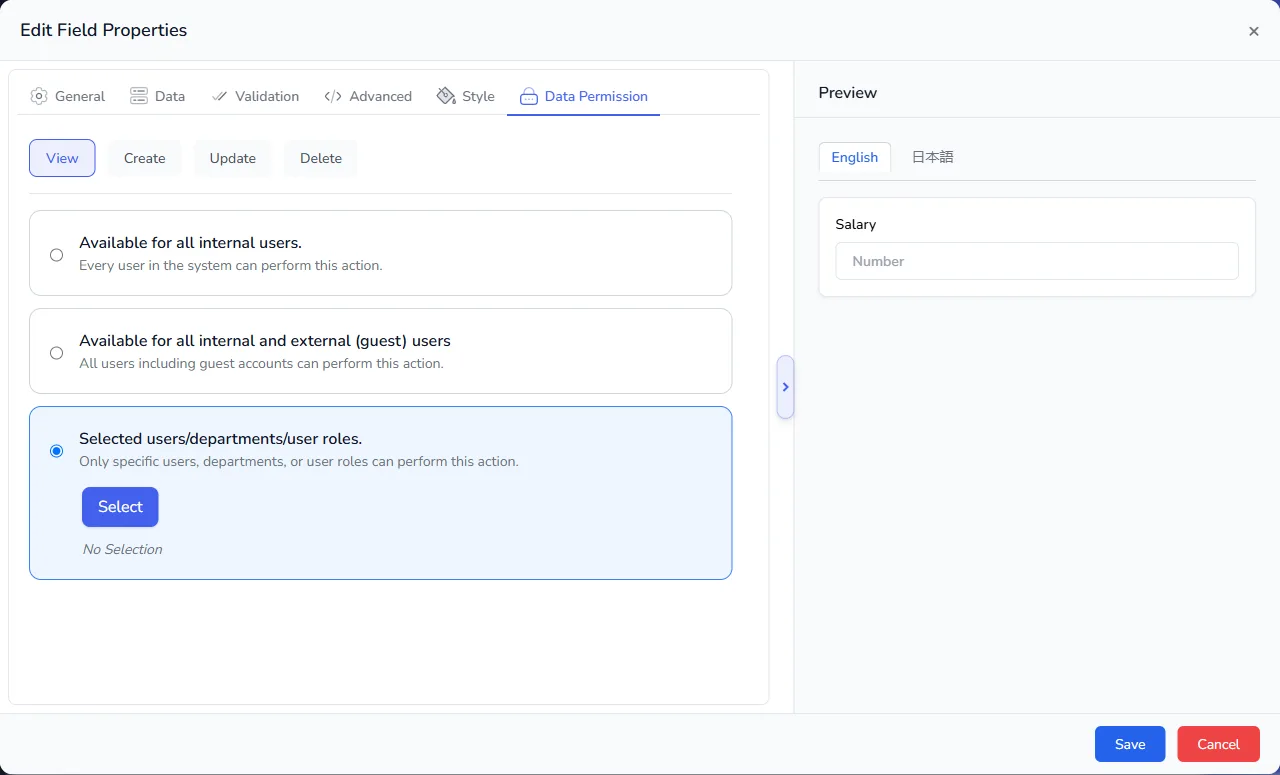
Example: only HR and Super Admins may see an employee's Salary.
- Open the list in the list builder and go to Sections & Fields.
- Select the settings icon beside the Salary field.
- Open the Data Permission tab.
- Select View at the top.
- Choose Selected users/departments/user roles, then select Select.
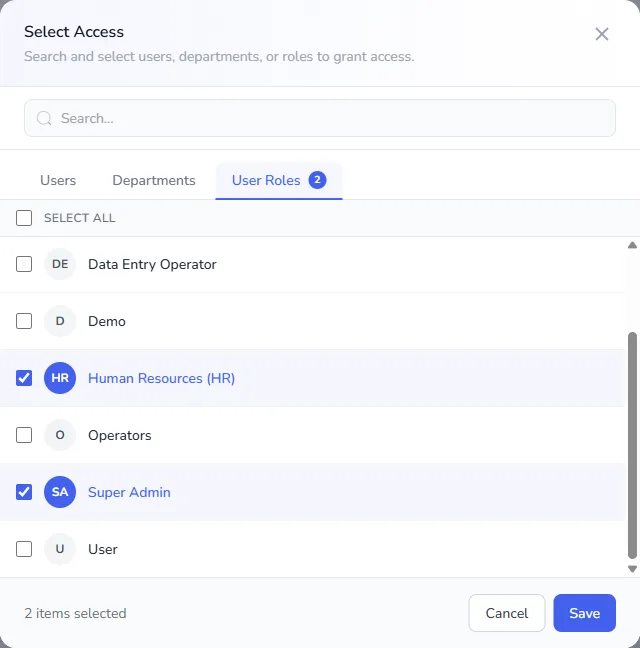
- In Select Access, use the tabs to choose Users, Departments or User Roles. Tick each one that should have access, here Human Resources (HR) and Super Admin. Use the search box to find a name quickly, or SELECT ALL to tick everything in a tab.
- Select Save. The count at the bottom shows how many you selected.
- Repeat for Create, Update and Delete, choosing who may do each.
- Select Save on the field, then save the list.
You can mix users, departments and roles in one selection, for example the Finance department plus one named manager.
Restrict a whole section
When several fields need the same protection, such as a Bank details section with account name, account number and bank, set it once on the section instead of on every field.
- Select the settings icon on the section header.
- Open the Data Permission tab.
- Set View, Create, Update and Delete in the same way as for a field.
- Tick Apply to all fields to copy the permission to every field in the section.
- Select Save.
See Sections, layouts and repeating rows.
Examples
| Information | View | Update | Why |
|---|---|---|---|
| Employee Salary | HR, Super Admin | HR | Pay is confidential. |
| Customer Credit Limit | Sales, Finance | Finance | Sales need to know it, only Finance sets it. |
| Candidate Phone and Email | Recruiters | Recruiters | Personal data stays with the people who use it. |
| Order Unit Price | Everyone | Sales Manager | Prevents unapproved discounts. |
| Patient Insurance Number | Front desk, Billing | Billing | Only billing needs to change it. |
| Contract Signed Copy (file) | Legal, Management | Legal | Keeps signed originals under control. |
Tips
- Start from roles, not people. Selecting a role or a department keeps working when people join or leave. Named users need updating by hand.
- Protect at the section level when you can. One setting is easier to check than ten.
- Check with a test account. Sign in as someone with a restricted role and open a record to confirm what they can see.
- Combine with Read Only and Hidden. On the Style tab, Read Only and Hidden change what everyone sees on the form. Permissions decide what each person may do.
- Review regularly. Use the Audits view to see who changed sensitive values. See Review audits.