Languages
Choose the languages FileEazy is used in, set the default language, keep each language's wording up to date with Sync, and why the page needs a refresh after syncing.
FileEazy can be used in more than one language. Each person chooses the language they work in, and your organisation has a default. This guide explains the Languages settings: which languages are available, how to set the default, and how to keep each language's wording up to date.
Open Languages
Select Settings in the main menu, then Languages. The list shows each language with:
| Column | What it shows |
|---|---|
| Sync | A button to update that language's wording. |
| Language Name | The language, written in that language, such as 日本語. |
| Code | Its short code, such as en or ja. |
| Status | Whether your organisation has the language. |
| (last column) | Default marks the default language. |
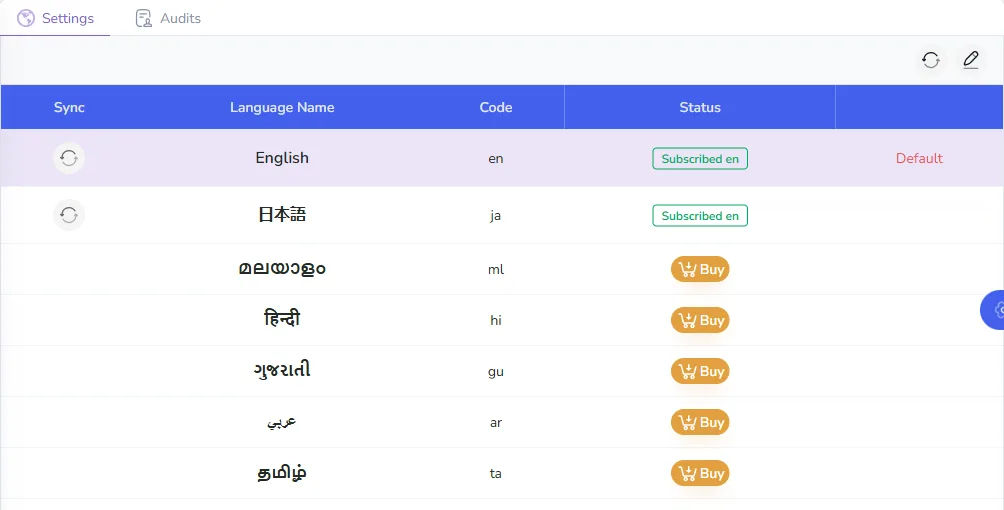
How languages work in FileEazy
There are two kinds of text in FileEazy, and languages apply to both:
- The wording of FileEazy itself: menus, buttons, labels and messages. Each person sees it in the language they choose with the language button at the top of the screen, such as EN.
- Your own content: list names, field labels, section names, settings such as your company name, and email templates. These have a tab for each language, such as English and 日本語, so you can write them in both. See Design lists and fields.
Set the default language
The default language is used where nobody has chosen another, for example for new users.
- Select the pencil at the top right of the list.
- Choose Default on the language you want.
- Confirm when FileEazy asks.
Keep the wording up to date with Sync
From time to time, FileEazy's wording is improved: a clearer label, a new message for a new feature, or a corrected translation. Sync brings those updates into your organisation's languages.
- Select the Sync button on a language, or the sync button at the top right to update every language at once.
- Choose:
- Sync changed items only, to bring in just the wording that has changed. This is quick and is usually all you need.
- Sync all language pack, to replace every item of wording in that language. Use it if wording looks wrong or missing after an update.
- Wait while FileEazy syncs. A message confirms when it has finished.
Why the page needs a refresh after syncing
When syncing finishes, FileEazy shows Page refresh required for changes to reflect, with Refresh Now and Refresh Later.
This is because of how FileEazy loads its wording. When you open FileEazy in your browser, it loads the wording for your language once, and keeps it in the open page so that menus and buttons show instantly. Syncing updates the wording on the server, but the page you already have open is still using the copy it loaded at the start. Reloading the page makes FileEazy fetch the new wording.
- Select Refresh Now to reload straight away and see the changes.
- Select Refresh Later to finish what you are doing first, then reload the page yourself, for example with F5, or Cmd + R on a Mac.
Other people who have FileEazy open at the time also keep the old wording until they reload their page. Anyone who opens FileEazy afterwards gets the new wording automatically.
Tip: if some wording still looks old after reloading, do a hard refresh, Ctrl + F5 on Windows or Cmd + Shift + R on a Mac. It makes the browser fetch everything again instead of reusing what it has stored.
Tips
- Sync after an update. When FileEazy announces new features, sync your languages so the new screens have their wording.
- Write your content in every language you use. Field labels and email templates are not translated automatically; fill in each language tab.
- Use Auto-fill other languages for names that stay the same, such as product codes or your company name. See Organisation settings.