Set up your organisation, step by step
The first things to do in FileEazy after you sign up - company details and logo, branches, departments, user roles, users, and the remaining settings and permissions - in the order that works best.
This guide walks you through setting up FileEazy for your organisation, from your company details to your first users. Follow the steps in order: each one builds on the one before.
What is ready when you sign up
When you buy a plan, FileEazy creates your workspace with:
| Ready for you | What it is |
|---|---|
| Your workspace address | Your own address, such as https://contoso.fileeazy.app. |
| A Super Admin user | Your own account, with full access to everything. |
| The Super Admin role | The role with full access, given to that user. |
| One branch | Your first branch, named Main Branch or Head Quarters. |
Your confirmation email has your workspace address and your sign-in name. Your password is the one you chose when you signed up. Keep the email safe. If you cannot find it, check your spam folder, or contact FileEazy support.
Step 1: Sign in as the Super Admin
- Open the workspace address from your confirmation email.
- Sign in with your sign-in name and your password.
As Super Admin you can see and change everything, so use this account for setting up and for administration. For your day-to-day work, it is good practice to give yourself a second account with an everyday role.
Step 2: Enter your company details, logo and address
Your company details appear across FileEazy and in the emails it sends.
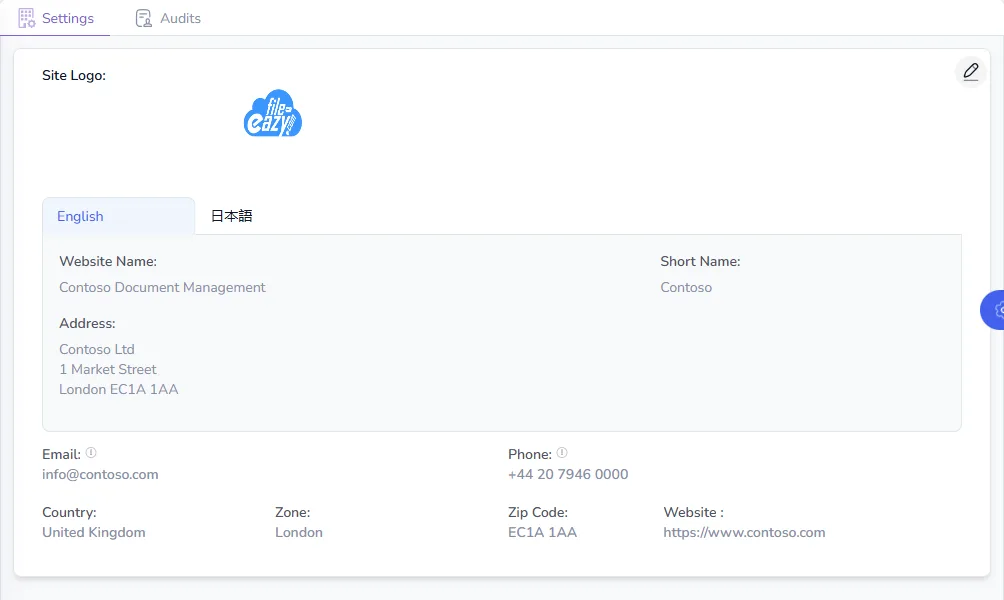
- Select Settings in the main menu.
- Choose General Settings on the left.
- Select the pencil at the top right.
- Add your Site Logo.
- Enter the Website Name, such as "Contoso Document Management", and a Short Name, such as "Contoso".
- Enter your Address, Email, Phone, Country, Zone, Zip Code and Website.
- If you work in English and Japanese, fill in both language tabs, or switch on Auto-fill other languages to use the same text in both.
- Select Save.
While you are in Settings, open Preference Settings and choose your Date Format, Time Format and Time Zone, so dates appear the way your team expects.
For every option, see Organisation settings.
Step 3: Set up your branches
A branch is a place: an office, a site or a subsidiary. Branches decide which people belong where, and can limit what each person sees.
Check your first branch
FileEazy has already created one branch, named Main Branch or Head Quarters.
- Select Branches in the main menu.
- Open the branch to edit its details.
- Rename it if you like, for example "London Head Office", and add its address, Branch Code, phone and email.
- Select Save & Close.
Add more branches
If your plan includes more than one branch, add one for each office or site:
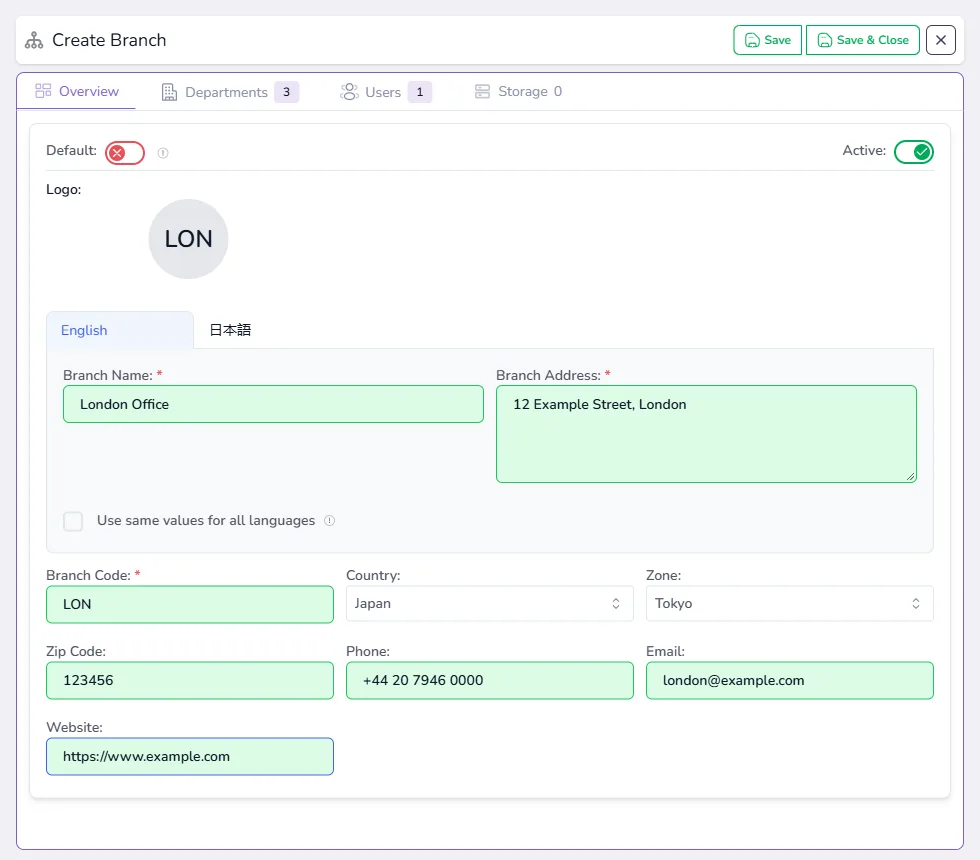
- On the Branches page, select New Branch.
- Enter the Branch Name, Branch Address and a short Branch Code, such as "MUM".
- Add the Country, Zone, Zip Code, Phone, Email and Website.
- Leave Active on, and select Save & Close.
The number of branches you can add depends on your plan. If you need more, you can upgrade your plan.
If you have only one office, keep the single branch and move on.
Step 4: Create your departments
A department is a team or function, such as Finance, HR, Legal or Sales. A department can exist in several branches.
- Select Departments in the main menu.
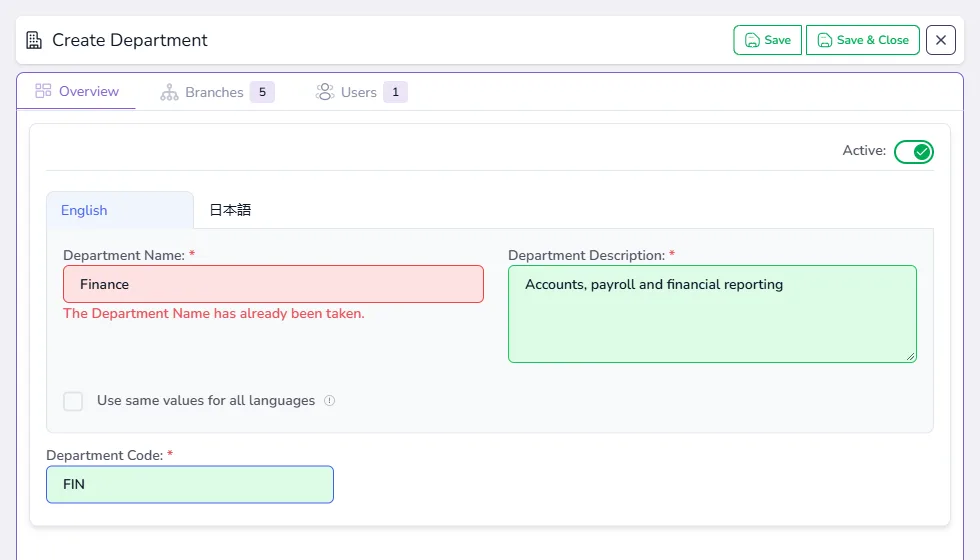
- Select New Department.
- Enter the Department Name, a short Department Description and a Department Code, such as "FIN".
- Open the Branches tab and tick the branches that have this department.
- Select Save & Close.
- Repeat for each department.
You will add people to departments in Step 6, when you create their users.
For more, see Set up branches and departments.
Step 5: Create your user roles
A role decides what a person can do: which parts of FileEazy they can open, and whether they can create, read, update or delete in each. Every user has one role.
FileEazy starts with one role, Super Admin, with full access. Keep it for the few people who administer FileEazy, and create roles for everyone else.
- Open User Roles from the main menu, under More.
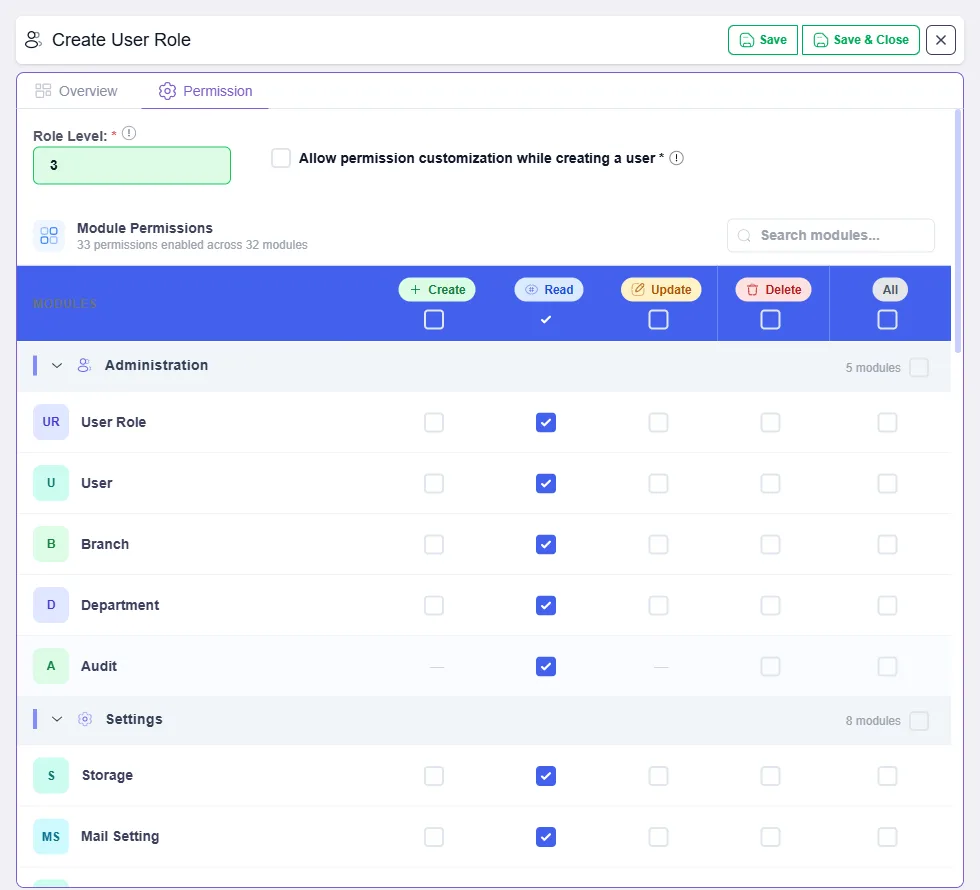
- Select New User Role.
- On the Overview tab, enter a Role Name, such as "Records Clerk", and a description.
- Open the Permission tab and choose a Role Level. Level 1 is Super Admin; choose 2 or higher, with higher numbers for roles with less authority.
- Under Module Permissions, tick what this role may do in each area, such as Create, Read and Update for Lists, Data and Files.
- Select Save & Close.
Typical roles to start with:
| Role | For | Typical permissions |
|---|---|---|
| Branch Admin | Managers of a branch | Most content, plus users in their branch. No settings. |
| Records Clerk | Everyday staff | Create, read and update lists, data and files. No delete, no settings. |
| Reviewer | Auditors and stakeholders | Read only. |
Give each person the least access they need, and widen it only when there is a reason. For every option, see Roles and permissions.
Step 6: Add your users and give them roles
Your own Super Admin user already exists. Now add everyone else.
- Select Users in the main menu, then New User.
- On the Overview tab, enter the Full Name, Sign-In Name and Email, and choose the User Role from Step 5.
- Open Security Information:
- Choose the Sign-in method: Password, Single sign-on only, or Single sign-on or password.
- For password sign-in, enter a first password, tick Send credentials to user via email, and tick Change password at next sign-in.
- Open the Branches tab, tick the person's branches and choose their Default Branch.
- Open the Departments tab, tick their departments and choose their Default Department.
- Select Save & Close. The person receives an email with their sign-in details.
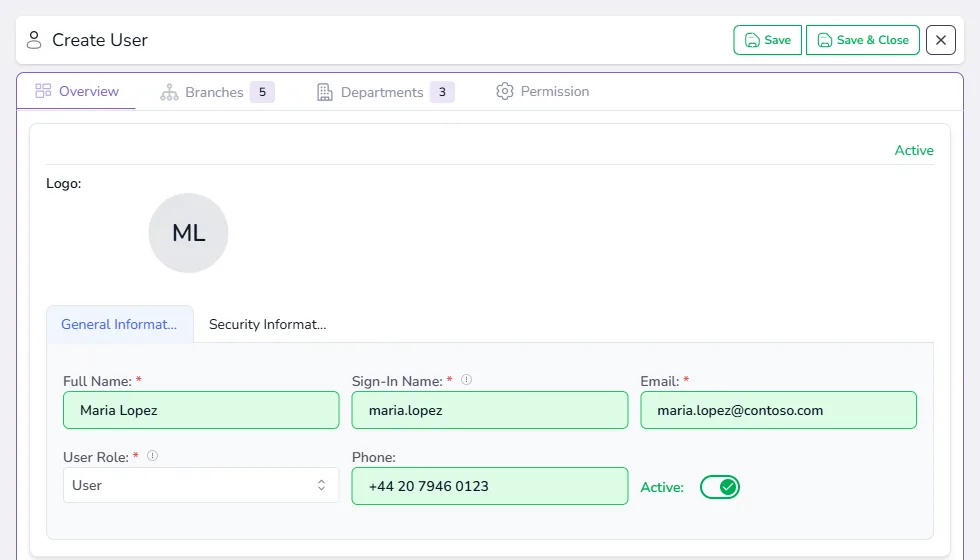
The number of users you can add depends on your plan. For every option, see Invite your team.
Step 7: Configure the remaining settings and permissions
With your structure and people in place, review the rest of Settings. Each group has its own guide.
| Settings group | What to decide | Guide |
|---|---|---|
| Security Settings | Password rules, failed sign-in lockout and session time-out | Sign-in and access control |
| Sign-In Settings | Single sign-on with Microsoft, Google and other providers | Set up single sign-on |
| Notification Settings | Which events people are told about, and how | Notifications |
| Mail Settings | The mail account FileEazy sends from. Test it with Send Test Email | Organisation settings |
| Email Templates | The wording of every email FileEazy sends | Organisation settings |
| Storage Settings | Where files are stored | Set up storage locations |
| Languages | The default language, and keeping wording up to date | Languages |
Then set permissions on your content as you build it:
- Folders: decide who can open each folder. See Set up folders and Share and protect files.
- Lists: set who can see and change each list's records. See Create a list.
- Fields: keep sensitive fields, such as salaries, visible only to the right roles. See Field and section permissions.
Checklist
- Signed in as Super Admin
- Company name, logo and address entered
- Date format, time format and time zone chosen
- First branch checked, and other branches added
- Departments created and linked to branches
- User roles created
- Users added, with roles, branches and departments
- Mail account working, checked with Send Test Email
- Security and sign-in settings reviewed