Automate a list with rules
Set up rules that run by themselves when a record is added, changed or deleted, or on a schedule, and use the execution logs to see what each rule did.
Rules do routine work in your lists for you. A rule watches one list, and when something happens there, such as a new record being added, it checks your conditions and then carries out its actions: it can add, update or delete records, or notify the right people by email or inside FileEazy.
Every time a rule runs, FileEazy records it in the Execution Logs, so you can see what happened and when.
Where to find rules
Open Lists from the menu. Under Automation in the left panel you'll find:
| Item | What it holds |
|---|---|
| Rules | Every rule in your workspace, with its source list, trigger, failure strategy, priority and status. |
| Recycle Bin (Rules) | Rules you have deleted. You can restore them from here, or delete them permanently. |
| Execution Logs | A record of every time a rule has run. |
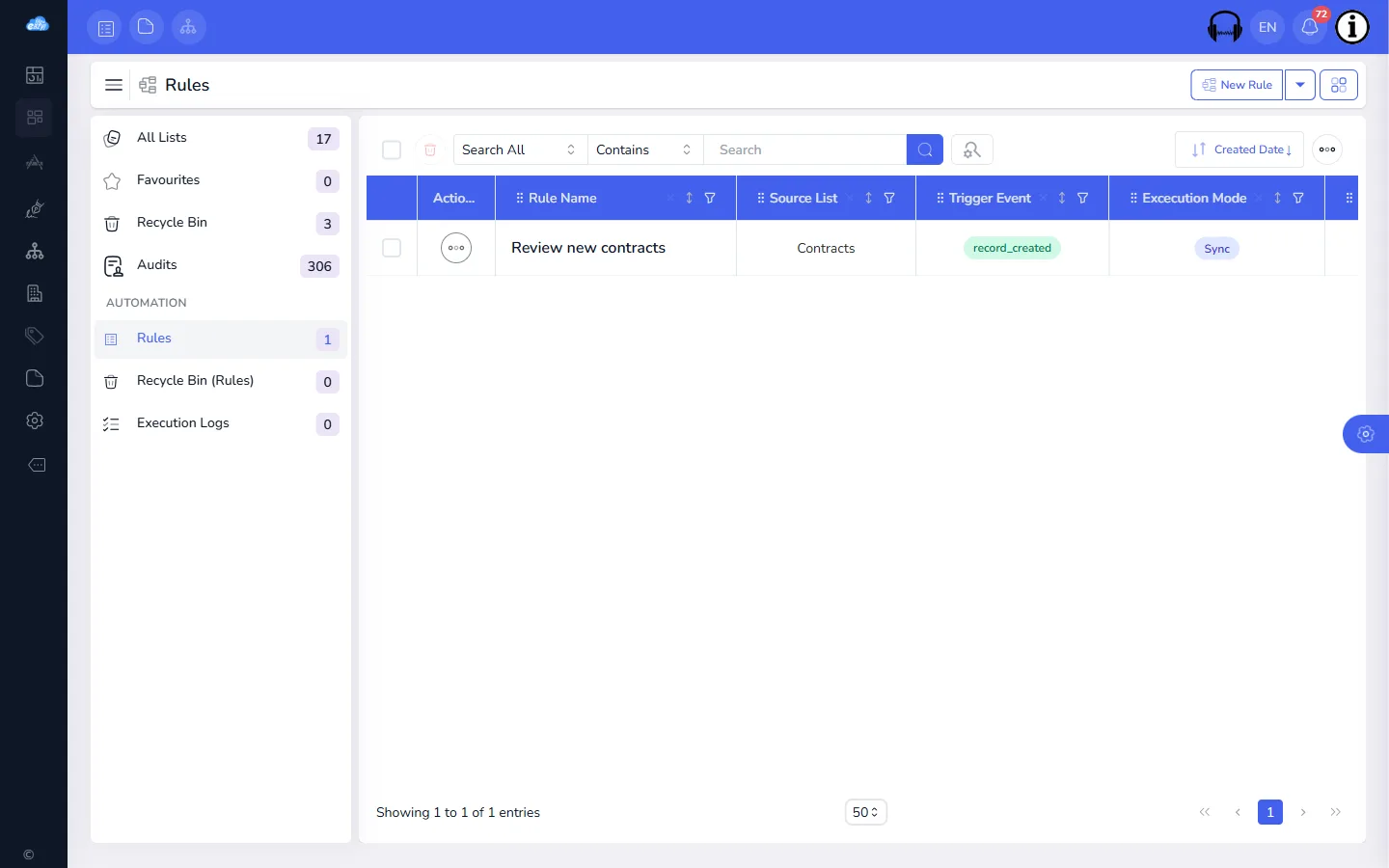
Select New Rule at the top right to create a rule. The rule form has four steps: Basic Info, Trigger Conditions, Actions and Review & Save.
The example below sets up a rule called Review new contracts. When a contract is added to the Contracts list with a contract owner, it emails the person who added it, asking them to review the contract.
Step 1: Start a new rule
- Open Lists and select Rules under Automation.
- Select New Rule. The Create Rule panel opens on the right.
Step 2: Fill in the basic info
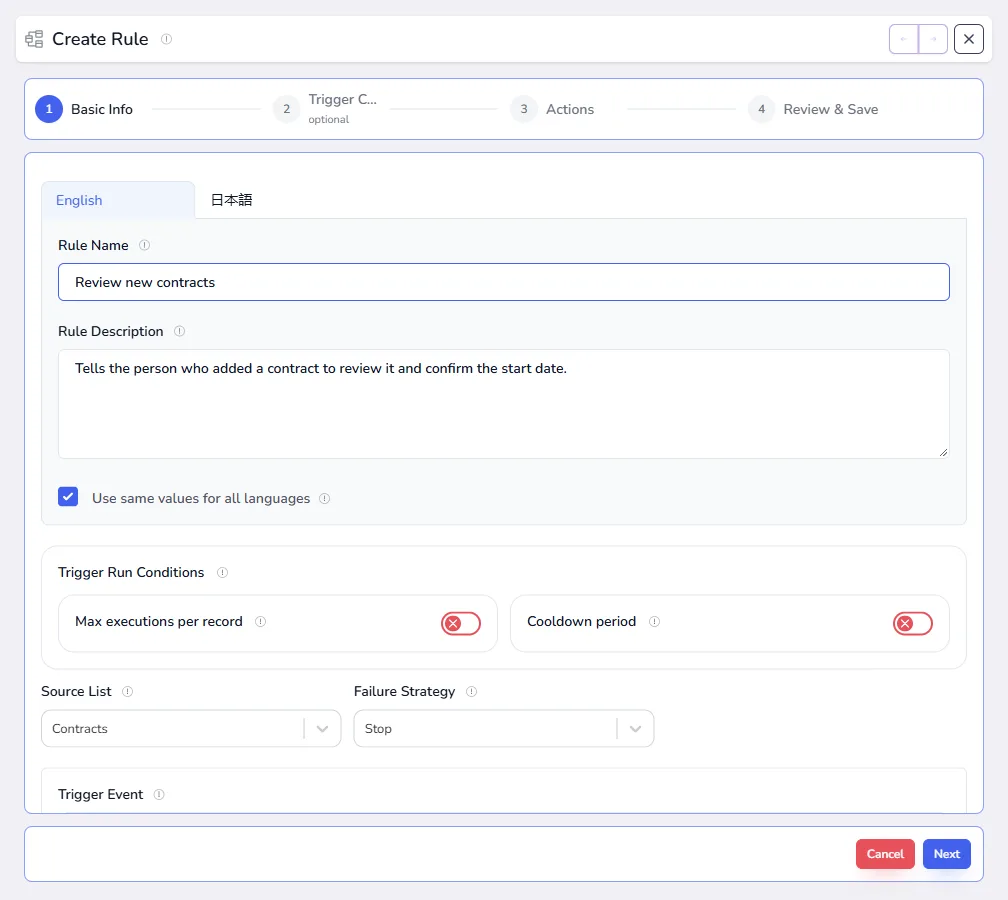
- Enter a Rule Name and a Rule Description that says what the rule does. With Use same values for all languages ticked, the same text is used for English and Japanese. Untick it to write each language yourself on the English and 日本語 tabs.
- Choose the Source List: the list the rule watches.
- Choose one or more Trigger Events:
- Record Created: a record is added to the list, by hand or by import.
- Record Updated: a record in the list is changed.
- Record Deleted: a record is deleted.
- Schedule: the rule runs on a timetable instead of waiting for a change. See Scheduled rules.
- Choose a Failure Strategy, which decides what happens if one of the rule's actions fails:
- Stop: no further actions run for that record.
- Skip: the failed action is skipped and the next one runs.
- Retry: the failed action is tried again before the rule gives up.
- Rollback: the changes the rule has already made in that run are undone, so the records are left as they were before it started.
- If needed, set the Trigger Run Conditions:
- Max executions per record: switch it on and enter a number to limit how many times the rule can run for the same record. For example, set it to 1 so a reminder is only ever sent once per record.
- Cooldown period: switch it on and enter a length of time in minutes, hours or days. After the rule runs for a record, it won't run again for that record until the cooldown has passed, however often the record changes.
- Optionally set a Rule Start Date and Rule End Date. The rule only runs between those dates, which is useful for a rule that applies to one campaign, season or project.
- Set the Priority. When several rules watch the same list and event, the rule with the lowest number runs first.
- Leave Status set to Active for the rule to run. Set it to inactive to pause the rule without deleting it.
- Select Next.
Scheduled rules
When the trigger event is Schedule, a Schedule Configuration section appears:
-
Schedule Type, one of:
Schedule type When the rule runs What to fill in Interval Every so often, such as every 2 hours. Run Interval and Interval Unit (minutes, hours or days). Daily Once a day. Run Time. Weekly On the days of the week you choose. Run Time and Week Days. Monthly Once a month. Day of Month and Run Time. Cron On any timetable you can write as a cron expression. Cron Expression, in the form minute hour day month weekday. For example, 0 9 * * 1-5runs at 9:00 on weekdays. -
Time Zone: the time zone the schedule follows.
Each time a scheduled rule runs, it checks every record in the source list against your trigger conditions, and runs the actions for each record that matches. This makes schedules useful for regular checks, such as finding contracts whose end date has passed.
Step 3: Add trigger conditions
Conditions are optional. Without any, the rule runs every time its trigger event happens. With conditions, it runs only for the records that meet them.
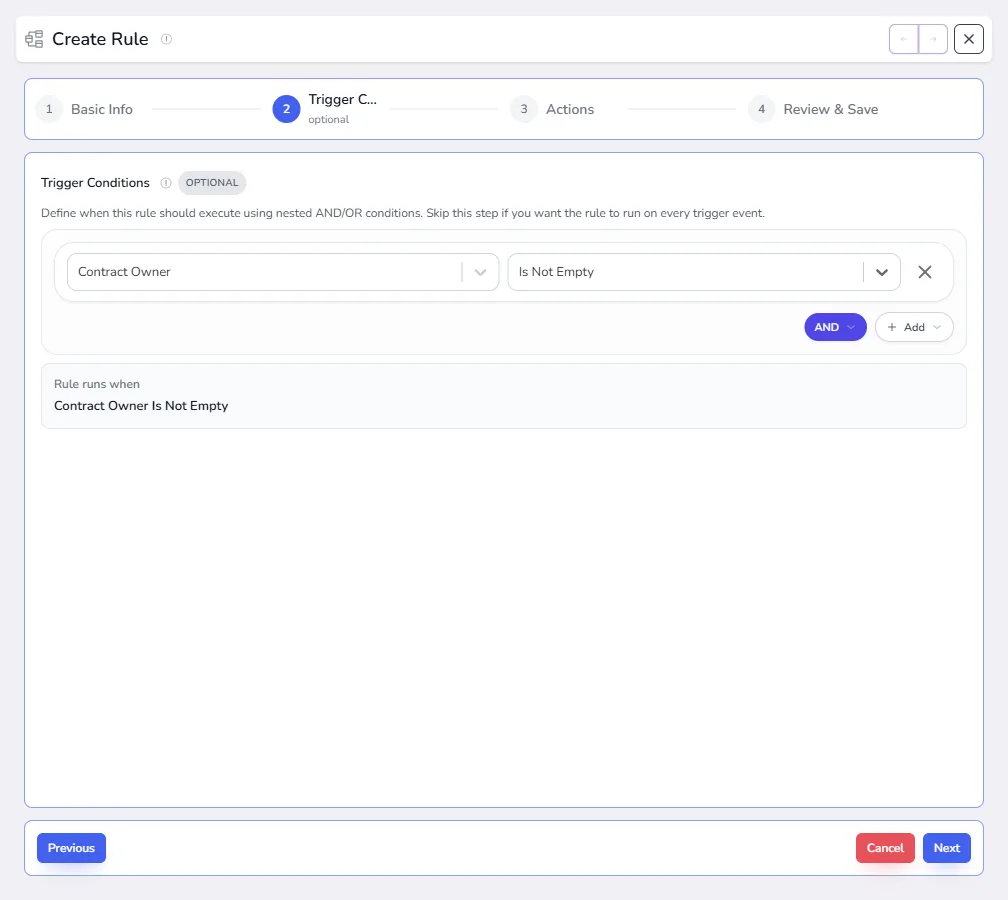
- Select Add, then Condition.
- Choose a field from the source list, an operator, and the value to compare with. The value can be Static (a value you type), System (a date such as today, or the record's created date) or Column (another field in the same record).
- To combine conditions, set AND (all must be true) or OR (any one is enough). Choose Add › Group to nest a set of conditions, for example Status is Active AND (Amount is greater than 1000 OR Priority is High).
- Check the Rule runs when summary under the conditions. It spells out the whole rule in plain words.
- Select Next.
The operators are:
| Operator | Use it to check that a field... |
|---|---|
| Equals, Not Equals | has, or doesn't have, a particular value. |
| Greater than, Greater Or Equals, Less than, Less Or Equals | is above or below a number or date. |
| Between | falls inside a range. |
| Contains, Starts With, Ends With | includes some text. |
| In, Not In | is, or isn't, one of several values. |
| Is Empty, Is Not Empty | has no value, or has one. |
| Changed | was changed in this update. Use it with Record Updated. |
| Change From To | changed from one value to another, for example Status from Draft to Approved. Use it with Record Updated. |
Step 4: Add the actions
Select Add Action and choose an Action Type. A rule can have several actions, and they run in the order they are listed.
| Action type | What it does |
|---|---|
| Create Record | Adds a new record to the Target List you choose. |
| Update Record | Updates a record. Without Match Conditions it updates the record that started the rule. With match conditions, it finds the matching records in the Target List and updates those. |
| Create Records From List | Goes through the records of a second list (the Loop Source) and creates a record in the target list for each one. Use Filter Loop Records to pick only some of them. |
| Update Records From List | Goes through the records of the loop source and updates matching records in the target list. |
| Delete Record | Deletes the record that started the rule. It goes to the list's Recycle Bin, where it can be restored. |
| Send Notification | Sends an email. See Send a notification. |
Fill in fields with Field Mapping
The create and update actions use Field Mapping to decide what goes into each field. Select Add Field, choose the target field, and then choose:
- The Operation: Set a value, Increase or Decrease a number by an amount, or Clear the field.
- Where the value comes from (Value Source): Static for a value you type, Source Column for a field from the record that started the rule, Loop Column for a field from the loop source record, System for dates such as today or the current month, Calculated for a formula, or Current Value to keep the field as it is.
For example, a rule on a Stock Received list can Increase the quantity field of the matching item in an Inventory list, using the quantity received as the source column.
Create and update actions can also send a notification when they run. Switch on Send Notification inside the action and fill in the message and recipients, the same way as for the Send Notification action.
Send a notification
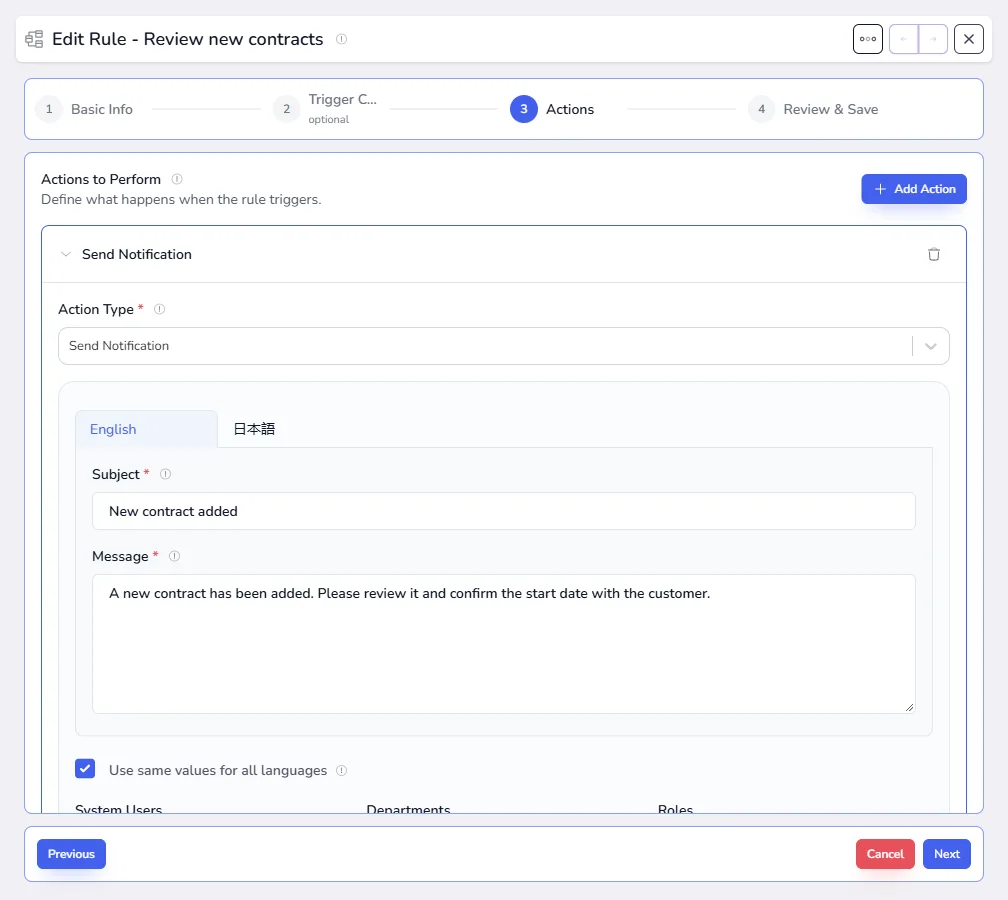
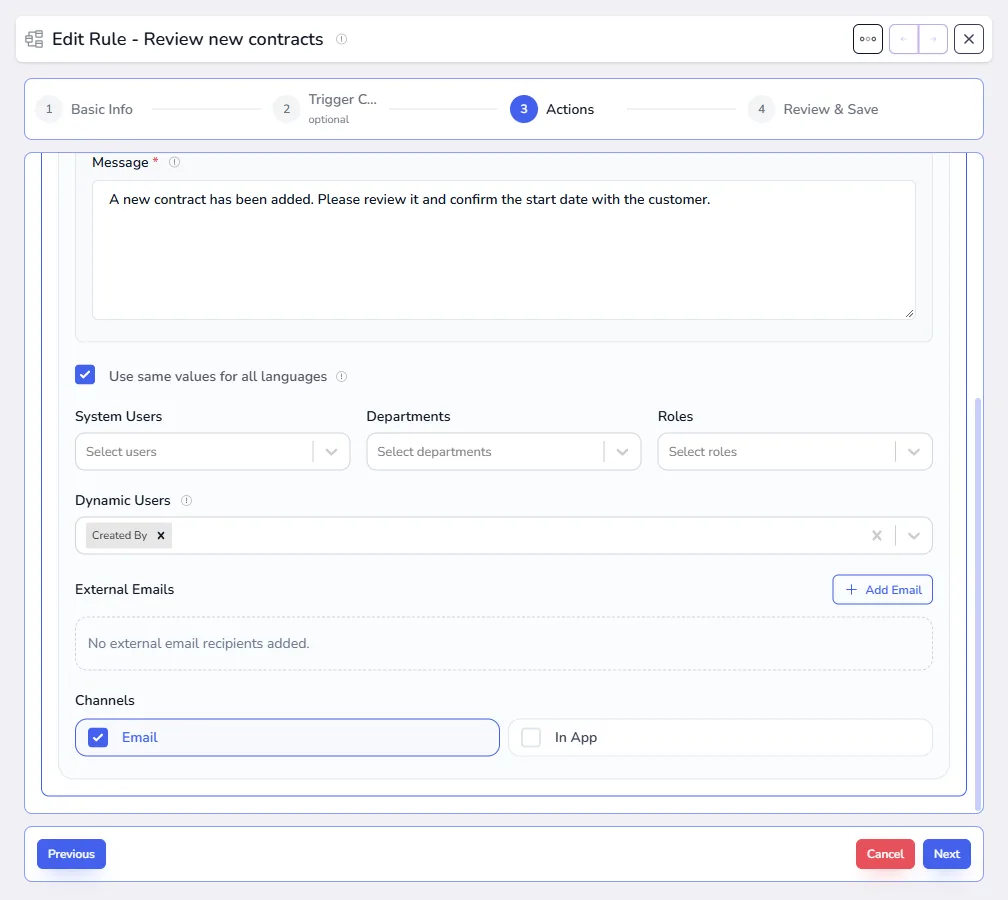
- Enter a Subject and a Message. As with the rule name, you can use the same text for every language, or write each one.
- Choose who receives it. You can combine any of these:
- System Users: particular people.
- Departments: everyone in the departments you choose.
- Roles: everyone with the roles you choose.
- Dynamic Users: people taken from the record itself, such as Created By, Updated By, Assigned To, or a user field in the list.
- External Emails: people outside FileEazy. Select Add Email and enter their name and email address.
- Under Channels, tick how it is sent. You can tick both:
- Email: sent to each recipient's email address.
- In App: appears in each recipient's notifications in FileEazy, under the bell at the top of the screen. People outside FileEazy only receive email.
Emails are sent through the mail server set up in Settings › Mail Settings. See Organisation settings.
Select Next when the actions are ready.
Step 5: Review and publish
The last step shows the whole rule: its name and description, source list, trigger events, failure strategy, priority, status, conditions and actions.
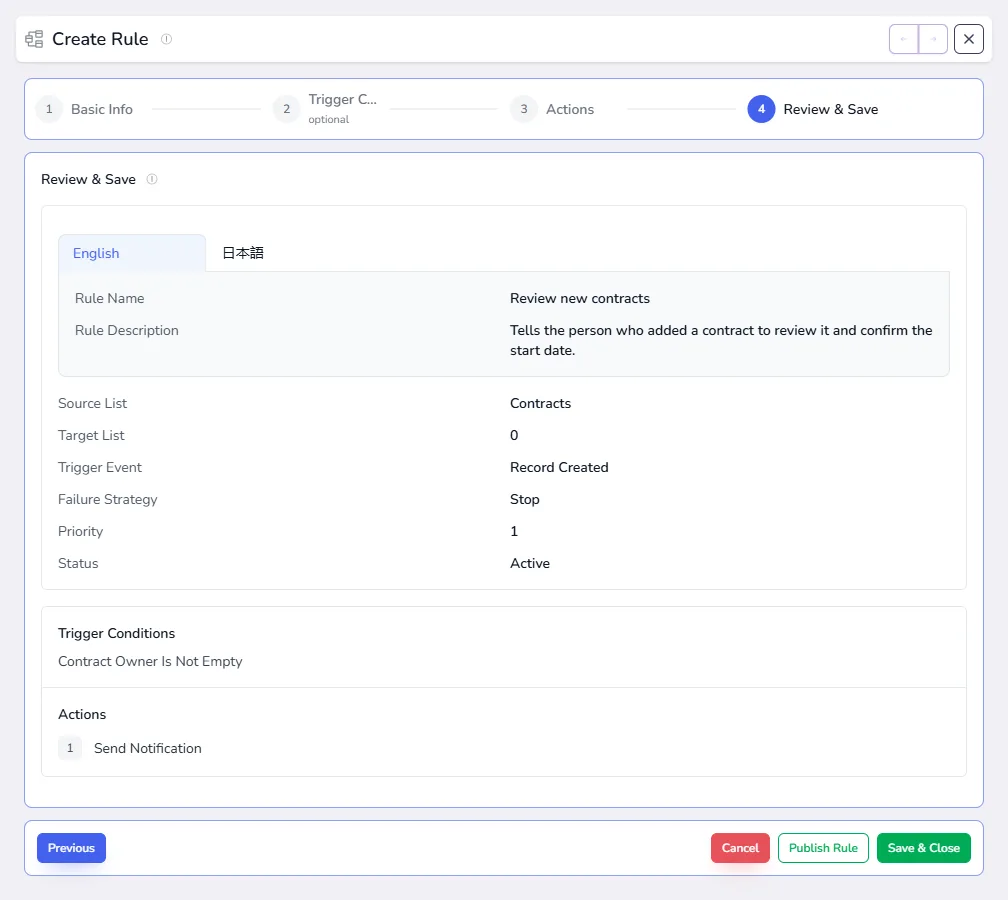
- Check each part. Select Previous to go back and change anything.
- Select Publish Rule to save it, or Save & Close to save it and return to the rules list.
The rule starts working straight away if its status is Active.
Manage your rules
On the Rules page, open the ⋯ menu next to a rule to:
- View the rule's settings.
- Edit it. Changes apply from the next time it runs.
- Duplicate it, as a starting point for a similar rule.
- Delete it. It moves to Recycle Bin (Rules), where you can restore it.
Use the search bar and filters above the table to find rules by name, source list, trigger event or status.
Check what your rules did in the Execution Logs
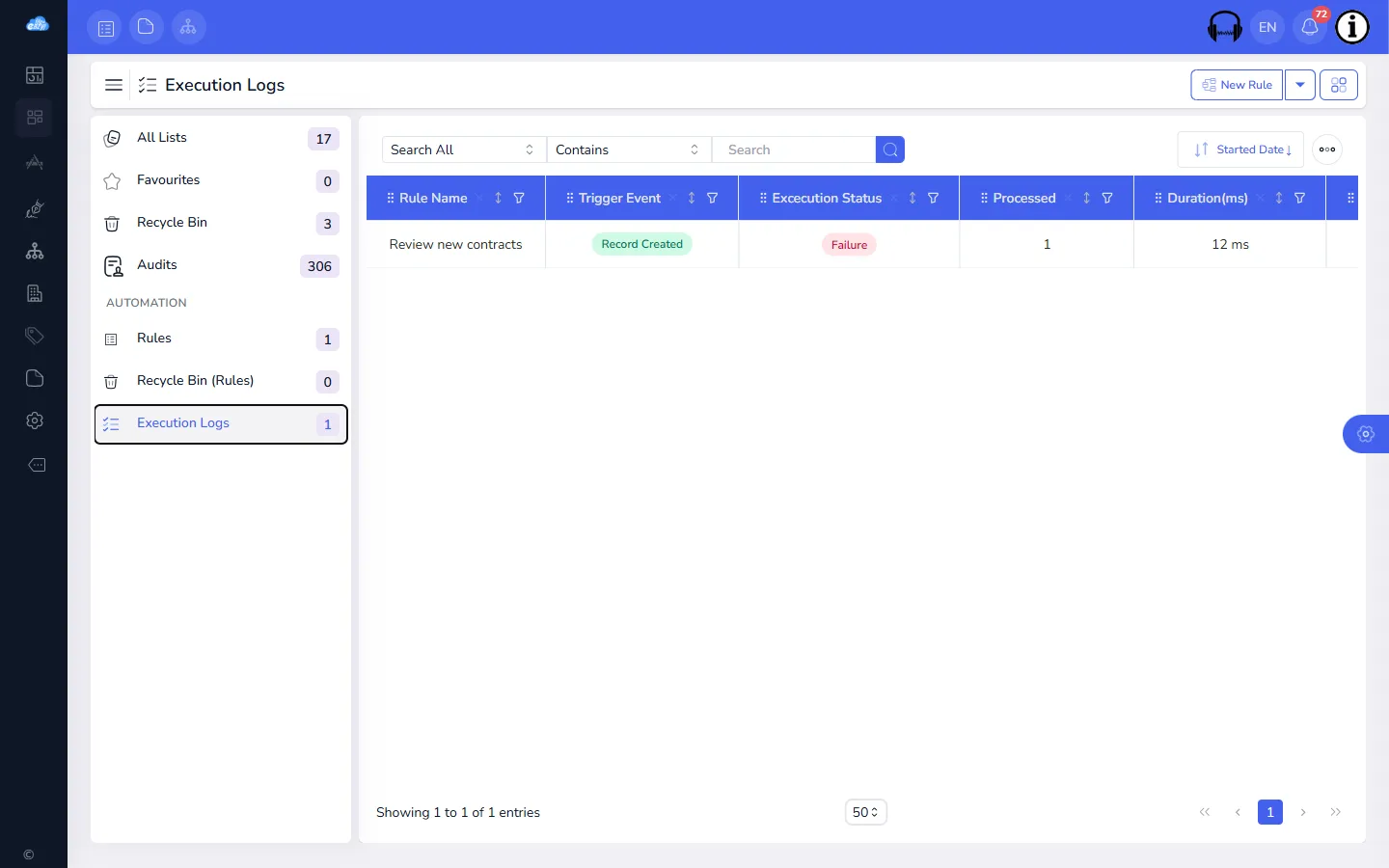
Select Execution Logs under Automation to see every time a rule has run, newest first.
| Column | What it shows |
|---|---|
| Rule Name | The rule that ran. |
| Trigger Event | What started it: Record Created, Record Updated, Record Deleted or Schedule. |
| Execution Status | Success when every action worked. Failure when an action failed and the rule stopped. Partial when an action failed but the rule carried on with the others, because its failure strategy is Skip. Rolled Back when an action failed and the rule's earlier changes were undone. |
| Processed | How many records or messages the rule's actions handled. |
| Duration (ms) | How long the run took, in milliseconds. |
| Started Date, Completed Date | When the run began and ended. |
| Executed By | Who or what started the run. |
| Error Message | Why an action failed, when it did. |
A rule that runs on a schedule adds one log entry for each record it acts on.
If a rule doesn't seem to do anything, check here first. No entry means the rule didn't start: check that it is Active, that today is between its start and end dates, that it watches the right list and event, and that a record really meets its conditions. Also check whether the record has reached the rule's Max executions per record, or is still inside its Cooldown period. An entry marked Failure or Partial means it started but an action went wrong.
Tips
- Start small. Build the rule with one action, add a test record, and check the execution log before adding more.
- Use conditions to stay precise. A rule on Record Updated with no conditions runs on every change to every record. Add Changed or Change From To so it runs only when the field you care about changes.
- Stop repeat messages. For notification rules on Record Updated, set a Cooldown period or Max executions per record so people aren't emailed every time someone saves the record.
- Pause instead of delete. Set a rule to inactive while you change a process, and switch it back on afterwards.
- Give rules clear names. The name is what you see in the execution logs, so say what the rule does, such as Notify finance when an invoice is approved.